Quick answer
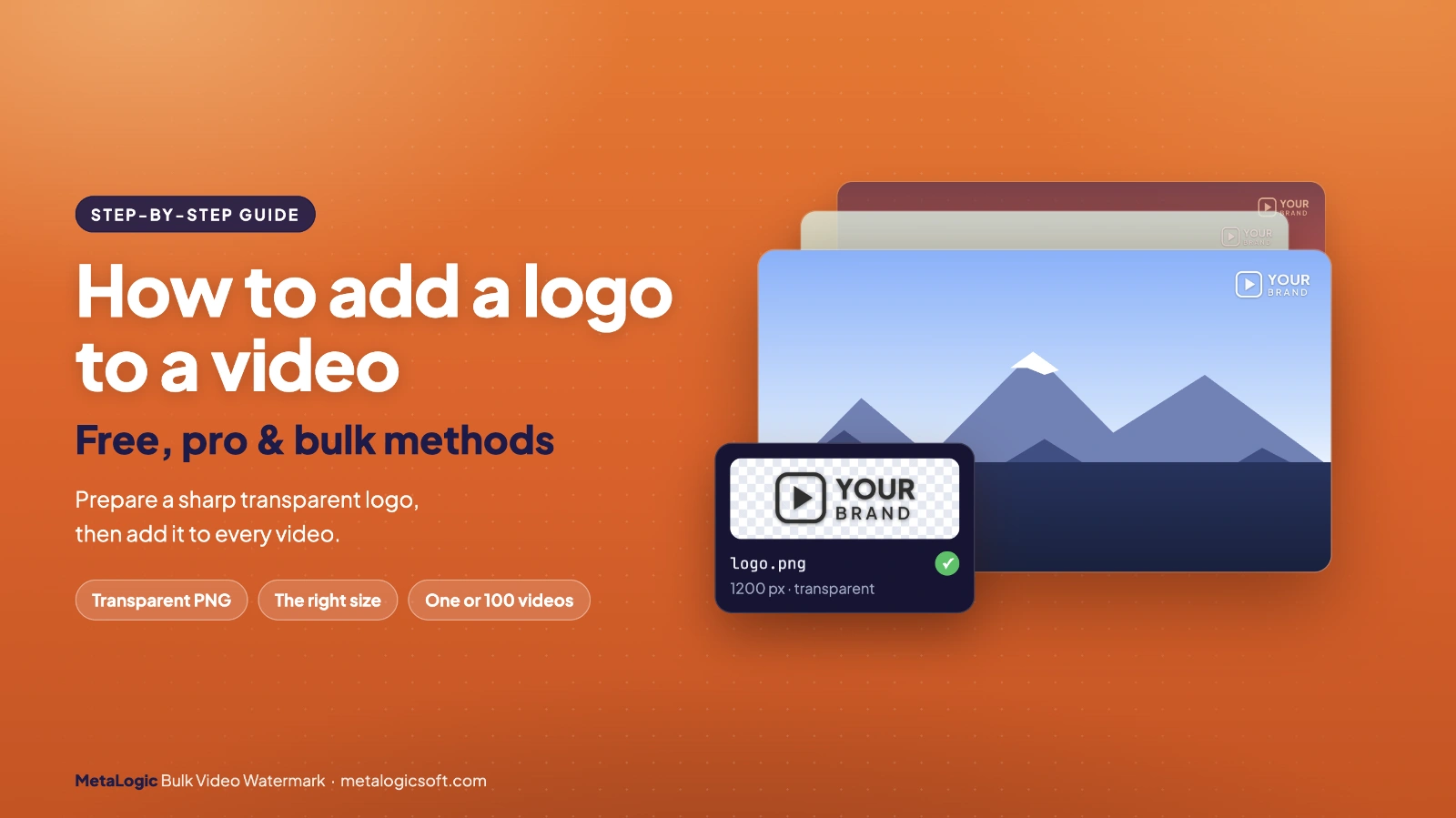
To add a logo to a video, place a transparent PNG of your logo on a layer above the video, then export a new copy. The settings that work for most videos:
- Use a PNG with a transparent background, about 1,200 pixels wide.
- Put it in a corner, about 10% of the video width, with a small margin from the edges.
- Set the opacity to 70–90% and add a soft shadow.
- Check it on your brightest and darkest scenes, then export.
- Got many videos? Apply the same settings to the whole folder in one run.
Adding a logo looks simple. Yet many logos on video look wrong: blurry edges, a white box around them, or hidden behind the Like button on TikTok.
Almost every one of these problems starts before the logo is placed. It starts with the logo file.
So this guide has two parts.
First, we prepare a logo that looks sharp on any video, with three small tests to show why each step matters. Then we add it, step by step, to one video or a whole folder.
Part 1: Prepare your logo file
Five minutes here saves hours later. A good logo file has three things: a transparent background, enough pixels, and a version that stands out on your footage.
1. Use a PNG with a transparent background
A PNG can store transparency. A JPG cannot. As MDN’s image format guide explains, JPEG has no alpha channel, so every JPG is a solid rectangle.
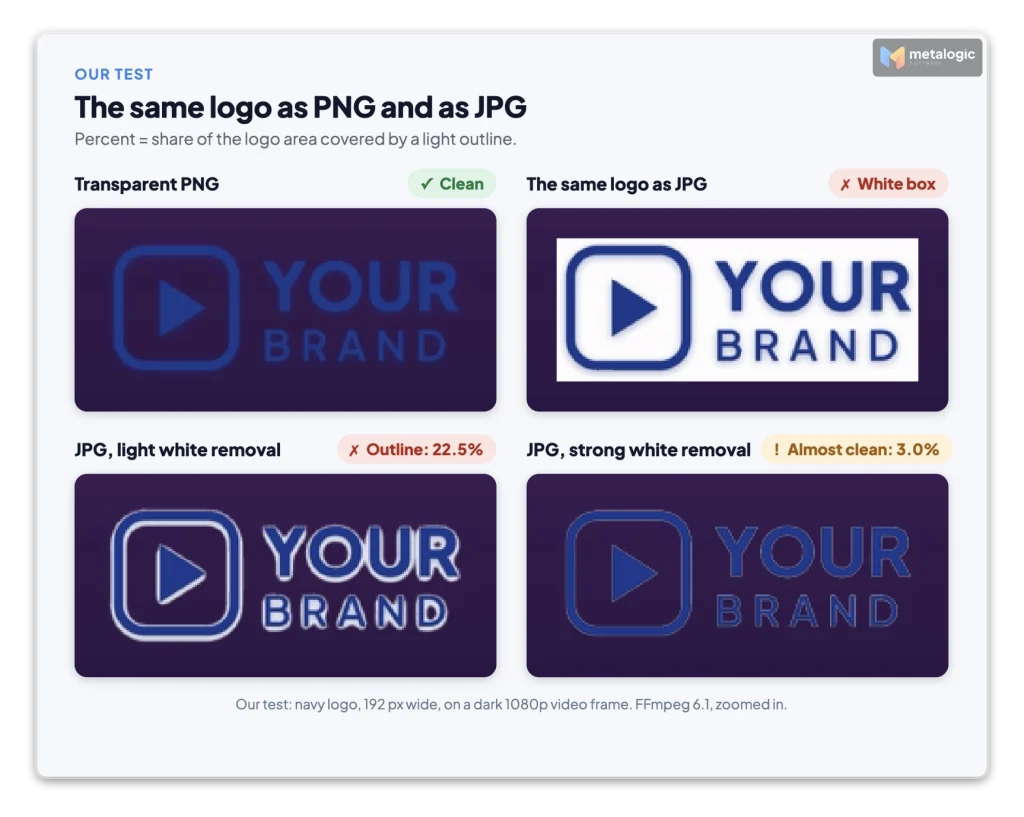
That is why a JPG logo arrives on your video with a white box around it. We tested it with a simple logo placed on a dark video:
| What we placed | Result |
|---|---|
| Logo as a transparent PNG | Clean logo. The logo itself fills only 51% of its rectangle. |
| The same logo as a JPG | A white box fills the whole rectangle around it. |
| JPG, white removed (light setting) | A light outline stays around the edges: 22.5% of the logo area. |
| JPG, white removed (medium setting) | A thinner outline: 7.9% of the area. |
| JPG, white removed (strong setting) | Almost clean: 3.0% of the area. |
Only have a JPG?
You can remove the white background, but a strong setting also removes any white parts inside your logo. If your logo has white text or shapes, ask your designer for a transparent PNG instead.
2. Make the file big enough
When a small logo is stretched to fit a large video, it gets blurry. When a large logo is shrunk, it stays sharp.
To measure this, we placed the same logo at 10% of a 4K frame, which is 384 pixels wide. We started from four file sizes and compared the edges with a perfect version:
| Logo file width | Stretched or shrunk | Edge sharpness |
|---|---|---|
| 96 px | Stretched 4× | 39% |
| 192 px | Stretched 2× | 51% |
| 384 px | Same size | 100% |
| 1,152 px | Shrunk 3× | 100% |
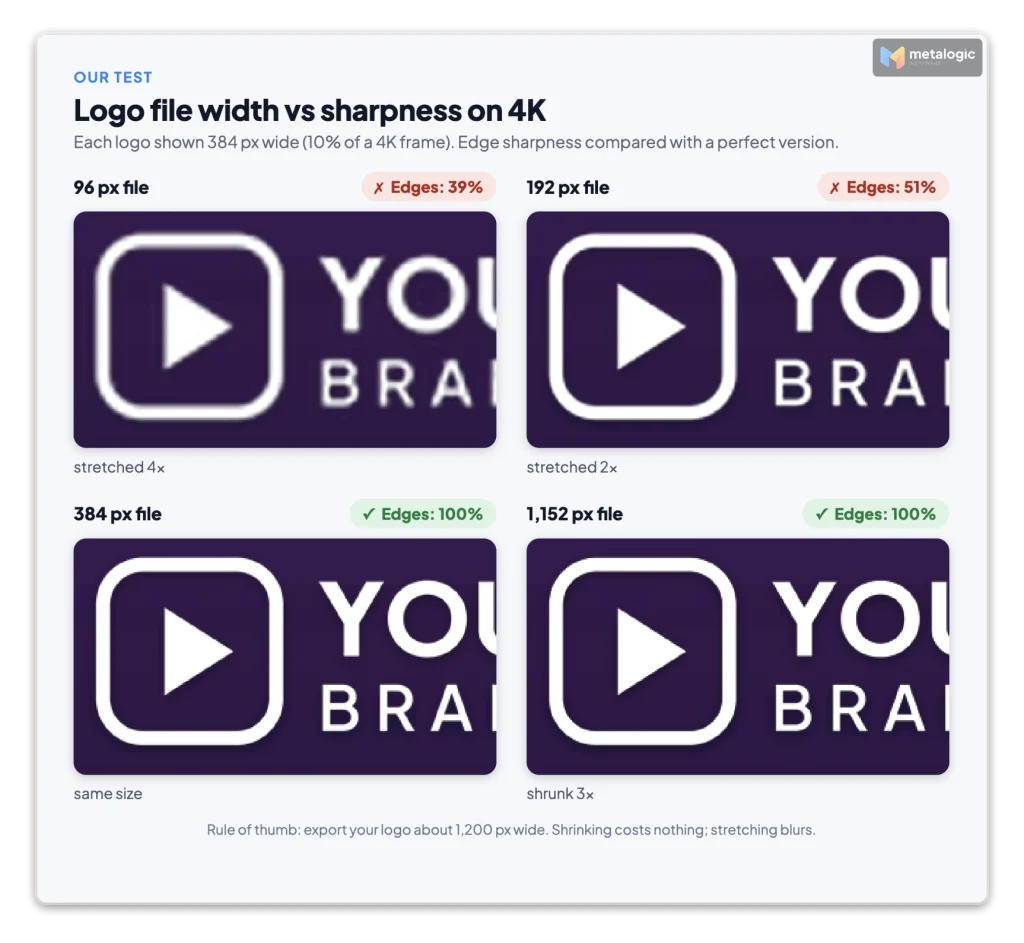
Stretching a logo just 2× cut its edge sharpness in half. Shrinking a big file cost nothing. So always start bigger than you need.
Here is how wide a logo actually appears on screen:
| Video | Logo at 10% width | Logo at 15% width |
|---|---|---|
| 720p (1280 × 720) | 128 px | 192 px |
| 1080p (1920 × 1080) | 192 px | 288 px |
| 4K (3840 × 2160) | 384 px | 576 px |
| Vertical (1080 × 1920) | 108 px | 162 px |
Our rule of thumb
Export your logo about 1,200 pixels wide. That stays sharp up to 30% of a 4K frame, which is bigger than any normal watermark.
3. Have a light and a dark version
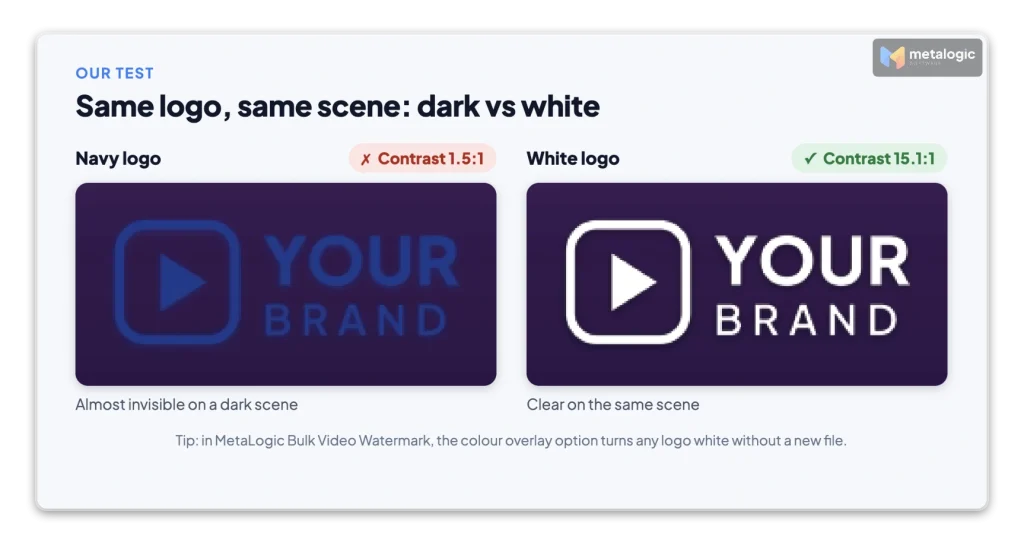
A dark logo disappears on dark footage. In our test, a navy logo on a dark purple scene had a contrast of just 1.5:1. The white version of the same logo reached 15.1:1.
Most brands need two files: a white logo for dark videos and a dark logo for bright ones. A one-colour version usually reads better than a full-colour logo at small sizes.
No white version?
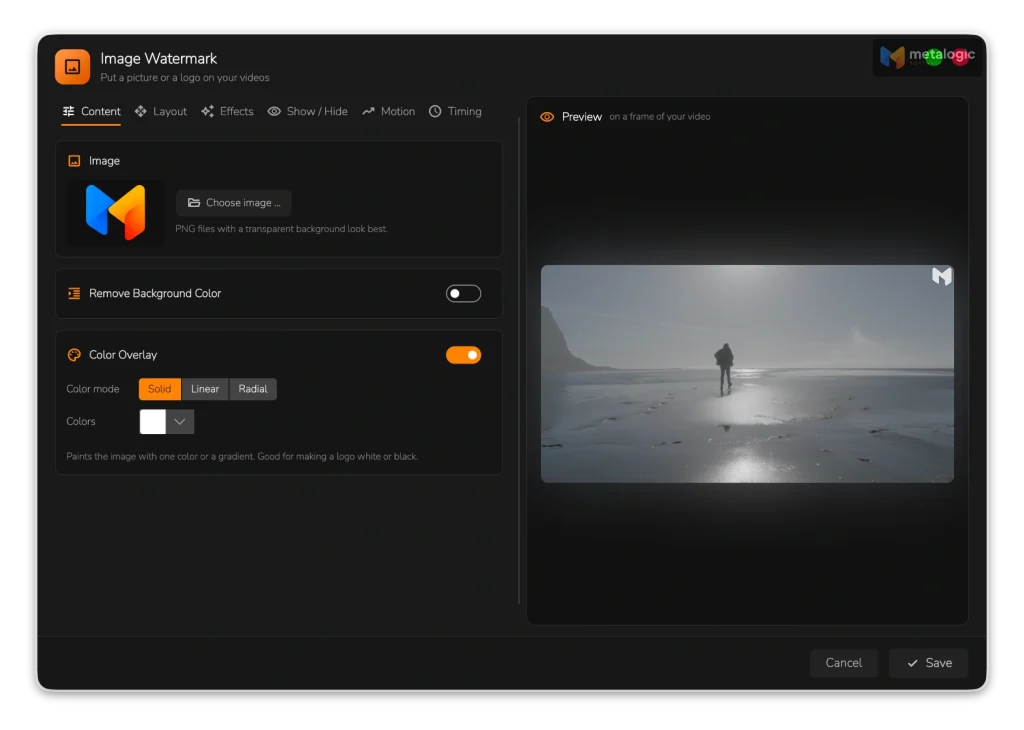
In MetaLogic Bulk Video Watermark, the colour overlay option turns the whole logo white, black or any colour. It changes only the logo, not its transparent background.
4. Trim the empty space
Many logo files have a wide transparent border. It makes the logo sit further from the corner than you expect and throws off the size.
Crop the file tight to the logo before you use it. Our app does this for you: it trims transparent edges automatically, so margins are measured from the logo itself.
Part 2: How to add a logo to a video, step by step
We will use MetaLogic Bulk Video Watermark, our desktop app for Windows and macOS. It works offline, and the steps are the same for one video or a hundred.
Step 1: Add your videos
Drag one video, several videos or a whole folder onto the app window. All common formats work, including MP4, MOV, MKV, AVI and WebM.
Step 2: Add an image layer with your logo
Add an image layer and choose your logo file. PNG, JPG, GIF and BMP files are supported. If your file has a white or coloured box, turn on background colour removal.
Step 3: Choose the position and margins
Pick one of the 9 positions on the 3×3 grid. Then set the margins in pixels, so the logo does not touch the edge.
About 40 pixels works well on 1080p video. For vertical videos, read the safe-zone section below before you choose.
Step 4: Set the size as a percent
Set the size as a percent of the video instead of a fixed pixel size. A logo set to 10% looks the same on a 720p clip and a 4K film.
Step 5: Set opacity and effects
- Opacity: 70–90% for a clear but calm logo.
- Shadow: a soft dark shadow keeps a white logo visible on bright scenes.
- Optional: glow, border, rotation, timing and show or hide animations.
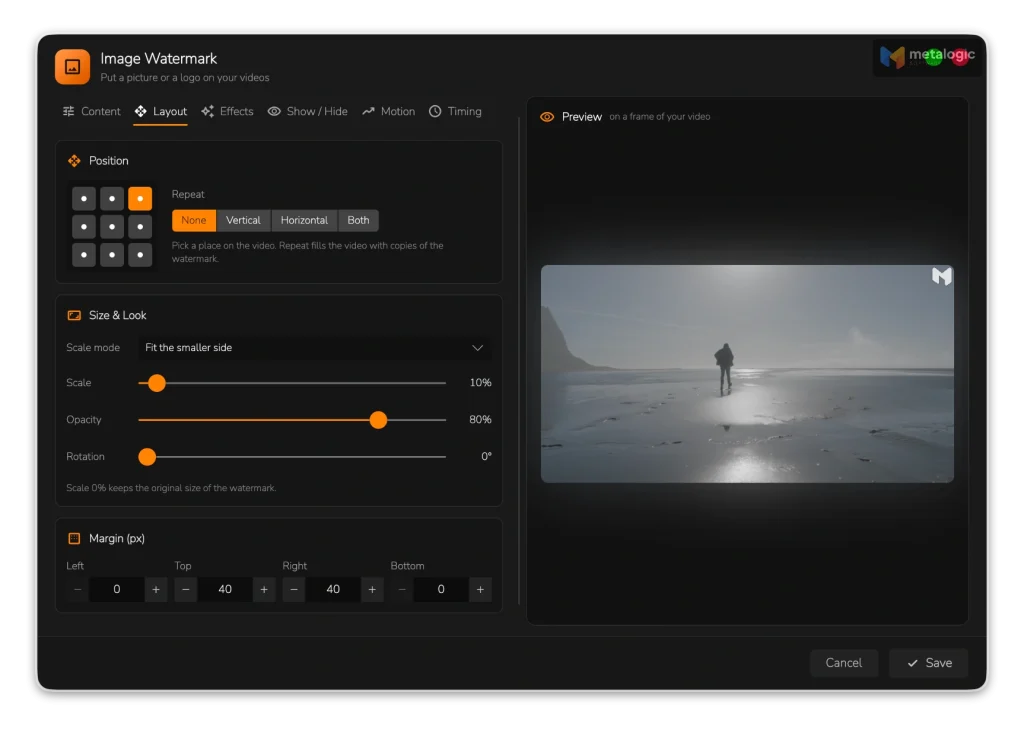
Step 6: Preview, save and export
Check the preview on a bright scene and a dark scene. If the logo is hard to see on one of them, add a shadow or switch to your other logo version.
Then save the setup as a profile, for example “Brand A – logo top-right”. Next time, one click loads it again.
Press Start. The app adds the logo to every video in the list and keeps your originals untouched. For large jobs, see our guide to watermarking a whole folder of videos.
Where to put your logo (and where not to)
Horizontal videos (16:9)
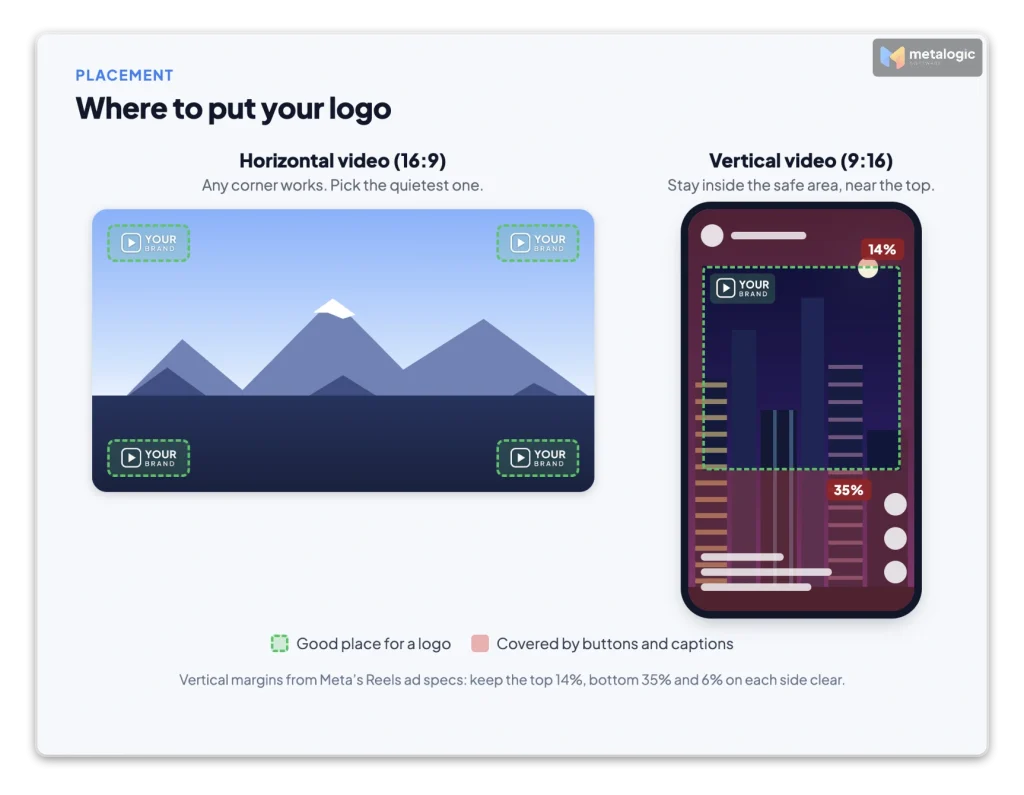
A top or bottom corner is the classic place. Choose the corner with the least action in your footage, and keep the same corner on every video.
Vertical videos (9:16)
On TikTok, Reels and Shorts, the app’s buttons and captions cover large parts of the screen. A logo in the bottom-right corner often ends up under the Like and Share buttons.
| Platform guidance | Keep clear (1080 × 1920) |
|---|---|
| Instagram Reels ads (Meta) | Top 14% · bottom 35% · 6% on each side |
| TikTok In-Feed ads | Top 240 px · bottom 660 px · 120 px on each side |
Meta’s Reels ad specs ask advertisers to keep these areas free of logos and text. TikTok’s In-Feed ad template gives similar margins.
They are written for ads, but the same buttons appear on normal posts too. So for vertical videos, place your logo in the upper part, just inside the safe area.
Want more placement and style options? See our 20 video watermark ideas with ready-to-use settings.
Other ways to add a logo to a video
| Method | Best for | Many videos at once | Logo stays in the file |
|---|---|---|---|
| Desktop batch app | Regular work, many videos | Yes | Yes |
| Video editor | A video you are already editing | No, one at a time | Yes |
| Online tool | One short clip, quickly | No | Yes, but free plans may add their own mark |
| FFmpeg | Technical users, scripts | Yes, with a script | Yes |
| YouTube’s video watermark | Videos already on YouTube | Yes, on YouTube only | No |
Our complete guide to watermarking a video walks through Premiere Pro, DaVinci Resolve, Clipchamp, iMovie and online tools in detail. Two options deserve a short note here.
FFmpeg: free, one command
This command puts a logo 192 pixels wide in the top-right corner, 40 pixels from the edges, at 80% opacity. We tested it on a 1080p video:
ffmpeg -i input.mp4 -i logo.png -filter_complex "[1:v]scale=192:-1,format=rgba,colorchannelmixer=aa=0.8[logo];[0:v][logo]overlay=W-w-40:40" -c:v libx264 -crf 20 -c:a copy output.mp4Change 192 to match your video size, and W-w-40:40 to move the logo. The overlay filter documentation lists every option.
Adding a logo to videos you already uploaded
YouTube has a built-in video watermark: a square image of at least 150 × 150 pixels and under 1 MB. You can show it at the end, from a set time, or for the whole video.
It applies to eligible videos on your channel without re-uploading, but it is not part of the file. If someone downloads and reposts your video, the logo is gone.
Other platforms do not offer this. To add a logo to videos you have already posted there, add it to the original files and upload them again.
6 common mistakes (and quick fixes)
| Mistake | Fix |
|---|---|
| A white box around the logo | Use a transparent PNG, or remove the background colour |
| A blurry logo | Export the file about 1,200 px wide, never stretch a small one |
| A dark logo on dark video | Use a white version, or add a soft shadow |
| Hidden under platform buttons | On vertical video, keep the logo in the upper safe area |
| Too big or too solid | Stay around 10% width and 70–90% opacity |
| No original kept | Always export to a new file; the logo cannot be removed later |
Frequently asked questions
How do I put a logo on a video for free?
Use FFmpeg with the command above, a free video editor, or a free online tool for short clips. Our app has a 14-day free trial if you want to process many videos.
What size should my logo be on a video?
About 8–12% of the video width for a corner logo. Export the file around 1,200 pixels wide so it stays sharp at any size.
Should my logo be a PNG or a JPG?
A PNG with a transparent background. A JPG always has a solid background, which shows up as a box around your logo.
How do I add a logo to many videos at once?
Use a batch tool. Set up the logo once, save it as a profile, and apply it to the whole folder in one run.
Can I add a logo to videos I have already uploaded?
On YouTube, yes: the built-in video watermark shows on eligible videos without re-uploading. On other platforms, you need to add the logo to the files and upload them again.
Where should I put my logo on TikTok or Reels?
In the upper part of the frame, away from the right edge and the bottom third. That is where the platform buttons and captions sit.
Add your logo to every video in one go
Load your logo once, set the position, size and opacity, and apply it to one video or a whole folder. It all runs offline, on your own computer.
Windows 10+ and macOS 12+. 14-day free trial and 14-day money-back guarantee.
Sources
- MDN: Image file type and format guide. PNG transparency and JPEG’s lack of an alpha channel.
- Meta: Instagram Reels ad specs. Safe-zone margins for 9:16 creatives.
- ManyPixels: TikTok ad sizes and specs. TikTok In-Feed safe-zone margins.
- YouTube Help: Manage your channel branding. Video watermark size and display options.
- vidIQ: How to add a YouTube video watermark. Applies without re-uploading, not baked into the file.
- FFmpeg Filters Documentation: overlay. The filter used in our command.
- MetaLogic Bulk Video Watermark. Image layers, colour overlay, margins and profiles.
We make MetaLogic Bulk Video Watermark. The logo tests in this article were run on 23 November 2026 with FFmpeg 6.1, using our sample logo on 1080p and 4K frames. Results will differ with other logos and footage.