Quick answer
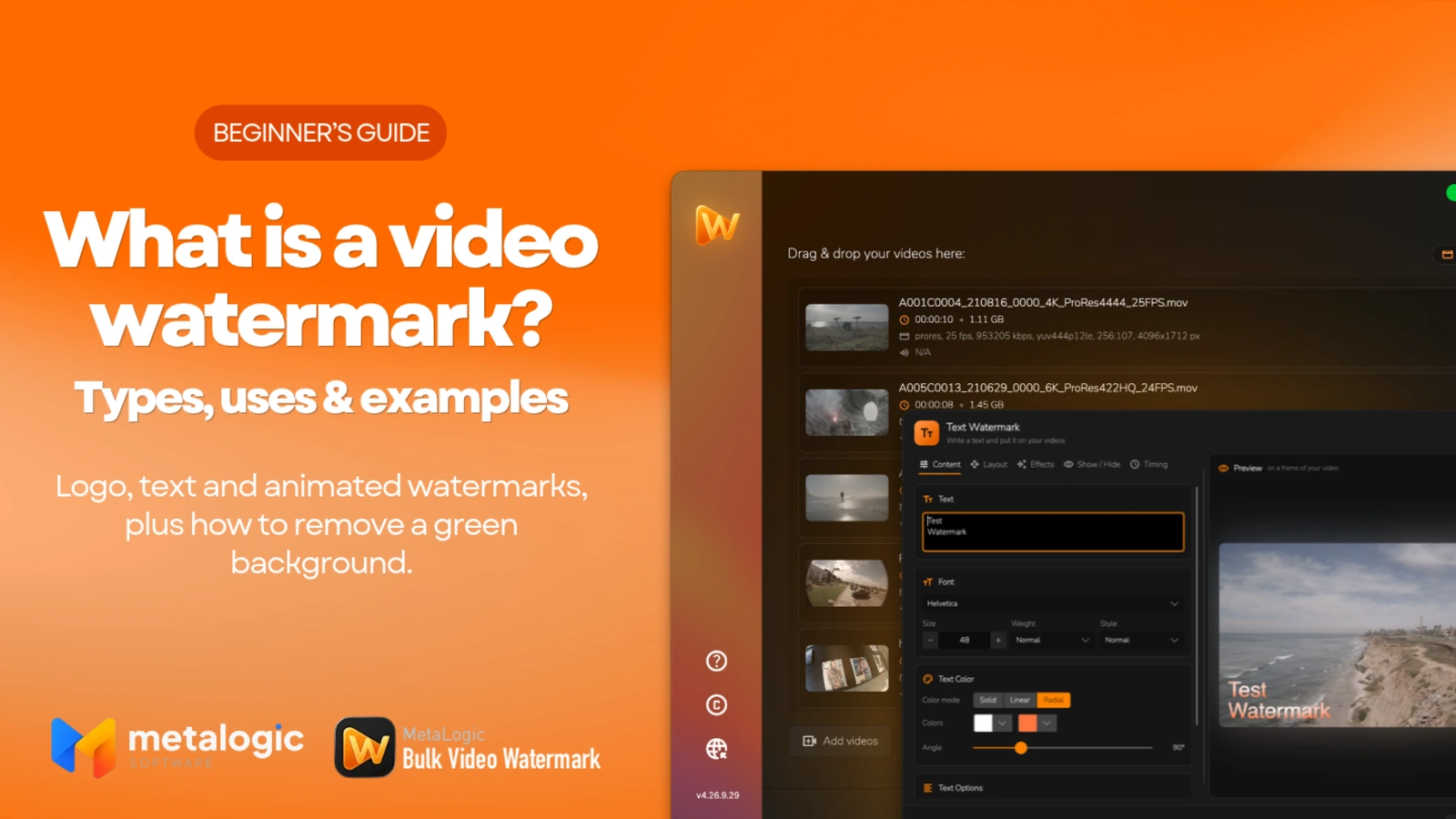
A watermark on a video is a logo, a line of text or a small animation placed on top of the picture, so viewers can see who owns or made the video.
It is usually small and semi-transparent. When the video is exported, it becomes part of every frame, so it stays on the video wherever it is shared.
The main types are a logo, text, logo + text, an animated watermark and a repeated pattern. There are also invisible watermarks, which people cannot see.
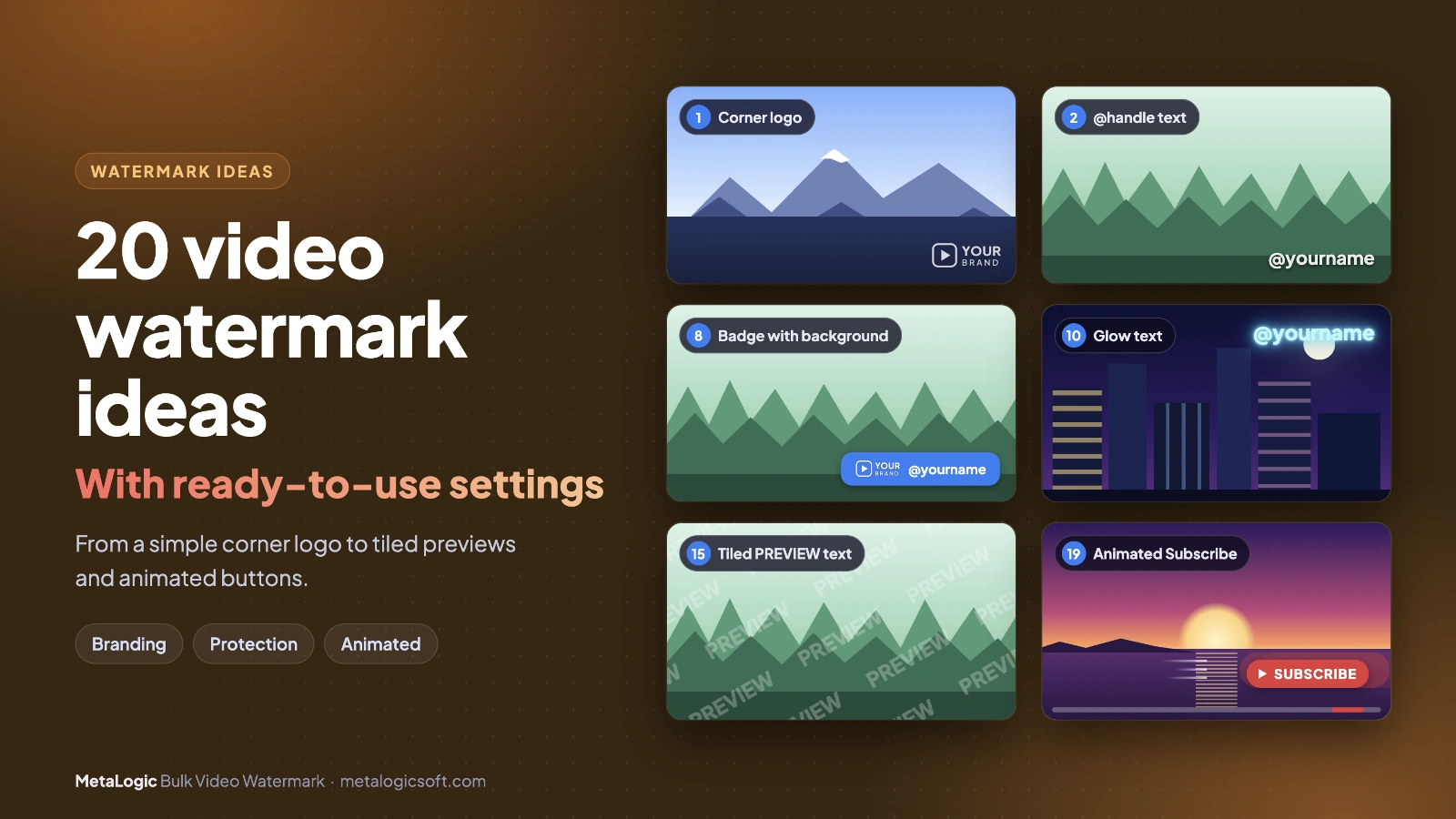
You have seen video watermarks thousands of times. The small channel logo in the corner of a TV show. The faint “PREVIEW” text across a stock video. The @name that floats on a TikTok clip.
They look simple, but there is more behind them than you might think. Some are still, some move. Some come as a video file with a green background that has to be removed first.
This guide explains it all in plain language:
- what a video watermark is and how it gets “burned” into the video
- the six types, and when to use each one
- animated watermarks: which file formats work, and which one to choose
- how to remove the green or black background of a watermark video
- real examples by job, plus honest pros and cons
What is a watermark on a video?
A video watermark is any mark you place on top of a video to show who it belongs to. It can be your logo, your name, your website or a small animation.
Most video watermarks are visible. They sit in a corner, take up a small part of the frame and are partly see-through.
TV channels have used this idea for decades: their logo stays in the corner of the screen the whole time.
The key point is that the watermark is not a separate file next to the video. It is drawn into the picture itself. If someone downloads the video and posts it elsewhere, the watermark goes with it.
How a watermark gets into a video
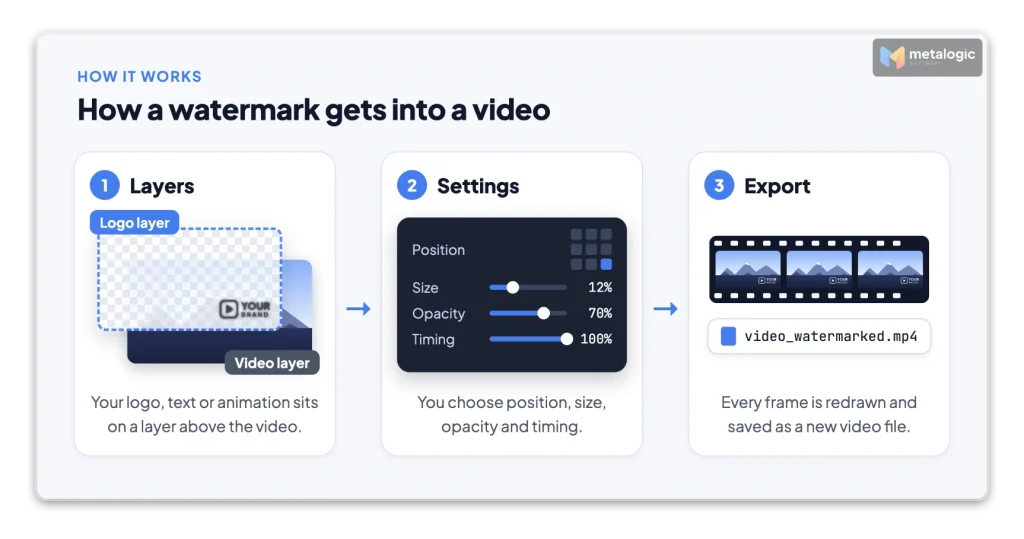
Every video is a series of pictures, called frames. A watermark tool simply draws your mark on each of those frames. It happens in three steps:
- Layers. Your video is the bottom layer. Your logo, text or animation is placed on a layer above it.
- Settings. You choose where the mark sits, how big it is, how see-through it is and when it appears.
- Export. The tool combines the layers frame by frame and saves a new video file. This is called encoding.
Why the original file matters
After export, the watermark is part of the picture. There is no clean “undo”. That is why you should always keep your original video and save the watermarked one as a new file.
The 6 types of video watermark
Each type does a different job. Here is a quick overview, followed by a short explanation of each one.
| Type | What viewers see | Main job |
|---|---|---|
| Logo | A small brand mark in a corner | Brand recognition |
| Text | A name, @handle, website or © line | Clear credit |
| Logo + text | Both, often in two different places | Credit and stronger protection |
| Animated | A mark that moves, fades in or plays a short animation | Attention and harder cropping |
| Repeated (tiled) | A faint mark repeated across the whole frame | Protecting previews and drafts |
| Invisible | Nothing — the data is hidden inside the picture or sound | Tracking leaks |
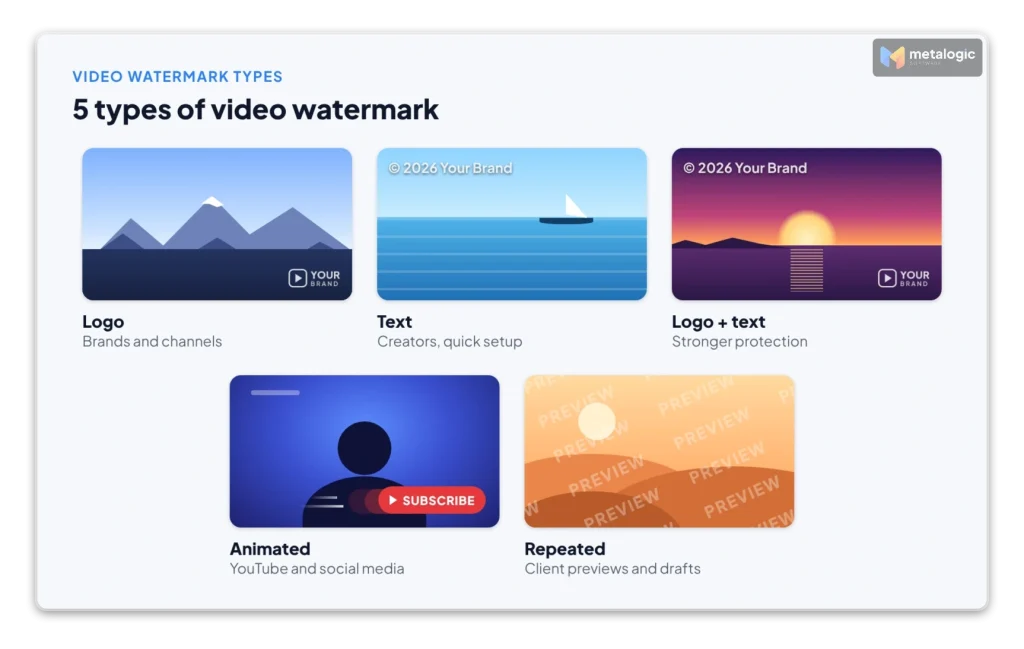
Logo watermark
The most common type. A small logo, often in the bottom-right or top-right corner, tells viewers which brand or channel made the video. It works best as a PNG file with a transparent background.
Text watermark
A short line such as © 2026 Your Brand, @yourname or yourwebsite.com. It is quick to set up and very clear.
It is a good choice when you do not have a logo yet, or when you want people to find you by name.
Logo + text
Using both gives brand recognition and a clear credit at the same time. Placing them in two different corners also makes the watermark harder to crop out.
Animated watermark
A watermark that moves, fades in and out, or plays a short animation, such as a Subscribe button. It gets more attention than a still logo. Because it is the most flexible type, it has its own section below.
Repeated (tiled) watermark
A faint logo or word, like “PREVIEW”, repeated across the whole picture. It is used on drafts sent to clients and on stock footage previews.
It is very hard to remove, but it also makes the video less pleasant to watch, so it is not for public posts.
Invisible watermark
Hidden information placed inside the picture or the sound. People cannot see it; special software is needed to read it.
Film studios and streaming services use it to find out where a leaked copy came from. It needs specialist tools, and it does not show your brand to viewers.
Which types MetaLogic Bulk Video Watermark creates
Our app makes visible watermarks: logo, text, logo + text, animated and repeated. You can mix all of them as layers in one video. It does not create invisible watermarks.
Animated watermarks: when a still logo is not enough
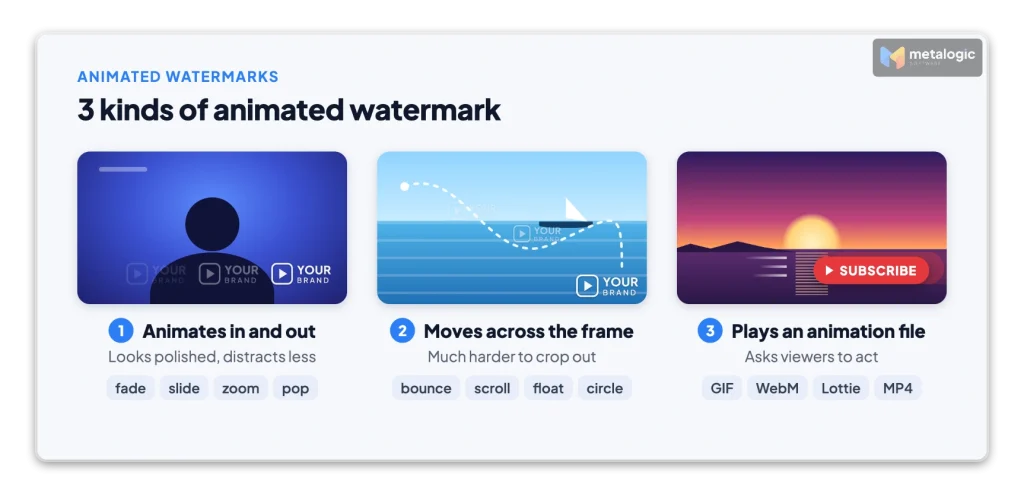
“Animated watermark” can mean three different things. All three are useful, for different reasons.
| Kind | Example | Why use it |
|---|---|---|
| A still mark that animates in and out | Your logo fades in, stays, then slides away | It looks polished and is less distracting |
| A moving watermark | Your logo or @name bounces or drifts across the frame | It is much harder to crop out or cover |
| An animation file used as a watermark | A Subscribe button, a follow banner or a short intro sting | It asks viewers to act |
A few simple rules keep animated watermarks effective:
- Keep it short. An animation of 1 to 3 seconds is enough. Long animations pull attention away from your content.
- Show it at the right moment. A Subscribe button works best near the end. You do not need it on screen for the whole video.
- Check the sound. Some animation files have sound effects, like a click. Decide if you want that sound mixed into your video, and how loud.
- Keep movement calm. A slow drift protects your video. A fast, jumpy watermark annoys viewers.
Which file format should an animated watermark use?
This is where many people get stuck. The format decides whether the background of your animation is truly see-through, how sharp the edges look and how big the file is.
To compare them fairly, we exported the same 3-second animated logo (640×240 pixels, 30 frames per second) in six formats with FFmpeg 6.1. Here is what we found:
| Format | Transparency | File size in our test | Good to know |
|---|---|---|---|
| GIF | On or off only (2 levels) | 380 KB | Soft shadows and smooth edges are lost |
| APNG (animated PNG) | Full (256 levels) | 352 KB | Lossless quality, larger files |
| Animated WebP | Full | 215 KB | Good quality at a smaller size |
| WebM (VP9 with alpha) | Full | 33 KB | Very small, made for video |
| MOV (ProRes 4444) | Full | 8.3 MB | Professional editing format, very large |
| MP4 (H.264) | None | 26 KB | Needs a coloured background that you remove |
What our test shows
When we asked FFmpeg to save transparency in an H.264 MP4, it refused and switched to a format without transparency. So an MP4 animation always arrives with a solid background, usually green or black.
The GIF version kept only two levels of transparency. The soft shadow around our logo disappeared, while the APNG version kept it.
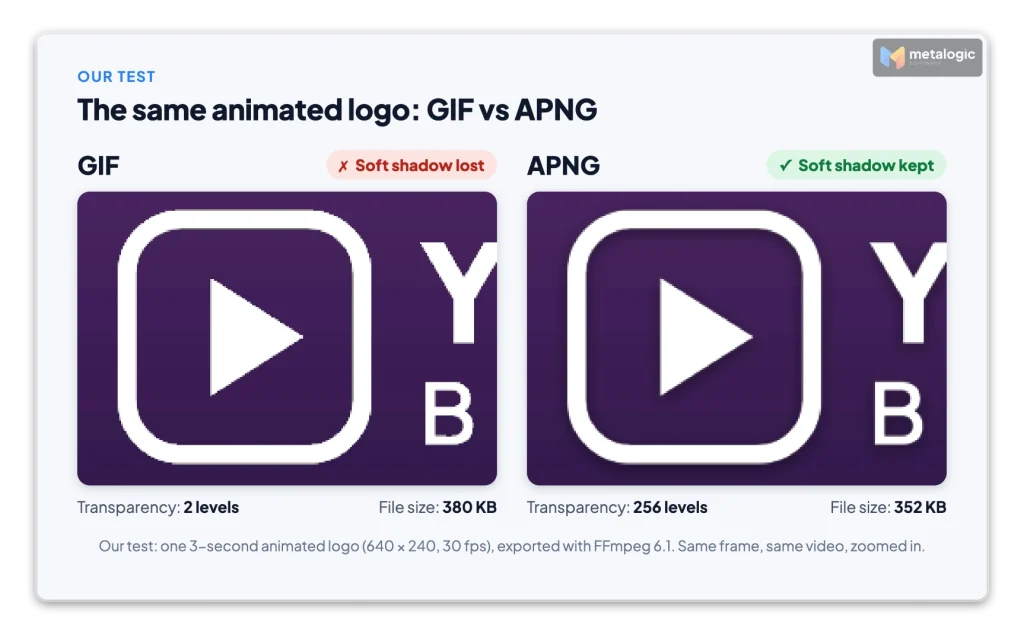
These results match the official guides. GIF supports only simple 1-bit transparency, and MDN suggests WebP, AVIF or APNG instead of GIF for animation.
For video files, WebM with VP8 or VP9 can carry an alpha channel, and Apple ProRes 4444 supports alpha channels as well.
There is one more format worth knowing. Lottie is a JSON-based animation format made of vector shapes, so it stays sharp at any size and the files are tiny.
You can find many ready-made Subscribe buttons and icons as Lottie files.
Our recommendation
- Have a choice? Use WebM or Lottie for small files, or APNG or WebP for image-style animations.
- Working with a video editor’s export? MOV with ProRes 4444 keeps perfect quality and transparency.
- Only have an MP4 or a GIF? It still works. For an MP4, remove its background, as explained next.
How to remove the background of a watermark video
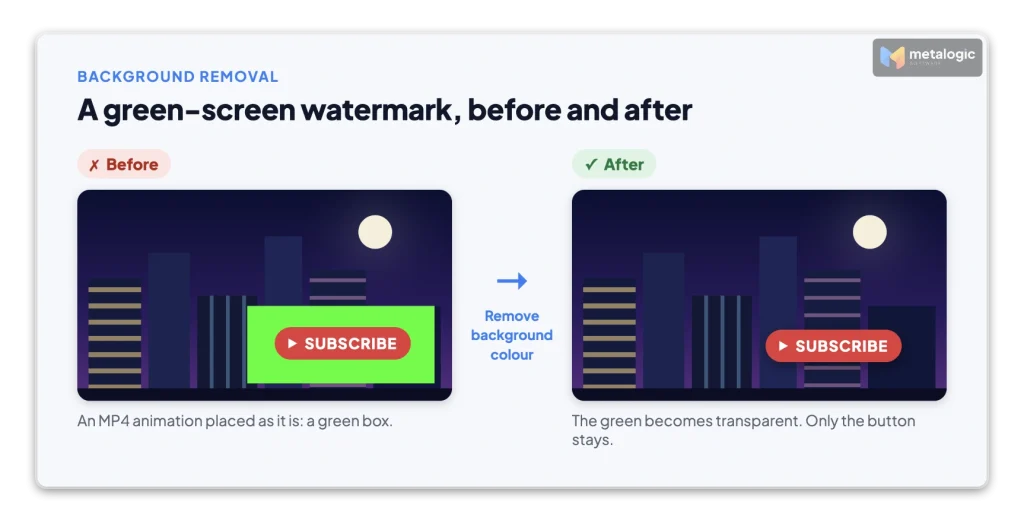
Many animated logos, Subscribe buttons and intro stings are sold or exported as MP4 files. As our test showed, an MP4 cannot store transparency. So the animation comes on a solid background, usually bright green, sometimes black or white.
If you place that file on your video as it is, you get a green box.
The fix is background removal, also called chroma keying or “green screen”. You tell the tool which colour to remove, and every pixel of that colour becomes transparent.
Our test: where does the green edge come from?
We placed our green-screen MP4 logo on a video and removed the green with FFmpeg’s chromakey filter.
Then we counted the clearly green pixels left around the logo, and measured how bright the white logo stayed (255 = pure white).
| Setting | Green pixels left | Logo brightness | Result |
|---|---|---|---|
| Normal removal only | 6,337 | 254 | A thin green outline around the logo |
| Normal removal + green spill removal | 0 | 253 | Clean edges, solid logo |
| Very strong removal + spill removal | 0 | 206 | No green, but the logo turns pale and see-through |
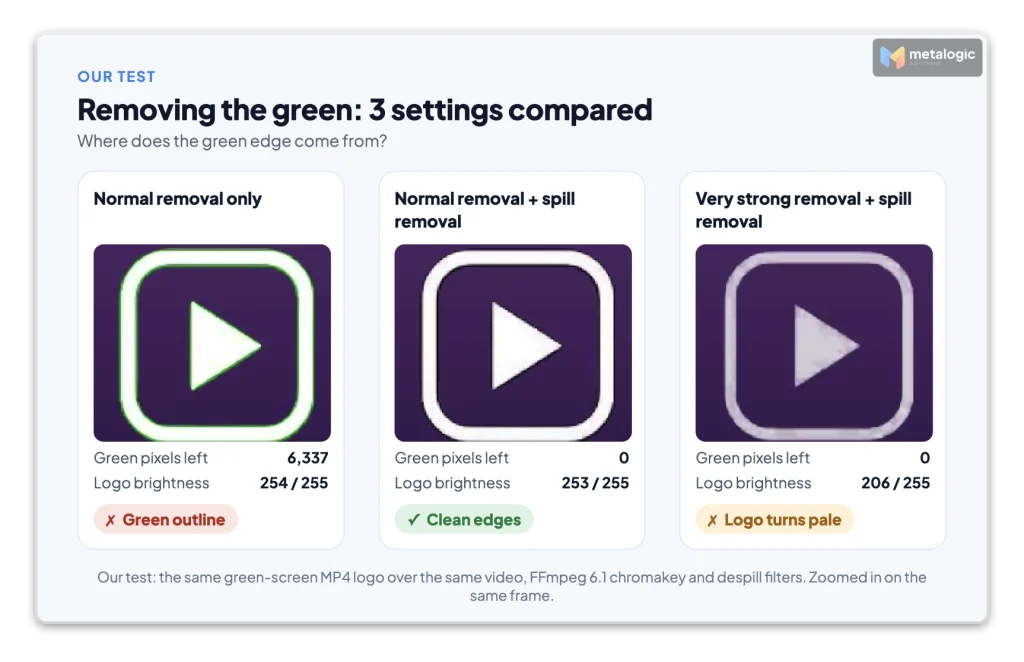
The lesson surprised us. The green outline was not caused by weak removal. It came from spill: edge pixels where the logo and the green background mix.
Turning the strength up did not help. It only made the logo pale. Removing the green tint from the edges fixed it completely.
Tips for a clean result
- Use one even background colour. A flat, bright green (#00FF00) is the easiest to remove. Shadows or gradients in the background make it harder.
- Keep that colour out of your logo. If your logo contains green, ask for a blue or magenta background instead.
- Avoid soft glows on the green. Glows and shadows mix with the green and are hard to separate. Add them later as an effect in the watermark tool.
- Check on a phone. A thin coloured edge is easy to miss on a big monitor and easy to see on a bright phone screen.
- Prefer real transparency when you can. If the seller offers WebM, MOV (ProRes 4444), APNG or Lottie, use that instead of MP4.
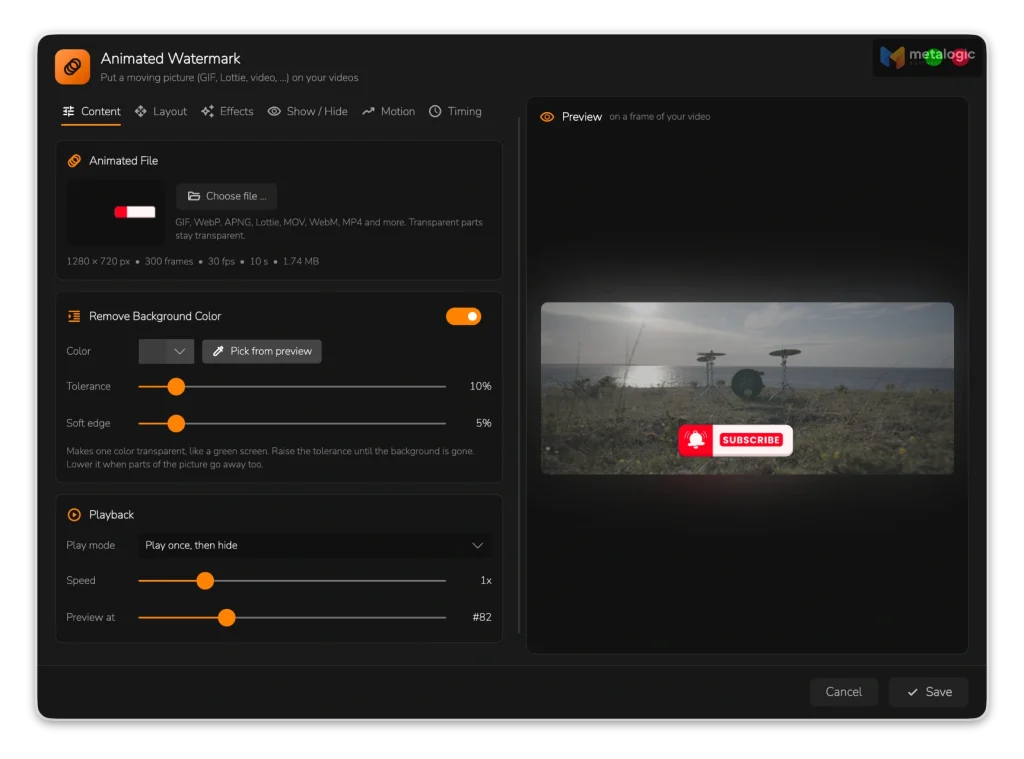
In MetaLogic Bulk Video Watermark, image and animated layers can remove a background colour. One colour becomes transparent, like a green screen.
The app reads the colour from the corner of the file, or you click it on the preview.
It works for green-screen animations and for logos with a white or black box behind them.
Removing a background is not removing a watermark
Everything in this section is about cleaning up your own watermark file before you use it. Removing someone else’s watermark from their video is a different thing, and it can be against the law.
Why creators and businesses watermark their videos
- Credit. When a video is reposted, viewers can still see who made it.
- Brand recognition. The same logo on every video makes your channel or company easy to remember.
- Deterrence. A visible mark makes stealing less attractive, because the thief would be promoting you.
- Safe previews. Clients can review a draft without being able to use it before they pay.
- A call to action. An animated Subscribe or follow button turns viewers into followers.
There is also a legal side. In the United States, 17 U.S.C. § 1202 protects “copyright management information”, such as the owner’s name or a copyright notice.
No one may intentionally remove or change it when they know, or should know, that this helps someone copy the work illegally or hide that copying.
A watermark with your name or a © line can count as that kind of information.
This is not legal advice
Laws are different in every country, and every case is different. If someone has removed your watermark and reposted your video, talk to a lawyer about your options.
Real examples: who uses which watermark
| Who | Typical watermark | Why it fits |
|---|---|---|
| YouTube creator | Small logo in a corner + animated Subscribe button near the end | Brand recognition and more subscribers |
| TikTok or Reels creator | @handle in the upper part of the frame | Credit when clips are reposted |
| Wedding videographer | Repeated “PREVIEW” on drafts, small logo on the final film | Safe client previews, credit on the final |
| Real estate agent | Agency logo + phone number or website | Every property tour advertises the agency |
| Online course creator | Logo + course name in a corner | Discourages sharing of paid lessons |
| Marketing agency | The client’s logo, the same on every video | Consistent branding across a campaign |
| Stock footage seller | Large repeated watermark on previews | Buyers must purchase the clean file |
For more styles with exact settings, see our 20 video watermark ideas.
Pros and cons of video watermarks
| Pros | Cons |
|---|---|
| Your name travels with the video | A big or busy watermark distracts viewers |
| Builds brand recognition over time | A watermark in the corner can be cropped out |
| Makes stealing less attractive | Removing it later is not possible without the original |
| Protects drafts and previews | A badly placed mark can cover faces or subtitles |
| Animated versions can grow your audience | Too much movement can annoy viewers |
Most of the cons come from a bad setup, not from the watermark itself. A small, semi-transparent mark in a quiet corner keeps almost all of the benefits.
Should you watermark your videos?
In most cases, yes. Use this quick check:
- You post on social media where reposting is common → yes, at least a small logo or @handle.
- You send drafts to clients → yes, a repeated watermark on every preview.
- You sell courses or footage → yes, on everything that is shared before purchase.
- You make videos for a client who will publish them → ask first. Many clients want their own logo, or no watermark.
- It is a private video for family → probably not.
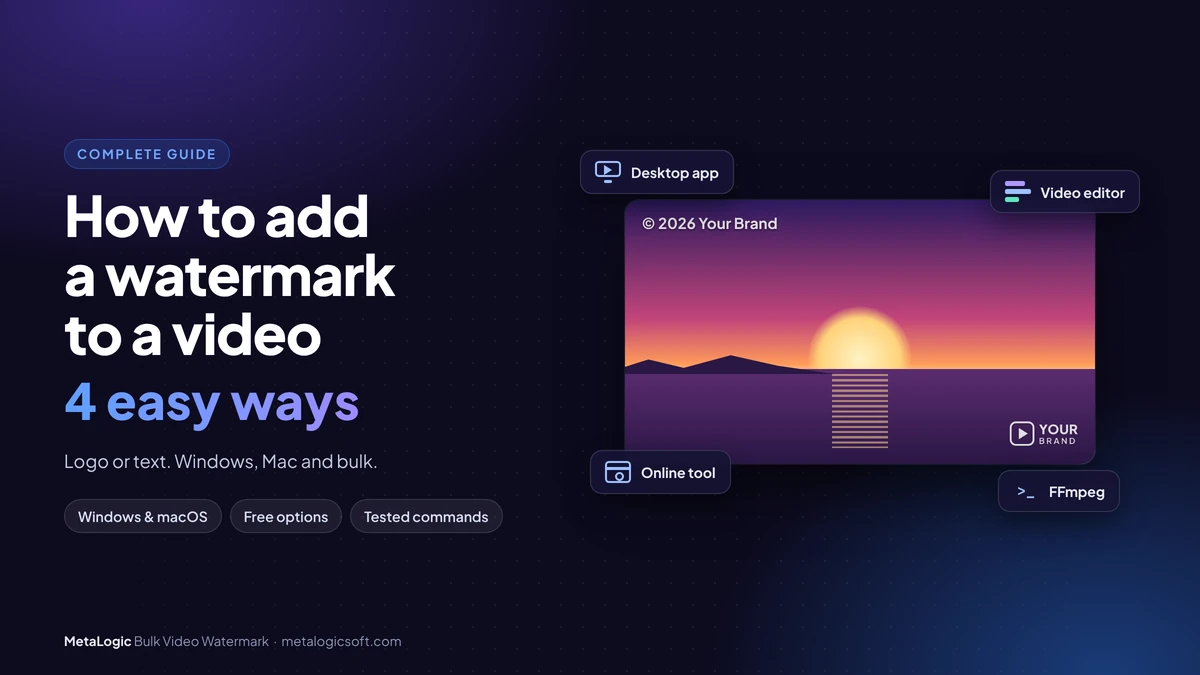
How to add a watermark to your video
Once you know which type you want, adding it takes a few minutes. MetaLogic Bulk Video Watermark lets you combine every visible type in one place:
- logo, text and animated layers in any mix
- GIF, WebP, APNG, Lottie (JSON, .lottie, .tgs), MOV, WebM and MP4 files as animated watermarks
- background colour removal for green screens and boxed logos
- optional sound from the animation file, mixed into the video with its own volume
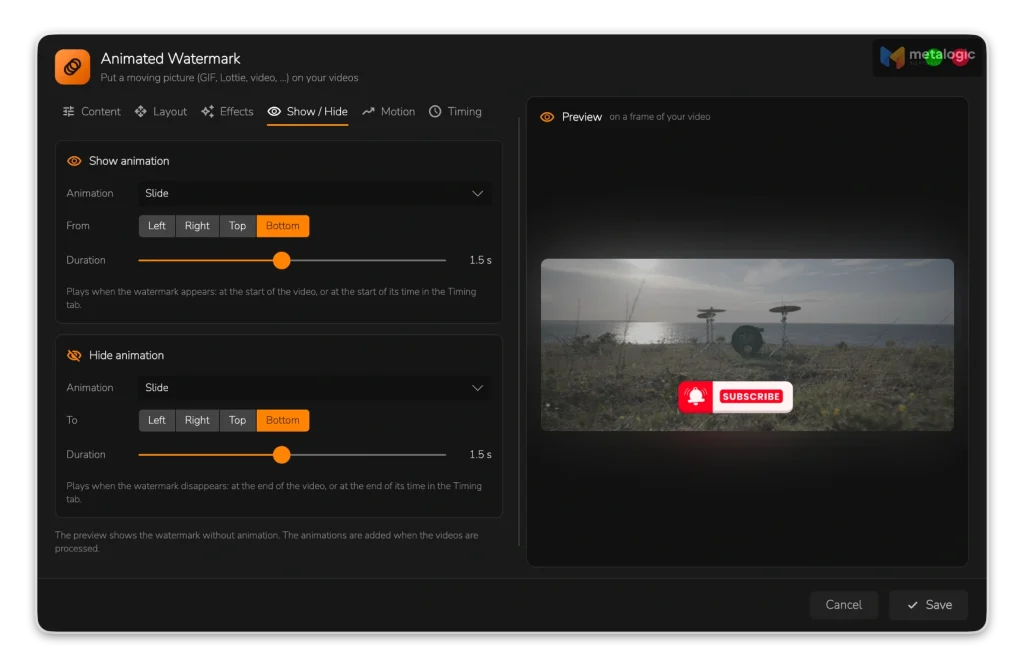
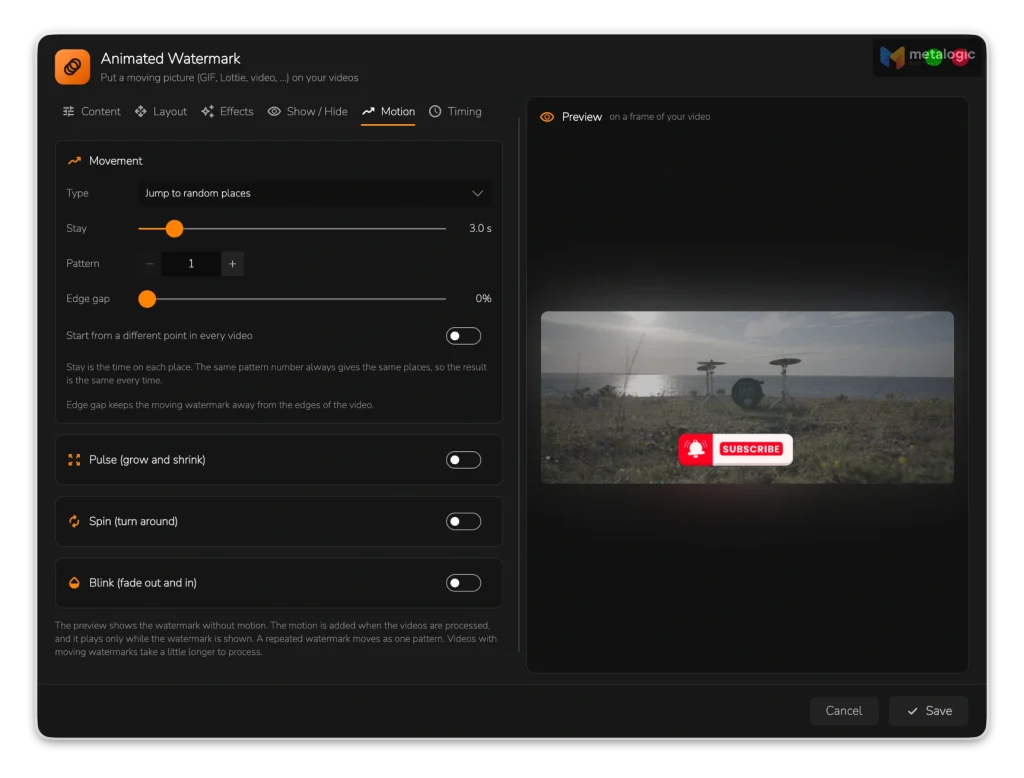
- 11 show and hide animations: fade, slide, slide + fade, bounce, elastic, zoom in, zoom out, pop, rotate, blur and wipe
- motion: bounce off the edges, scroll, move back and forth, jump, float or circle
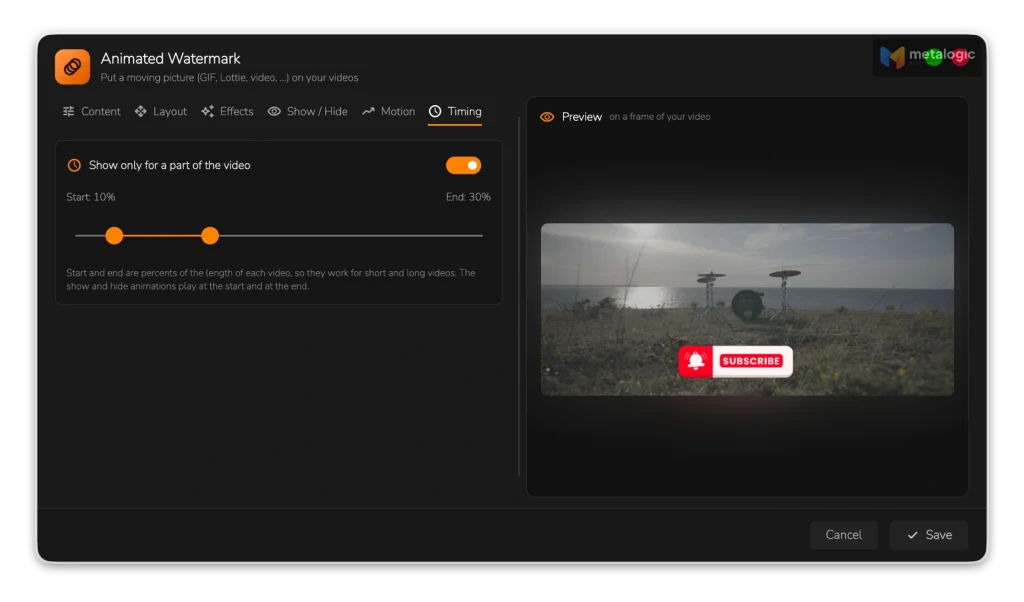
- timing as a percent of the video, so a button can appear only near the end
- the same setup applied to one video or a whole folder, offline on Windows and macOS
For step-by-step instructions in every popular tool, read our complete guide to adding a watermark to a video. If you need the same watermark on many files, our batch watermarking guide shows how to do it in one run.
Frequently asked questions
Is a watermark the same as a logo?
Not exactly. A logo is your brand mark. It becomes a watermark when you place it on top of your video, usually small and semi-transparent. Text can be a watermark too.
Can a video watermark be animated?
Yes. It can fade or slide in and out, move around the frame, or be an animation file such as a Subscribe button. Animated watermarks get more attention than still ones.
Can I use an MP4 with a green background as a watermark?
Yes, if your tool can remove a background colour. The green becomes transparent and only the animation stays. Use a balanced setting and check the edges.
Why does my GIF watermark look rough at the edges?
GIF transparency is either fully on or fully off, so smooth edges and soft shadows are lost. An APNG, WebP or WebM version of the same animation looks cleaner.
What is an invisible watermark?
It is hidden data inside the picture or sound that people cannot see. Special software reads it to trace where a copy came from. It does not show your brand to viewers.
Is it illegal to remove a watermark?
It can be. In the US, removing copyright information such as a name or © notice is prohibited when it helps cause or hide illegal copying. Rules differ by country, so check your local law.
Where should I put my watermark?
A quiet corner is the safest choice. On vertical videos, stay in the upper part, away from the platform’s buttons and captions.
Logo, text or animation. One tool for all of them.
Add still and animated watermarks, remove green backgrounds and apply everything to one video or hundreds, on your own computer.
Windows 10+ and macOS 12+. 14-day free trial and 14-day money-back guarantee.
Sources
- Cloudinary: Transparent image file types. GIF 1-bit transparency compared with PNG alpha.
- MDN: Image file type and format guide. APNG, WebP and GIF for animation.
- Chrome for Developers: Alpha transparency in Chrome video. WebM with VP8 and VP9 alpha.
- Apple: About Apple ProRes. Alpha channel support in ProRes 4444.
- LottieFiles: What is a Lottie?. The JSON-based animation format.
- FFmpeg Filters Documentation: chromakey. The filter used in our background removal test.
- Cornell Law School: 17 U.S. Code § 1202. Integrity of copyright management information.
- MetaLogic Bulk Video Watermark. Supported watermark types and formats.
We make MetaLogic Bulk Video Watermark. The format and background removal tests in this article were run on 20 November 2026 with FFmpeg 6.1, using one 3-second animated logo. Results with other files and settings will differ.