Quick answer
The workflow has five steps: Import, Cleanup, Verify, Results, and Export. First, you drag your contact file into the app. Then you choose the cleanup rules you want. Next, you run the verification. After that, you look at the results. Finally, you export the groups you need as CSV or Excel.
The app reads your file on your own computer and never uploads it. But the verification checks still need the internet, because the app has to find DNS records and contact mail servers.
You have a list of emails and a campaign is coming up. Before you send anything, you want to find out which addresses are still valid.
This guide takes you through one complete run. You start with a contact file and end with two files you export: one ready for your campaign, and one with results that need to check again.
MetaLogic MailVexa is a desktop app for Windows and macOS. It does the work on your own computer. That’s all you need to know about the product for now. The rest of this guide is the real process.
What to do first
Install the app
Download MailVexa from the product page, then install it. It works on Windows 10 and above, and on macOS 12 and above. The trial gives you up to 2,000 verifications over 14 days and does not ask for a card.
Set up a small list for your first run
Avoid starting with your biggest file. Use 50 to 100 contacts for the first run. You’ll learn the whole workflow quickly, and mistakes won’t cost you much.
This tutorial uses one sample file throughout. It is a CSV named newsletter-contacts.csv with four columns:
email— the addressfirst_name— the contact’s first namecompany— their workplacesignup_date— the date they joined the list
Your file may not look the same. That’s okay. The steps stay the same if at least one column has email addresses.
save a copy of your original file
Before you open anything in MailVexa, keep a safe copy of your contact file in another place. You are going to delete rows. If something goes wrong, the original lets you start over.
What stays on your computer, and what does not?
The app reads your contact file from your computer. It is not sent to any server.
The verification step needs internet access. To see if a mailbox exists, the app has to check the domain’s DNS records and contact its mail server. Those checks show which domains you are checking, but your list is never sent or saved anywhere.
Import your email list
Start a new job in MailVexa. Drag newsletter-contacts.csv into the import area, or click browse to select it.
This guide uses CSV from start to finish. Excel files (.xlsx and .xls) and simple TXT files work just the same.
Check the email column
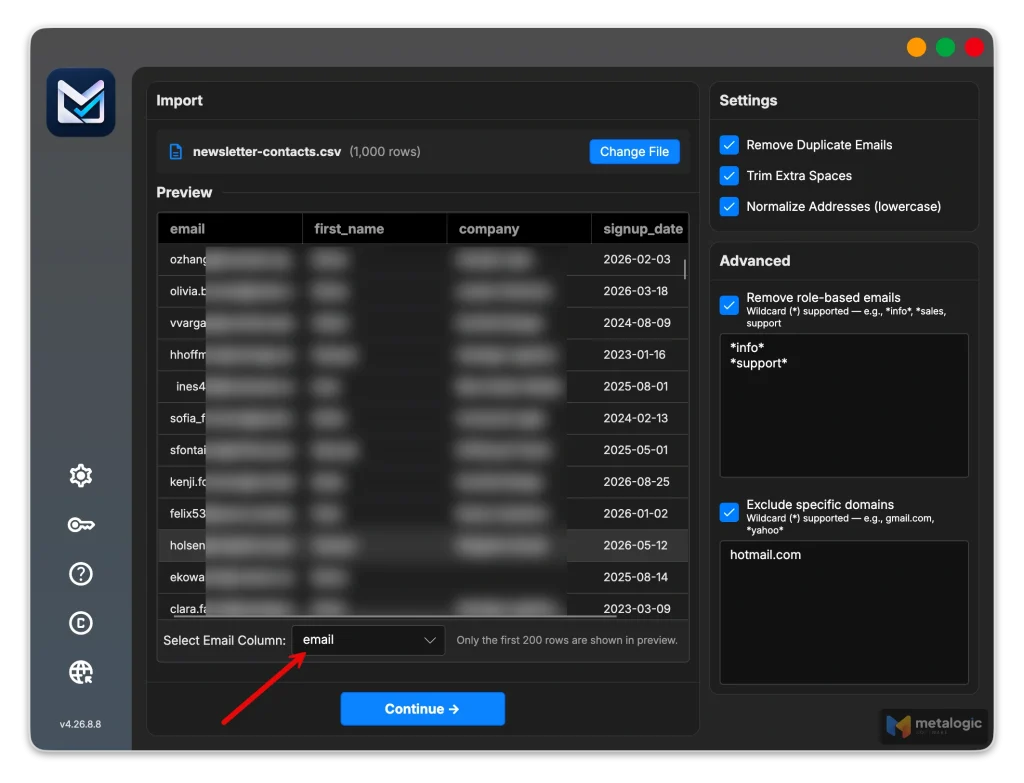
The app shows a preview of the first rows and finds the column with the addresses. Look at the preview and make sure it chose the right one.
This is more important than it sounds. If your file has another column with addresses, like a manager_email field, the app may pick that one. If the wrong column is selected, change it on the import screen before you continue.
Your other columns are kept with the data
first_name, company and signup_date go through the whole workflow. At the end, when you export, they are still beside each address. Your file does not become just a list of plain addresses.
Choose your cleanup setting
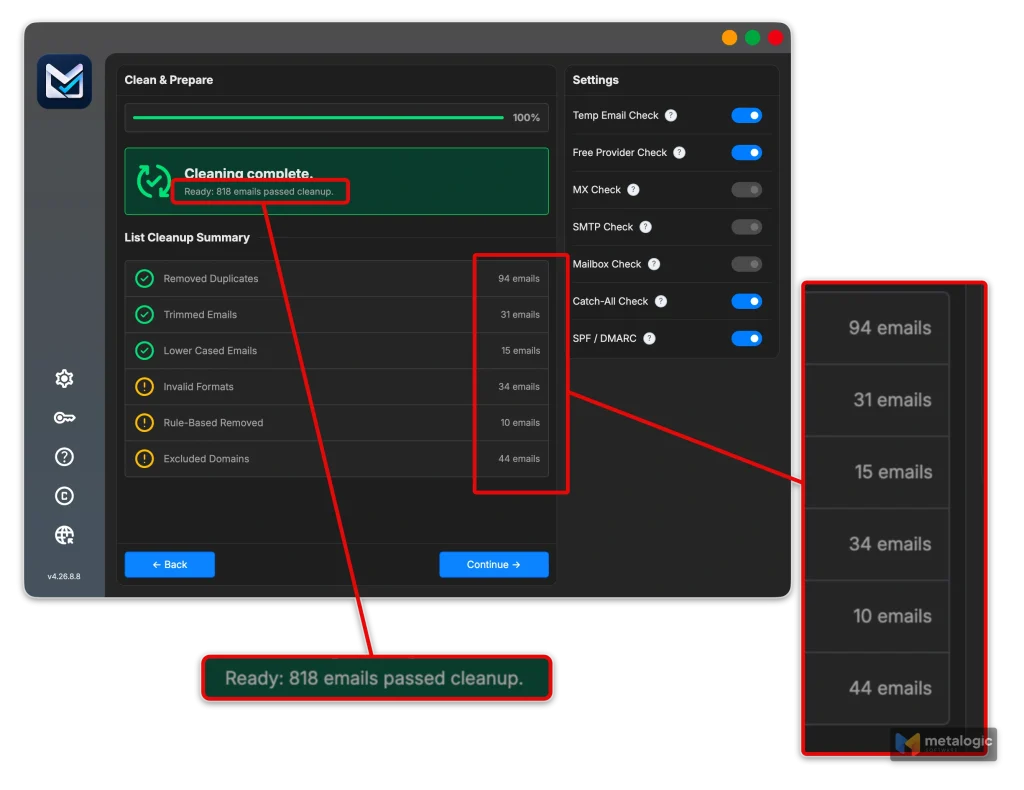
Cleanup runs before verification starts. It removes clear problems first, so you don’t waste verification quota on rows that would never work.
What runs automatically
- Duplicate removal: If the same address appears twice, it becomes a single row.
- Trim and normalize: Extra spaces are removed, and addresses are changed to lowercase.
[email protected]and[email protected]are seen as the same contact.
Filters you can choose
There are two filters you can choose.
- Role-based filter: It removes shared inboxes such as
info@,support@andsales@. It checks the part before the@sign, so it finds those same role names on any domain. - Domain filter: It removes addresses from domains you enter yourself. This filter works with wildcards, so you don’t need to type out each address.
What is a wildcard?
A wildcard is a character that stands for “anything”. Instead of listing every possible case one by one, you write a single rule that covers them all.
A simple example: rather than listing [email protected], [email protected] and dozens more, you write one rule that removes any address ending in example.com, whatever comes before the @ sign. The same idea lets one rule cover a domain and all of its subdomains.
This is useful when you want to exclude every contact at a competitor, or every address on an internal domain, in one go.
A role address is not a fake address
For example, [email protected] is real. someone reads it. Whether you should include it in your campaign depends on what you are sending.
If your newsletter is for consumers it often makes sense to remove role addresses. But for business outreach, that shared inbox could be the exact contact you need. So decide based on what you want to achieve, not on the label.
Cleanup and verification handle different tasks. Cleanup cleans up your data by looking at the file alone. Verification checks with a mail server to see if a mailbox is real: so, it looks outside the file. Cleanup comes first, verification second.
Prepare your first verification
The verification does several checks in order. Every check answers its own question.
| Check | What it asks |
|---|---|
| Temp Email Check | Is this a temporary, throwaway address? |
| Free Provider Check | Is this a Gmail, Yahoo or similar personal address? |
| MX Check | Verifies that the domain has valid mail exchange records configured. |
| SMTP Check | Tests the mail server response to estimate whether the address can receive mail. |
| Mailbox Check | Runs a deeper recipient-level check to confirm the mailbox likely exists. |
| Catch-All Check | Does this domain accept mail for every address, including ones that do not exist? |
| SPF and DMARC | Is the domain set up properly for sending? A signal of how well it is maintained. |
Speed settings
The app works on many addresses at once. Adding more connections makes the job finish sooner. Ask for too much, though, and some servers will hold you back or turn you away.
True quickness is shaped by three elements: your thread setting, the proxy count, and your network capacity.
A data point from real tests
In our own tests, using 100 threads and a single proxy server, throughput came to approximately 10,000 addresses every hour. Take that as a baseline, not a fixed promise. It increases with more proxies, and decreases with a slower connection or more demanding destination servers.
Your thread limit is set by your licence. The Personal plan gives you up to 25, Professional up to 100, and Agency has no limit. For your first run with a small file, begin with a low number, then increase it after you see a full run complete without problems.
Proxies: you need one for real usage
For that first test with 50 contacts, you can skip the proxy. But for any actual usage, using a proxy server is highly advised.
This is because home and office IP addresses were never designed for this. They lead to three issues:
- The required port is often closed: Many consumer ISPs block the port that mailbox verification needs. Without access to it, checks never finish and everything is marked Unknown.
- The IP doesn’t stay the same and has no name: Destination servers see a changing, unnamed address as risky and often won’t give a clear answer.
- The IP is shared: That address is shared with hundreds of other subscribers, and their record influences yours.
MailVexa can route checks through a proxy pool and rotate between proxies. If you do not have a proxy server, our guide on building your own SOCKS5 proxy covers the whole process in about 20 minutes.
Begin verification and follow the process
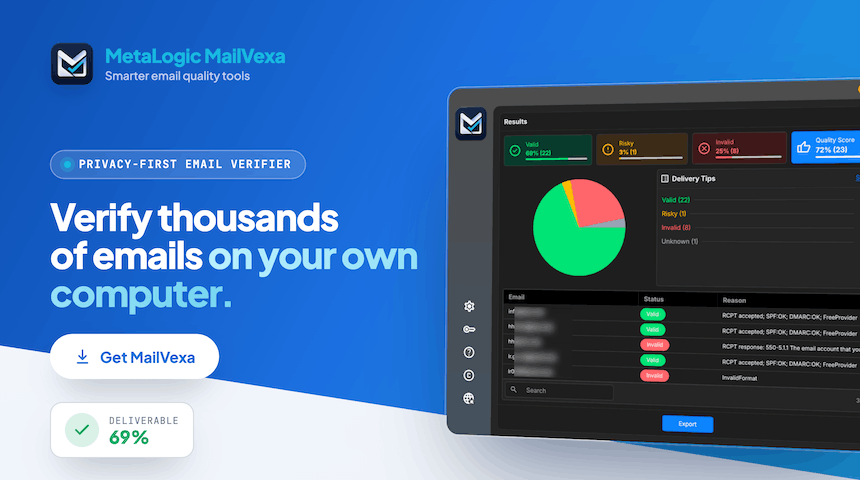
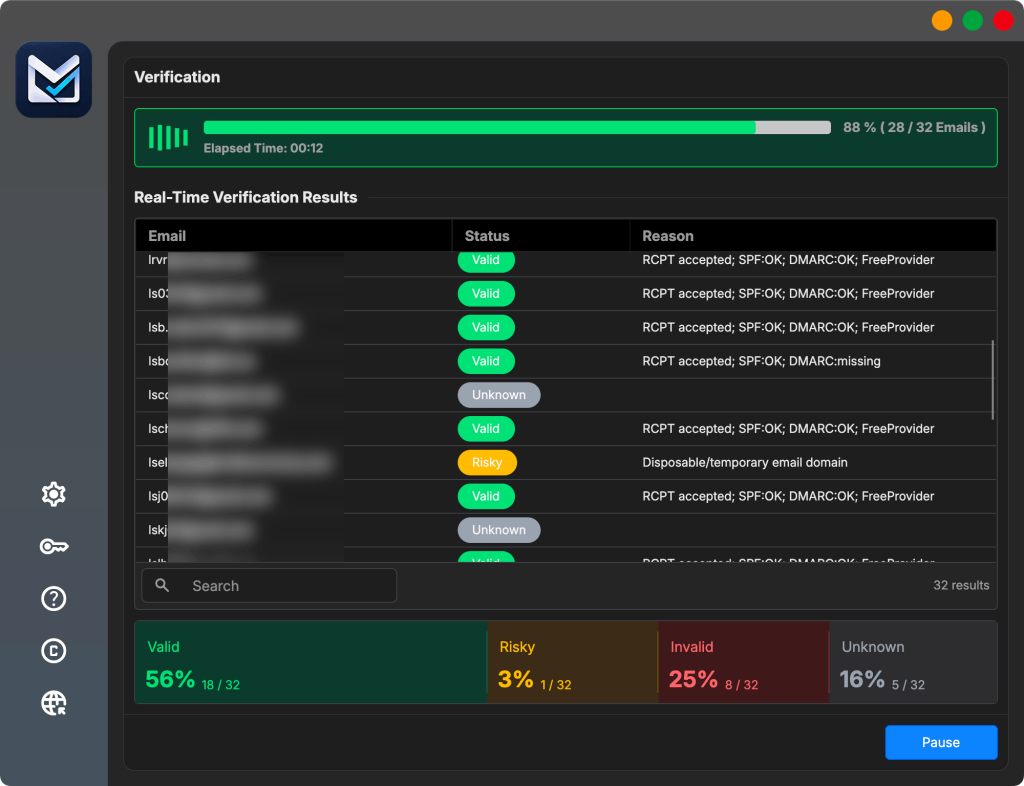
Start the run. The progress screen indicates the count of checked addresses, the count remaining, and the results as they show up.
Watch the result groups fill in. You can sense the quality of your list well before the operation is done.
Pausing and restarting
If the program shuts down or your computer reboots, the progress is saved and brought back the next time you open it, continuing from where it left off.
Delays from some addresses are perfectly normal and should not be mistaken for a freeze.
Some mail servers reply almost instantly. Others take a few seconds, or slow down on purpose to make automated checks harder.
If a few addresses seem to lag, the app is simply waiting for an answer—not frozen. Let it run to the end. The retry options take care of servers that never reply.
How to read your results?
Each address is placed into one of four categories.
| Result | What it means | What to do |
|---|---|---|
| Valid | The checks came back positive. The mailbox appears able to receive mail. | Include in your main export. Permission is still a separate question. |
| Invalid | A clear problem was found with the address or its ability to receive mail. | Leave it out of your sending list. |
| Risky | The result carries a risk that needs a closer look. | Read the reason and decide separately. |
| Unknown | Not enough information came back for a definite answer. | Keep it aside and check again later if appropriate. |
Choose a result to read the explanation.
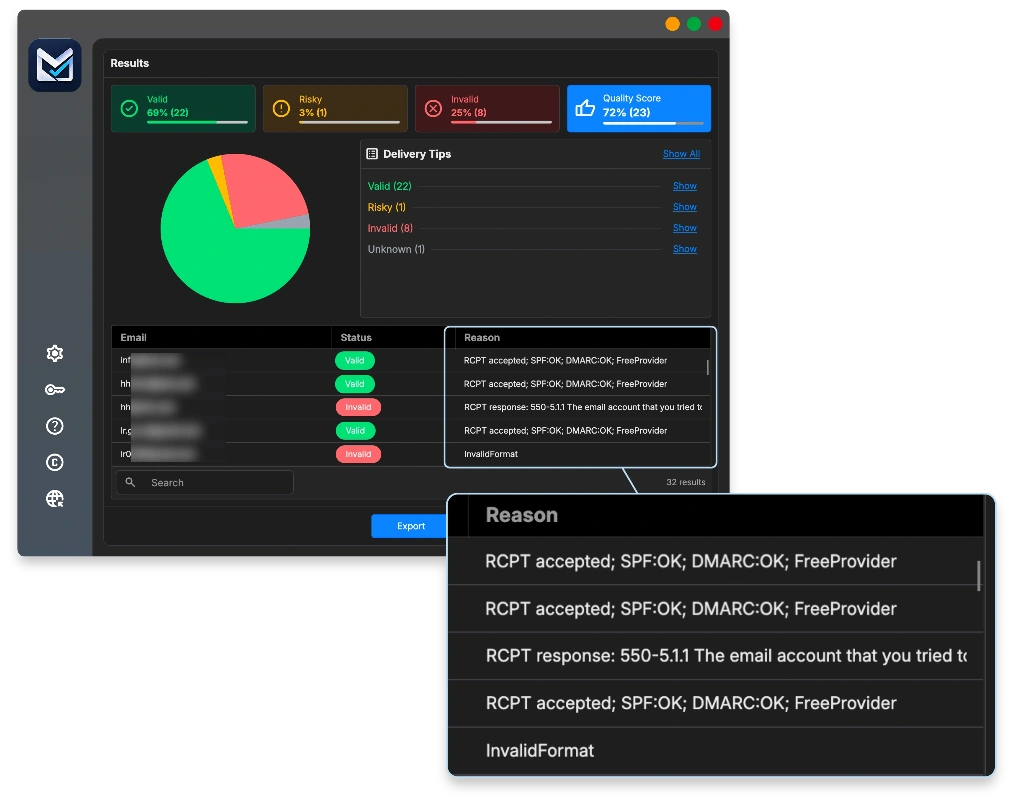
Select one line to view what’s behind its outcome. You can see which tests succeeded, the MX records for the domain, and what the mail server replied. At this point, a result turns from a simple label into a concrete explanation you can use.
Catch-all, in single paragraph
Certain domains will take messages for any address, even if that address was never created. In this situation, the server can’t verify a particular inbox, so the outcome gets marked instead of assumed. The person could be real. You just have less confidence than you would with a standard domain.
✨ Read more: what each verification result means?
Verification does not guarantee the email delivery to the inbox
A Valid result means the mailbox appears capable of receiving messages. It doesn’t reveal where your email will be placed.
Where your email lands also depends on your authentication setup, your reputation as a sender, what you write, and how people have responded to your past emails. No verification tool can guarantee it.
To work on that side, check out our guide to improving email deliverability—it covers every other factor.
Review and filter your list
There are two things to confirm. First, nothing should look obviously incorrect, such as an entire domain being marked invalid though you know the company is active. Second, you should know what put your Risky and Unknown groups in those categories.
You can also search the full list, which helps when you want to verify one specific contact you know.
Decide what goes where
- Valid moves into your campaign file.
- Invalid remains excluded and sits on your exclusion list, so it never comes back.
- Risky lands in a separate file for a different decision.
- Unknown is placed in that same second file, to check again later.
Unknown is not merely a softer term for Invalid
When a result is Unknown, the check ended without a clear response. The server might have been slow, might have restricted the connection, or might simply reject to confirm mailboxes.
If that group is treated as invalid, real customers get removed. It is better to keep it apart and check it again later.
Export your verified emails
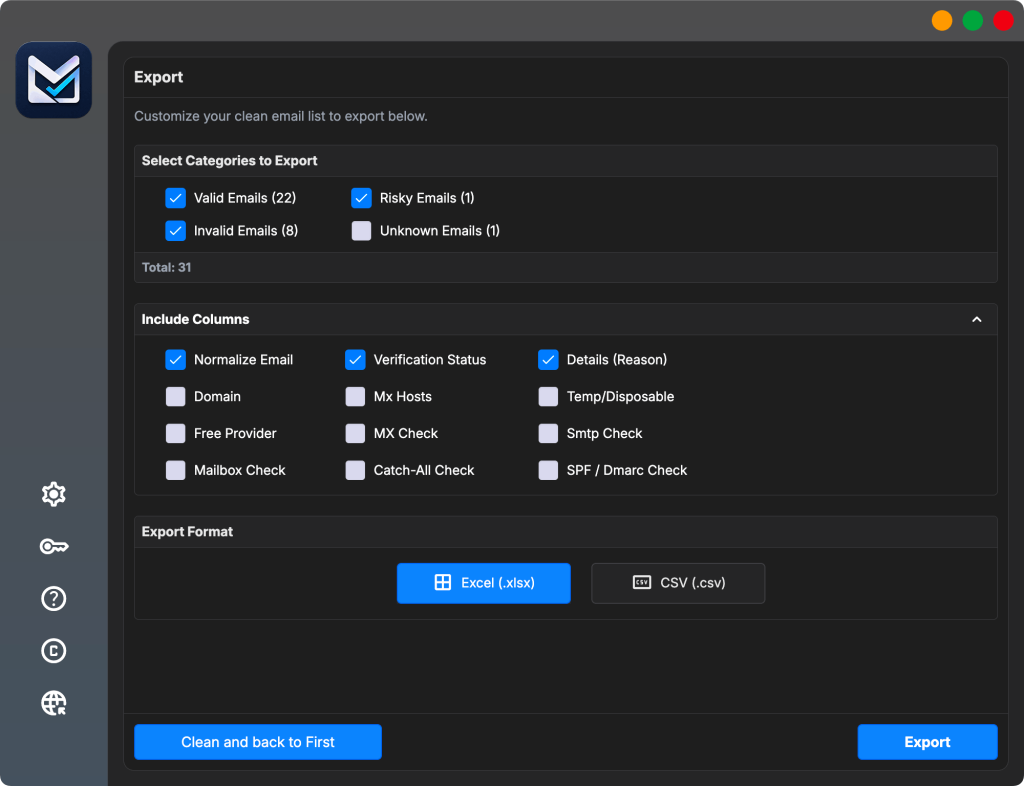
In the Export step you choose which result categories to include, and which columns to write out.
Make two files, not one
- Your campaign file: Export the Valid group. This is what you upload to your sending platform.
- Your follow-up file: Export Risky and Unknown together. This is what you come back to later.
Both exports keep your original columns. You can also add verification detail columns such as status, reason, domain, MX hosts, and the disposable, free-provider and SPF or DMARC flags. Add the status and reason columns to your follow-up file at least, because that is what you will need when you revisit it.
Choose CSV or Excel. Both import into most sending platforms and CRMs.
Open the file and check it
Before you do anything else, open the exported file and confirm three things: the email column is there and readable, your contact fields came through, and the row count matches what you expected from the results screen.
Add the verification date
If the file you exported doesn’t already show the date the check was done, include a column for that date. Half a year later, this date is what tells you whether you can still rely on these results.
Check your list before sending
You now have a valid file. It is not yet a campaign list.
First, compare it with your unsubscribe list, records of people who flagged your emails as spam, and anyone else you must not contact. Even if an address is verified, you can’t email someone who unsubscribed last month.
Verification is not the same authorization
A positive result only shows that the mailbox is real. It says nothing about whether that person wants your marketing.
Approval is based on how the person got onto your list, and no tool that checks addresses can change that.
As you import your data into your sending tool, confirm that the columns are paired correctly. The email column goes to email, the first name column to first name. A wrong pairing is why some campaigns say “Acme Ltd” when they meant “Sara”.
For the complete campaign preparation steps, see our article on cleaning your email list before sending.
Typical problems and what to check
| Problem | What to check |
|---|---|
| The email column looks wrong | Go back to the Import step and look at the preview. If your file has more than one column containing addresses, the detection may have chosen the wrong one. Select the correct column manually. |
| Many results are Unknown | Open a few of them and read the reason. Connection timeouts, temporary rate limiting by the receiving server, or a provider that refuses to confirm mailboxes all produce this. Do not assume they are invalid. Check that group again later. |
| Verification is taking longer than expected | Look at the progress screen. If a few addresses are slow, the app is waiting for replies. If everything is slow, reduce your thread count and check your internet connection. |
| The export has fewer rows than expected | Two places to look. Your cleanup settings may have removed more than you intended, for example the role-based filter. And your export may not include every category you meant to select. |
Typical questions
How long does a verification process take?
Three things set the pace of a run: how many threads you use, how many proxies you go through, and the bandwidth of your internet connection. Our own tests, using 100 threads and one proxy server, produced around 10,000 addresses per hour in throughput. Rather than taking that as a guarantee, try a small piece of your own list to see what you actually get.
Does MailVexa work offline?
The app works on your own machine and opens your file straight from your drive, but verification step can’t run without the internet. it depends on the internet to check DNS entries and talk to mail servers, which is how it determines whether a mailbox is present.
Can I stop a task and continue it later?
Yes. You have the option to stop a job temporarily while it’s running. Once you reopen the app, the state is recovered, meaning a long run can make it through a restart.
Should I remove the Unknown results?
No. An Unknown result simply means the check couldn’t decide. It doesn’t mean the address is invalid. Set that group aside in its own file and try it again later.
Does a Valid outcome guarantee that my email will be delivered to the inbox?
No. It just indicates that the address seems able to accept mail. Where your email actually goes depends on your domain setup, how good your sender reputation is, and what you write. That’s a different topic from verification.
Try it with a small email list
Take 50 contacts and run the five steps in this guide from start to finish. You will know the whole workflow in about ten minutes, and you will have a verified file at the end of it.
Windows and macOS. The trial covers up to 2,000 verifications over 14 days, with no credit card required.
We create MetaLogic MailVexa. The workflow in this guide is unique to this product, but the basic process of importing, cleaning, verifying and exporting works the same in any verification tool.