Your email platform shows a beautiful number: 98% delivered.
But the clicks are low. Sales are low. A colleague with a Gmail address says your email is “in Promotions”. Someone else can’t find it at all.
So what does “delivered” really mean? Is Promotions a problem? And how do you find out where your emails actually land?
This guide answers all three, in plain language. You will learn the difference between delivery, inbox placement and being seen, how Gmail’s tabs really work, how to measure each step honestly, and what to fix first.
Quick answer
No, “Delivered” does not mean the inbox. It means the recipient’s mail server accepted your email. After that, the email can go to the inbox or to the spam folder. Some platforms, like Brevo, count both as “delivered”.
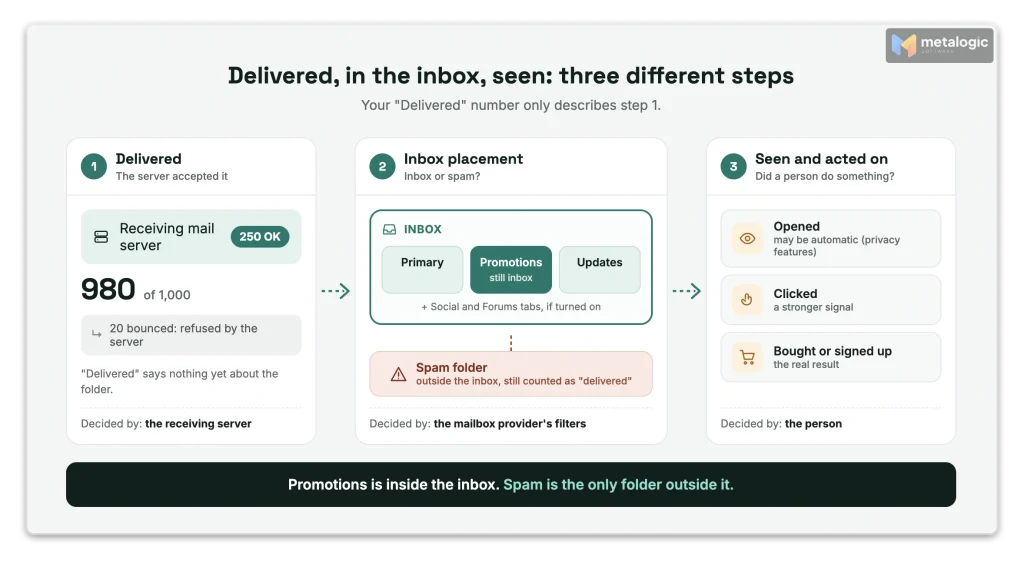
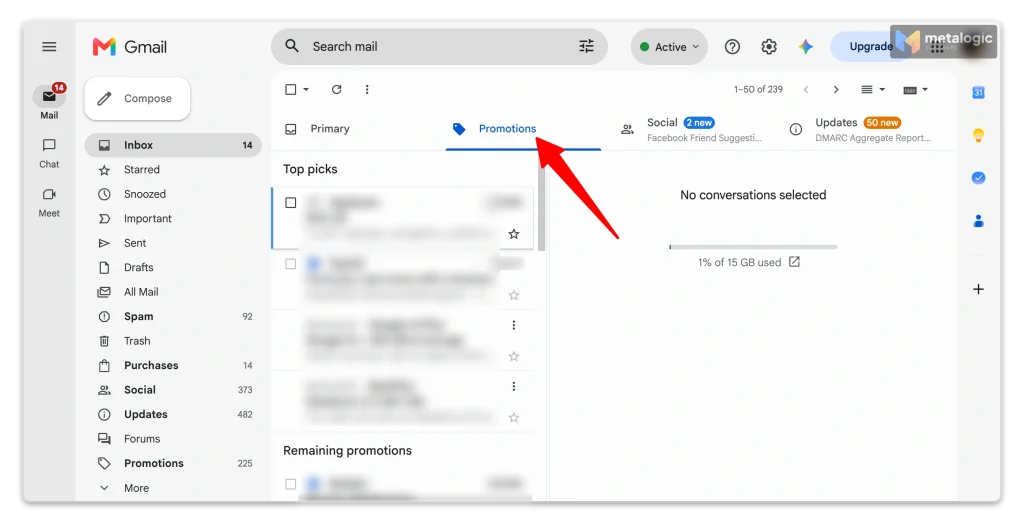
Gmail’s Promotions tab is part of the inbox. It is not spam. An email in Promotions has reached the inbox. It is simply sorted into a different tab.
And reaching the inbox is still not the same as being opened, read or acted on. Judge your campaigns by clicks, sign-ups, sales and unsubscribes, not by the tab.
Three different things: delivered, in the inbox, seen
Most confusion comes from mixing up three separate steps. Each one has its own question:
| Step | The question | Who decides |
|---|---|---|
| 1. Delivered | Did the recipient’s mail server accept the email? | The receiving server, in seconds |
| 2. Inbox placement | Did it go to the inbox (any tab) or to spam? | The mailbox provider’s filters |
| 3. Seen and acted on | Did a person notice it, read it, click or buy? | The person |
A problem at each step needs a different fix. That is why it matters which step you are looking at.
What does “Delivered” actually mean?
Every email platform shows a few status words. They sound simple, but they hide a lot. Here is what they usually mean:
| Status | What usually happened |
|---|---|
| Sent / Processed | Your platform accepted the job and will try to deliver it |
| Delivered | The recipient’s server said “OK, I accept it” |
| Deferred / Delayed | The receiving server said “not now”. Your platform will try again |
| Bounced | The receiving server refused it, temporarily or permanently |
| Dropped / Blocked | Your own platform didn’t send it, often because the address bounced or complained before |
How five platforms define “delivered”
Read your own platform’s definitions. They are not the same everywhere:
| Platform | What “delivered” means | How long it retries temporary failures |
|---|---|---|
| Amazon SES | “Successfully delivered the email to the recipient’s mail server“ | Not a fixed number in its docs |
| Twilio SendGrid | The receiving server accepted the message | Up to 72 hours, then “blocked” |
| Mailgun | Sent, and accepted by the recipient email server | Up to 8 hours by default |
| Postmark | The destination server returned an OK response | — |
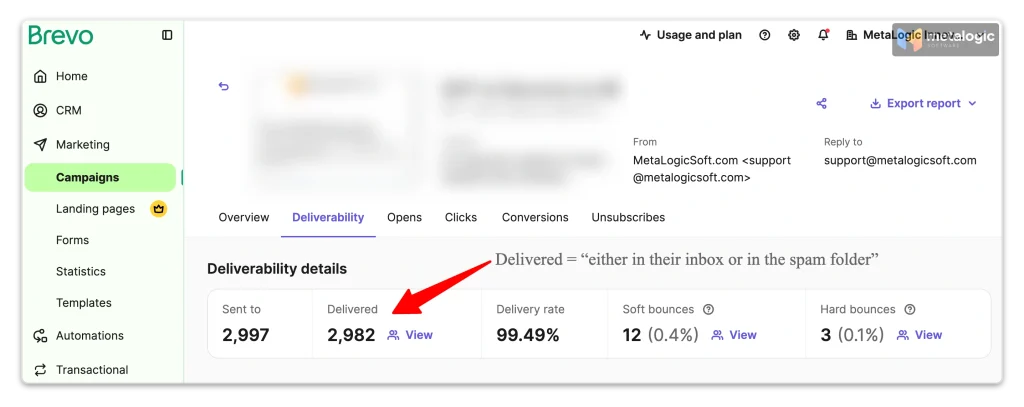
| Brevo | Received “either in their inbox or in the spam folder“ | About 36 hours, then a soft bounce |
Postmark says it most clearly in its delivery webhook guide: delivery “means the receiving server accepted your message, not that it reached the inbox. That final step is out of Postmark’s hands.”
Why accepting is a promise, not a placement
When a mail server accepts your email, the internet’s email standard, RFC 5321, says it is “accepting responsibility for delivering” it. It promises to handle it. It does not promise which folder. The spam decision often happens after that “OK”.
Two surprising facts most guides miss
- “Sent” may mean nothing was sent. Amazon SES counts an email as a “send” even when its suppression list stops delivery. So “sent” can include emails that were never even attempted.
- The same problem can end differently on two platforms. A server that keeps saying “try later” for 12 hours causes a bounce on Mailgun (8-hour default), but may still be delivered on SendGrid (72 hours).
Even your platform’s labels can mislead you
Brevo’s campaign report defines “Delivered” as inbox or spam folder. But on the same page it describes “Delivery rate” as the share of emails that reach your recipients’ inboxes. Brevo’s spam-folder FAQ is clearer: “a delivered email only means that it has been sent but not that recipients have received it.” If you use Brevo, read “delivery rate” as “accepted by the server”.
What is inbox placement?
Inbox placement is the share of your emails that land in the inbox instead of the spam folder. In Gmail, every tab counts as inbox: Primary, Promotions, Social, Updates and Forums.
That is why a campaign can show a 98% delivery rate and still have a spam problem. Going to spam raises no error. The server accepts the email, your platform counts it as delivered, and nobody tells you.
| Term | What it shows | What it does NOT prove |
|---|---|---|
| Sent | Your platform took the job | That anything left your platform |
| Delivered | The receiving server accepted it | Inbox, Promotions or spam |
| Inbox placement | It landed in the inbox, any tab | That anyone saw it |
| Primary placement | It landed in Gmail’s Primary tab for that person | Attention, clicks or sales |
| Open rate | A tracking image loaded | That a human opened it |
Delivery rate vs deliverability
Delivery rate is one number: accepted ÷ sent. Deliverability is the whole picture: whether your emails reach the inbox, over time, across providers. A high delivery rate is necessary. It is not enough. For the full picture, see 15 ways to improve email deliverability.
How Gmail’s inbox tabs work
Gmail can sort the inbox into tabs. Here are Google’s own definitions from its inbox categories help page:
| Tab | Gmail’s definition |
|---|---|
| Primary | “Emails from people you know and messages that don’t appear in other tabs” |
| Promotions | “Deals, offers, and other promotional emails” |
| Social | “Messages from social networks and media-sharing sites” |
| Updates | “Automated confirmations, notifications, statements, and reminders” |
| Forums | “Messages from online groups, discussion boards, and mailing lists” |
Things most marketers don’t know about Gmail tabs
- Tabs only exist in the “Default” inbox type. If someone picks another inbox type, all tabs disappear.
- Each person chooses which tabs to show. Many hide Promotions completely, and then your email simply appears in their main inbox.
- New-mail notifications cover only Primary. When notifications are on, Gmail only alerts people about Primary messages.
- A star puts an email in two places. Starred emails show in Primary and in their own tab.
- Moving an email teaches Gmail. It learns that person’s preference. Only that person’s.
Outlook has its own version
Microsoft’s Focused Inbox splits the inbox into two tabs: Focused and Other. Like Gmail’s Promotions, “Other” is still the inbox, not the junk folder.
Is the Gmail Promotions tab bad for your campaigns?
No, not on its own. Promotions is a category, not a punishment. Here is the difference:
| Promotions tab | Spam folder | |
|---|---|---|
| Part of the inbox? | Yes | No |
| What Gmail is saying | “This is a marketing email” | “This may be unwanted or dangerous” |
| Who goes there | Most brands that send offers and newsletters | Senders with complaints, bad lists or failed authentication |
| What to fix | Maybe nothing. Check results | Reputation, consent, authentication |
The real cost of Promotions
The honest downside is attention, not delivery. Gmail sends new-mail notifications only for Primary, so a Promotions email doesn’t buzz anyone’s phone. People see it when they open the tab, often when they are in the mood to look at offers.
Google is investing in Promotions, not hiding it
- In September 2025, Google announced that people can sort Promotions by “most relevant”, showing brands they engage with most at the top. So engagement now matters inside the tab too.
- Google’s Promotions annotations (deal badges and images) appear only in the Promotions tab. Google’s annotations FAQ says they have “no effect on the Gmail tab classifier”.
An example
A shop sends a “20% off this weekend” email. It lands in Promotions. That is the right place for it: people who check Promotions are looking for deals. If sales are low, the tab is rarely the main reason. Check the offer, the audience, the subject line and the landing page first.
Be careful with “Promotions kills your open rate” claims
Many famous numbers about tabs are old. One widely quoted study is from 2013. A survey often cited for “only a third of people use tabs” is from 2016. Gmail has changed a lot since then. Don’t make decisions based on them. Measure your own results.
Why do emails land in Promotions instead of Primary?
Gmail doesn’t publish its rules. Mailchimp’s Gmail tabs guide sums it up well: Gmail uses “complex and changing algorithms that consider subscriber engagement, content, and sender information”, and “there is no proven way to ‘beat’ Gmail’s algorithms.”
What we do know:
- Promotional emails go to Promotions. That is what the tab is for.
- It is personal. Gmail learns from each person. The same campaign can land in Primary for one person and Promotions for another.
- Mixed content confuses sorting. Gmail’s sender guidelines say not to mix types, for example no promotions inside sales receipts.
- Unfamiliar subdomains can confuse it. Google’s Promotions troubleshooting page says “sending from less recognized subdomains can confuse the Gmail tab classifier.”
Your own inbox is a sample of one
You sent a test to your own Gmail and it landed in Primary? That tells you about your account, with your history. It says nothing reliable about your list.
Can you make every email land in Primary?
No. No sender, tool or trick can guarantee it. Only the reader decides, for their own inbox. They can:
- Drag your email to the Primary tab. Gmail may ask whether to do the same for future messages.
- Star your emails.
- Create a filter for your address.
You may mention this gently in your welcome email: “Want our tips in your Primary tab? Drag this email there.” Keep it optional. And remember: one person’s choice changes only their inbox.
Myths that waste your time
| Myth | The truth |
|---|---|
| “Plain-text emails always go to Primary.” | No. Gmail looks at engagement, content and sender, not just the format |
| “Remove all images and links and you’ll reach Primary.” | There is no proven formula. You may just make a worse email |
| “SPF, DKIM and DMARC decide the tab.” | They decide whether you are trusted and accepted. They don’t pick the tab. See SPF, DKIM and DMARC explained |
| “Remove the unsubscribe link so Gmail won’t see a promotion.” | Never. Bulk senders must offer one-click unsubscribe and a visible link. Removing it brings spam reports |
| “Promotions annotations move you between tabs.” | No. Google says they have no effect on the tab classifier |
| “A good email platform can get me whitelisted by Gmail.” | Gmail says it doesn’t accept allowlist requests from email providers |
How to measure delivery and inbox placement correctly
No single report shows everything. Use three kinds of data, and know the limit of each:
| Data | Use it for | Its limit |
|---|---|---|
| Your platform’s report | Delivered, bounces, deferrals, error codes | “Delivered” doesn’t show the folder |
| Seed tests (test accounts at several providers) | Inbox vs spam, by provider | A small sample with no real engagement history |
| Engagement and sales | What people actually did | Opens and some clicks can be automatic |
What official tools can and can’t tell you
| Tool | What it shows | What it doesn’t show |
|---|---|---|
| Gmail Postmaster Tools | Spam rate (from engaged users), authentication, delivery errors, compliance | Tabs, or where a single email landed |
| Amazon SES inbox placement tests | Inbox, spam and missing percentages for seed accounts, by provider | Gmail tabs |
| Microsoft SNDS | Filter results and complaint rates for your sending IPs | Inbox vs junk for each message |
“Missing” is not the same as “spam”
In seed tests, “missing” means the test email never showed up anywhere in the test account. It might have been blocked, delayed or lost. Don’t add it to your spam number without checking.
Low open rate? It doesn’t prove a spam or Promotions problem
Apple’s Mail Privacy Protection downloads email content in the background, so “opens” happen even if nobody reads. Security scanners can click links automatically. Mailchimp warns that this kind of bot activity can inflate opens and clicks. And Gmail itself says it doesn’t track open rates. If you use Brevo, you can exclude Apple privacy opens and bot activity from your statistics.
A simple placement check you can do yourself
- Create 6 to 10 test addresses: Gmail with tabs on, Gmail with tabs off, Outlook.com with Focused Inbox on, Yahoo, and a work mailbox.
- Subscribe them to your list like real people.
- For several campaigns, write down where each email landed: inbox tab, Focused or Other, or spam.
- Look for patterns over weeks, not one send.
Treat it like a smoke alarm: useful to catch a big problem, not a precise statistic.
A simple example: high delivery, lower inbox placement
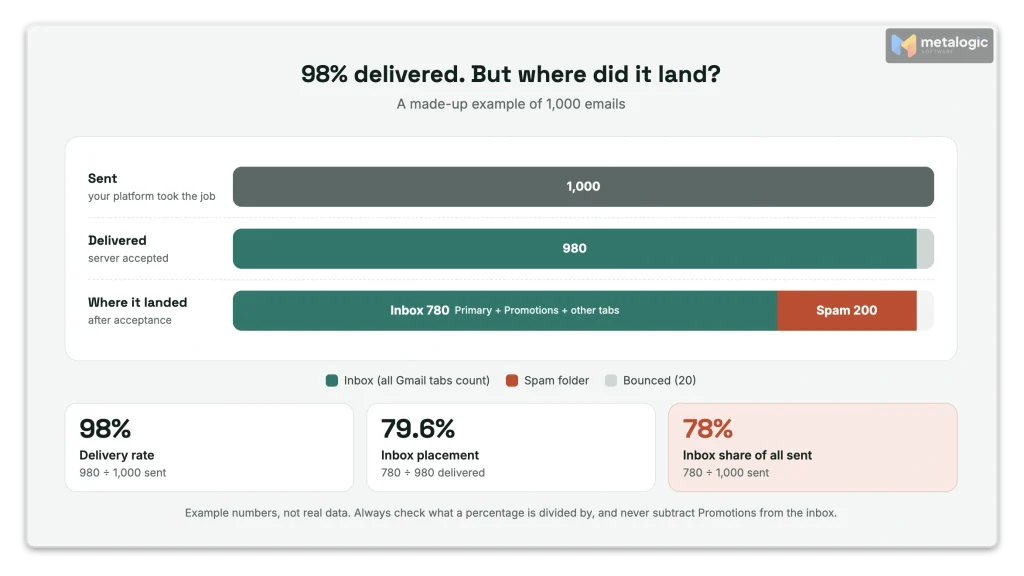
Here is a made-up example, to show how the numbers work. Imagine you know where every email went:
| Result | Emails |
|---|---|
| Sent | 1,000 |
| Bounced | 20 |
| Accepted by the receiving server (Delivered) | 980 |
| In the inbox, including Promotions | 780 |
| In the spam folder | 200 |
| Rate | Calculation | Result |
|---|---|---|
| Delivery rate | 980 ÷ 1,000 | 98% |
| Inbox placement (of delivered) | 780 ÷ 980 | about 79.6% |
| Inbox share of all sent | 780 ÷ 1,000 | 78% |
The report says “98% delivered”. But one in five delivered emails is in spam. That gap is invisible in a normal delivery report.
Always ask: “out of what?”
79.6% and 78% are both correct. They use different bottom numbers. Tools don’t all use the same one, so always check what a percentage is divided by. And never subtract Promotions from your inbox number: Promotions is inbox.
What to do, based on where your emails land
| What you see | Check this next |
|---|---|
| Bounces or rejections | The error code, the address status, your list source, authentication and the receiver’s limits. See how to reduce your email bounce rate |
| “Delivered”, but signs of spam placement | Authentication, sender reputation, consent and complaints. Use the spam troubleshooting guide |
| Landing in Promotions | Is the email promotional? Then compare clicks, sales and unsubscribes, not the tab |
| Primary, but few clicks or sales | Subject line, offer, call to action, audience and landing page |
| Test accounts show different results | A bigger sample, differences between providers, each account’s settings, repeated tests over time |
Where email verification fits, and what it can’t do
Think of inbox success as three layers. Each layer has its own tool:
| Layer | The problem | The tool |
|---|---|---|
| 1. Delivery | Dead or wrong addresses that bounce | Email list validation before you send |
| 2. Inbox placement | Spam folder | Authentication, permission-based signups, low complaints, a good reputation |
| 3. Attention | Nobody acts | A relevant offer, a good subject line, the right audience |
Verification works on layer 1, but it also protects layer 2. Amazon SES explains in its sending metrics guide that when receivers see a high hard bounce rate, “they assume that you don’t know your recipients well”, and that can hurt your deliverability. SES itself asks senders to keep bounces below 2%, and puts accounts under review at 5%.
What validating email can and can’t do
| Email verification can | Email verification can’t |
|---|---|
| Find addresses that don’t exist before you send | Put your email in the inbox |
| Flag risky addresses, like catch-all and disposable ones | Move your email from Promotions to Primary |
| Reduce preventable bounces that hurt your reputation | Create permission or interest |
| Keep your “do not send” list out of the import file | Fix a weak offer or subject line |
How MailVexa helps with layer 1
MetaLogic MailVexa is email verification software that runs on your own Windows or Mac computer. Your list stays on your machine. Before a campaign, it:
- Cleans the file: removes duplicates, trims spaces, lowercases addresses, and can filter role addresses (info@, support@) and domains you choose.
- Excludes your “do not send” list: unsubscribes, complaints and past bounces are skipped and marked “ExcludedEmail”.
- Checks each address in layers: format, disposable domains, free providers, mail server (MX), SMTP and mailbox, catch-all, and the domain’s SPF/DMARC.
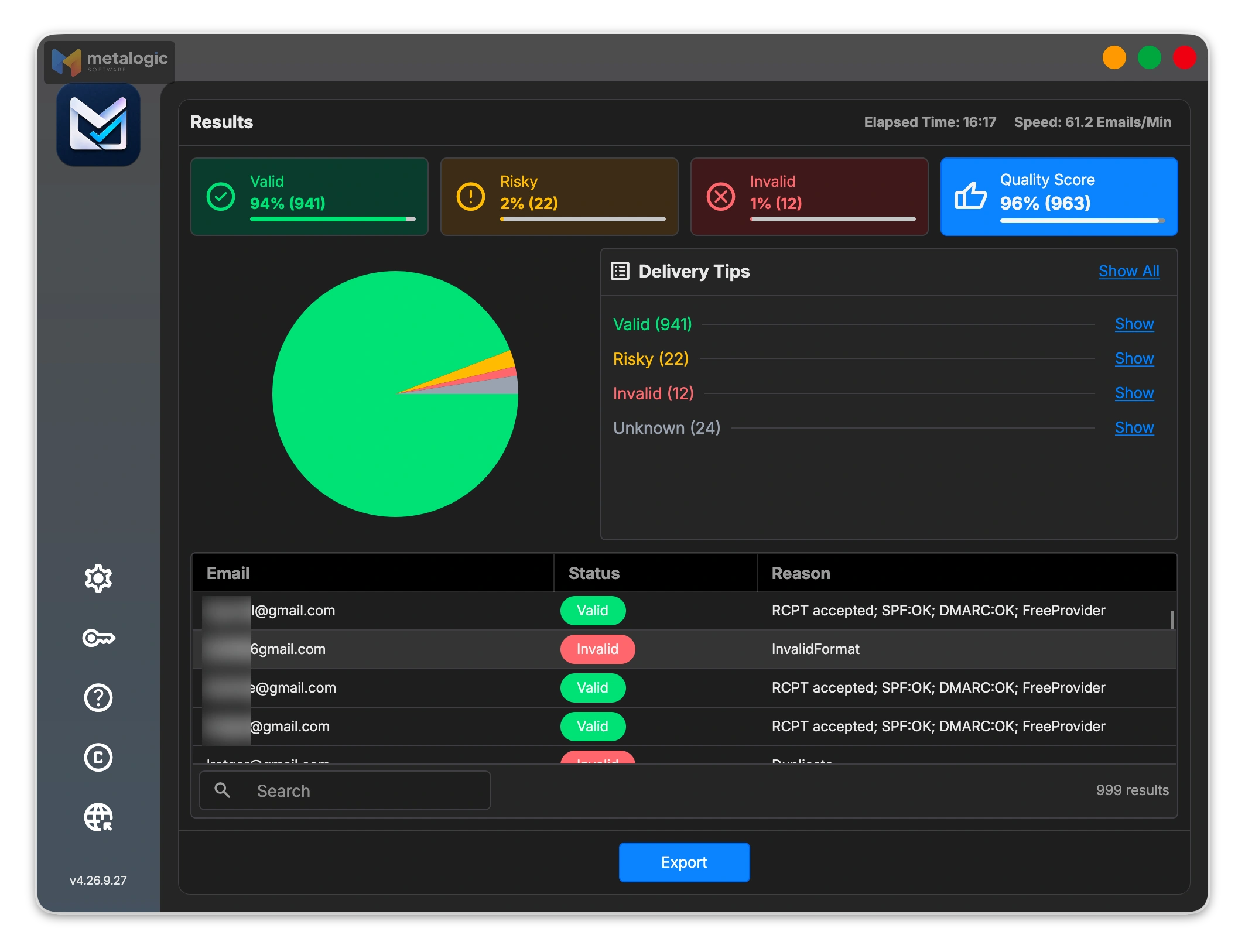
- Sorts the results into Valid, Risky, Invalid and Unknown, each with a reason.
- Exports the groups you choose as CSV or XLSX for your email platform.
“Valid” means the mailbox works, nothing more
A Valid result means the mailbox appears to exist and accept mail. It doesn’t mean the email will reach the inbox, land in Primary, or be wanted. Consent and content still decide that. For what each result means, read email verification results explained.
For the full routine before a campaign, see how to clean your email list before sending a campaign. New to the app? How to use MailVexa walks through every screen.
Before you judge a campaign: a quick checklist
Before you decide a campaign “failed”, go through these questions in order:
- Did I read my platform’s definition of “delivered”?
- How many emails bounced, and what did the error codes say?
- Is there evidence of spam placement (seed tests, Postmaster spam rate, complaints)?
- If it landed in Promotions, was it a promotional email anyway?
- Am I judging by clicks, sign-ups and sales, not only opens?
- Did I exclude automatic opens and bot clicks where my platform allows it?
- Did I compare results by mailbox provider (Gmail, Outlook, Yahoo)?
- Was the list verified, and the “do not send” list excluded, before sending?
The short version
| If you remember one thing about… | Remember this |
|---|---|
| Delivered | The server accepted it. Folder unknown |
| Promotions | It’s inbox. It’s not spam |
| Primary | Each reader decides. No one can guarantee it |
| Open rate | Unreliable. Judge by clicks and sales |
| Verification | Stops preventable bounces. Doesn’t choose the folder or the tab |
Common questions
Does “Delivered” mean my email reached the inbox?
No. It means the recipient’s mail server accepted it. The email may still be in the spam folder.
Does Gmail Promotions count as inbox placement?
Yes. Promotions is a tab inside the inbox. Only the spam folder is outside it.
Is Promotions the same as spam?
No. Promotions means “this is marketing”. Spam means “this may be unwanted or harmful”.
Why does the same email appear in different Gmail tabs?
Gmail learns from each person, and each person can change their tabs and settings. So the same campaign can land differently for different readers.
Can plain-text emails still land in Promotions?
Yes. Gmail looks at engagement, content and the sender, not just the format. There is no proven way around it.
Does passing SPF, DKIM and DMARC guarantee Primary placement?
No. Authentication helps your email get accepted and trusted. It doesn’t decide which tab it lands in.
Can my email platform tell which Gmail tab received my campaign?
No. Platforms see delivery, bounces and engagement. Only seed tests can estimate placement, and many don’t report tabs at all.
Can email verification guarantee inbox delivery?
No. It removes addresses that would bounce, which protects your reputation. The inbox also depends on consent, content and complaints.
Sources
Email platforms and standards
- Amazon SES: Event publishing. Send and Delivery event definitions; suppressed mail still counted as a send.
- Twilio SendGrid: Deferrals. Retries for up to 72 hours.
- Mailgun: Webhooks. Delivered and failed event definitions.
- Postmark: Delivery webhook. Delivery is acceptance, not inbox.
- Brevo: Analyze your email campaign report. “Delivered” includes the spam folder.
- Brevo: Why are emails being delivered to the spam folder?
- RFC 5321, section 6.1. Accepting a message means accepting responsibility for it.
- Amazon SES: Success metrics. High hard bounce rates hurt deliverability.
- Amazon SES: Enforcement FAQ. Bounce rate below 2%, review at 5%.
Gmail and other mailbox providers
- Gmail: Inbox categories and tabs. Tab definitions, notifications, Default inbox type.
- Google: Purchases view and Promotions sorting (September 2025)
- Google: Promotions annotations FAQ. No effect on the tab classifier.
- Google: Promotions annotations troubleshooting. Unfamiliar subdomains can confuse the classifier.
- Gmail email sender guidelines. Content types, unsubscribe, no allowlists, no open-rate tracking.
- Gmail Postmaster Tools dashboards
- Microsoft: Focused Inbox for Outlook
- Microsoft SNDS FAQ
Measurement
- Mailchimp: About Gmail tabs. No proven way to beat Gmail’s algorithms.
- Amazon SES: Inbox placement tests. Inbox, spam and missing results.
- Apple: Protect your email privacy. Mail Privacy Protection.
- Mailchimp: About open and click rates. Bot activity inflates metrics.
Product
- MetaLogic MailVexa. Desktop email verification software for Windows and macOS.
Fix layer 1 before you worry about tabs
Bounces are the one inbox problem you can prevent before you press send. MailVexa removes addresses that would bounce, keeps your “do not send” list out, and shows a reason for every result, all on your own computer.
Windows and macOS. Pay once, use for life. Free 14-day trial with up to 2,000 verifications.
We build MetaLogic MailVexa, so weigh our description of it accordingly. We have no commercial relationship with any email platform or mailbox provider mentioned in this guide. Platform definitions and Gmail features were checked in October 2026 and change often, so confirm them on each official site.