You send a campaign. The report comes back. Next to “Delivered” there is a smaller number that says “Bounced”.
Most people glance at it and move on. That is a mistake, because that small number is not only about the emails that failed. Mailbox providers read it as a signal about you. Every bounce you ignore makes the next campaign a little harder to deliver, including the emails going to people who really want them.
This guide explains what a bounce is, the real difference between hard and soft bounces, how to read the message behind each one, and what to do so fewer happen next time.
Quick answer
A hard bounce usually means a permanent delivery failure, such as a mailbox that does not exist. A soft bounce usually means a temporary problem, such as a full mailbox or a busy server.
To reduce your bounce rate: collect addresses properly, verify old or imported lists before sending, stop sending to hard-bounced addresses, watch repeated soft bounces, and read the actual error message before deciding what to do. Many bounces start with the list. Some start with your sending setup.
What is an email bounce?
A bounce is an email that could not be delivered, where the receiving server sent back an error. The server is telling you, in its own words, why it did not accept the message.
A bounce is easy to confuse with two other things. They are not the same.
| What happened | Was the email accepted? | Where you see it |
|---|---|---|
| Bounce | No. The server refused it. | Bounce report, with an error reason |
| Landed in spam | Yes. Then it was filtered. | Usually nowhere. It counts as “delivered”. |
| Delivered, not opened | Yes. | Delivered, with no open or click |
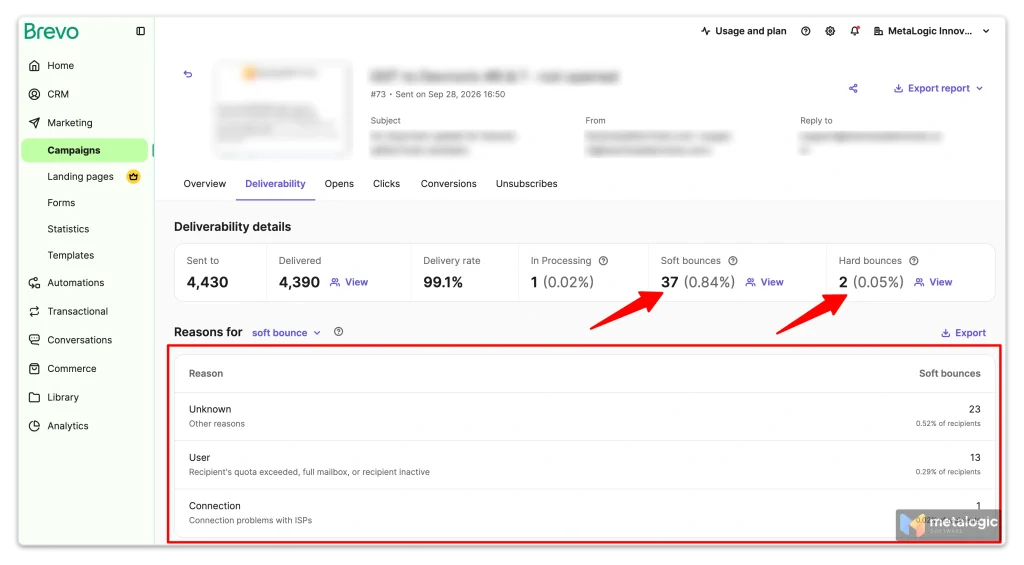
Your email platform shows bounces in its campaign report. In Brevo, for example, you can open a contact’s history and see the exact error the server returned. Mailchimp keeps these bounce details in the email report for 30 days after sending.
Hard bounce vs. soft bounce
Most platforms split bounces into two groups. Knowing which one you are looking at decides what you do next.
| Hard bounce | Soft bounce | |
|---|---|---|
| Type of error | Usually permanent | Usually temporary |
| In simple words | “This will not work.” | “Not right now.” |
| Common cause | Mailbox or domain does not exist | Mailbox full, server busy, message too large |
| Next action | Stop sending to it and record it | Let your platform retry, and watch for repeats |
A soft bounce is a delay, not a verdict. But it is not a promise either. If the problem does not go away, a later attempt can still fail.
A hard bounce does not always mean the address is invalid
This surprises many senders. Several platforms say it directly in their own documentation. Mailchimp lists a receiving server that has permanently blocked delivery as a hard bounce. Postmark notes that an email can hard bounce and still be a valid address, because of the way the server rejected it.
Platforms also sort the same failure differently. Amazon SES, for example, treats rejected content as a temporary bounce, while Mailchimp treats some permanent blocks as hard. So always read the reason, not only the label.
Why emails bounce
Bounces come from two very different places. Fixing them means knowing which one you have.
| Problems with the list or recipient | Problems with your sending |
|---|---|
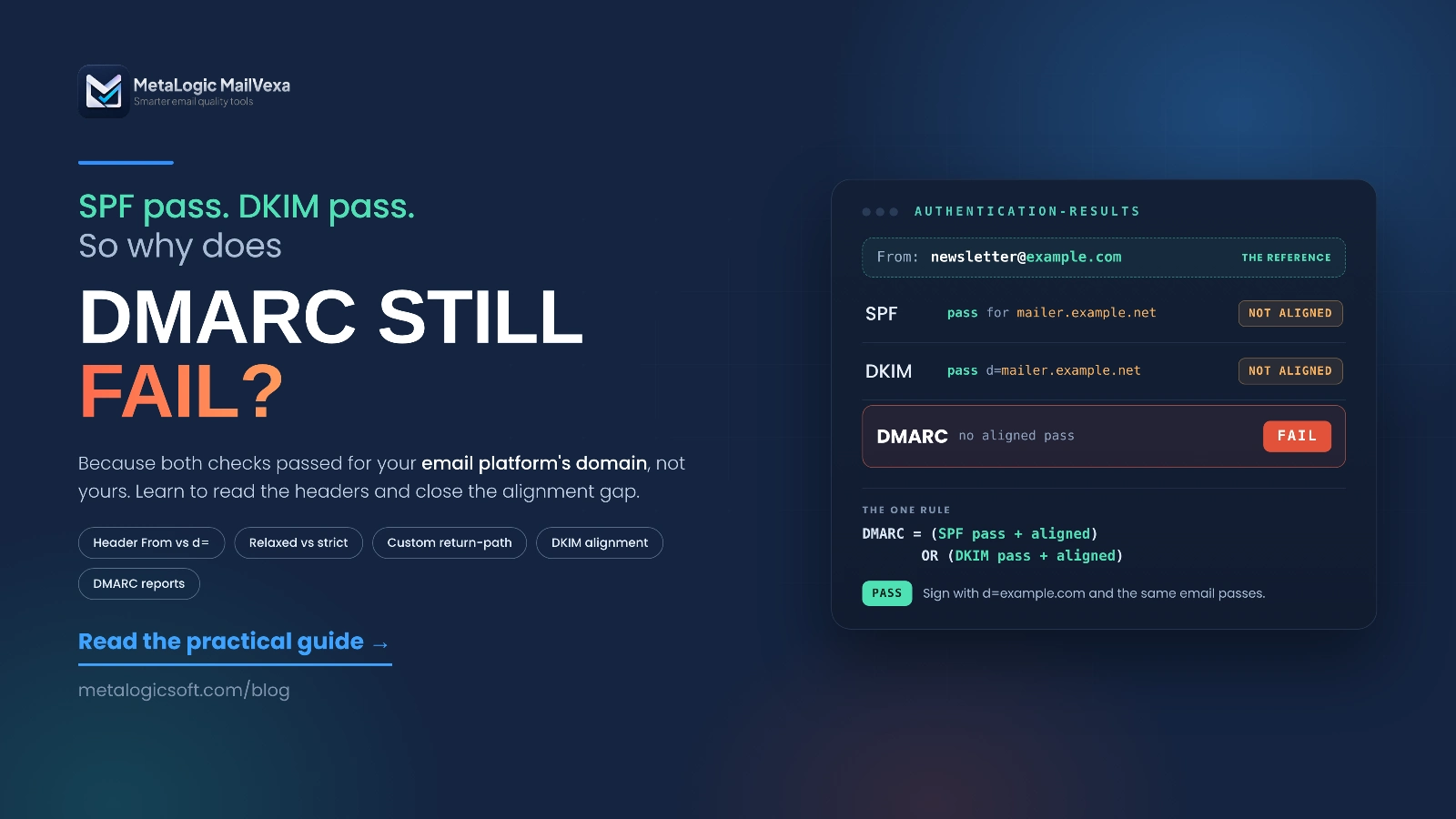
| The address was typed wrong | Your domain failed authentication (SPF, DKIM, DMARC) |
| The mailbox was closed or deleted | You sent too much, too fast, and hit a rate limit |
| The domain no longer accepts email | Your sending IP or domain was blocked |
| The mailbox is full | The message was too large or its content was rejected |
| The recipient’s server was down for a while |
The right column matters more than people expect. Google says messages that are not authenticated may be marked as spam or rejected outright. No amount of list cleaning fixes that. Only your domain setup does.
A quick way to tell them apart
If bounces are spread across many different domains with “user unknown” style errors, the problem is probably your list.
If bounces are concentrated at one provider, such as Gmail, with blocking or authentication errors, the problem is probably your sending setup.
How to calculate your bounce rate
The basic formula is simple:
Bounce rate = (Bounced emails ÷ Sent emails) × 100Example: you send 1,000 emails and 20 bounce. 20 ÷ 1,000 × 100 = 2%.
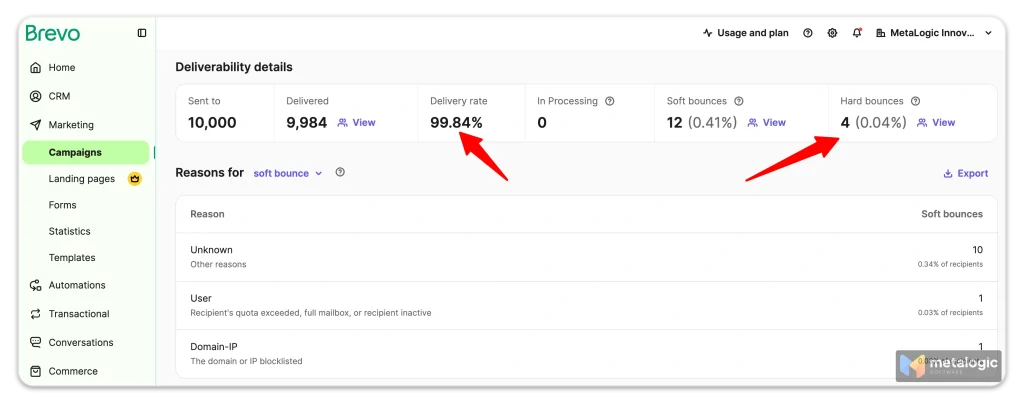
Here is a real one. This is a campaign we sent to a list that was cleaned before sending: 10,000 emails, 4 hard bounces and 12 soft bounces.
| Count | Rate | |
|---|---|---|
| Hard bounces | 4 | 0.04% |
| Soft bounces | 12 | 0.41% |
| Total bounces | 18 | 0.45% |
Your number can differ between tools
Platforms do not all measure the same way. Some divide by emails sent, some by recipients. Amazon SES counts only hard bounces, and measures over a “representative volume” of your recent sending rather than a fixed period. So the same campaign can show slightly different rates in different places. Compare like with like.
What is a good bounce rate?
There is no single safe number that applies everywhere. Mailchimp says mailbox providers change their limits and do not publish them. What you can do is look at what individual sending platforms say, and read each number for what it actually is.
| Platform | Recommended target | When they take action |
|---|---|---|
| Amazon SES | Below 5% | Account reviewed at 5%. Sending may be paused at 10%. |
| SendGrid | Hard bounces under 5% of attempted emails | Not published |
| Postmark | Must stay below 10% |
A review threshold is not a target
When Amazon says it reviews accounts at 5%, that is the point where you are already in trouble. It is not permission to run at 4.9%.
A sensible goal is simply this: keep your rate as low as you can, and investigate any increase early rather than waiting for a limit. Our own campaign above ran at 0.09% hard bounces, and that headroom is what protects the next campaign.
How to read a bounce message
Every bounce comes with a small report. Look at four things:
- The recipient. Which address failed.
- The time. When it happened. A burst at one time can point to a rate limit.
- The destination domain. Gmail, Outlook, a company domain.
- The error code and reason text. This is the part that tells you what to do.
Here are three real examples from Google’s own error list:
| Code | What it means | What to do |
|---|---|---|
550 5.1.1 | The account does not exist. | Stop sending to it. |
452 4.2.2 | The inbox is out of storage. Temporary. | Let it retry. Watch for repeats. |
421 4.7.26 | Rate limited because the email is not authenticated. | Fix SPF and DKIM. This is not a list problem. |
The first digit tells you a lot
Codes starting with 4 are temporary. The server is saying “try again later”, and your platform usually will. Codes starting with 5 are permanent. Sending the same message again, in the same way, is not expected to work. This is defined in the email standards RFC 5321 and RFC 3463.
Do not memorise codes
You do not need a long list. Read the first digit to know if it is temporary or permanent, then read the plain text after the code. Most servers explain the problem in a sentence.
What to do after a hard bounce
- Stop sending to that address. Most platforms do this automatically. Amazon SES advises removing hard-bounced addresses immediately.
- Add it to your suppression list. This is a list of addresses you must never send to again. It stops the address coming back through an old file or a new import.
- Read the reason first. If it says the mailbox does not exist, you are done. If it mentions a block, a policy or authentication, the problem is on your side. Check your sending setup instead of blaming the address.
Deleting is not the same as suppressing
If you simply delete a hard-bounced contact, nothing stops the same address returning next month through an old spreadsheet. Keep a record that it failed. The record is what protects you.
What to do after a soft bounce
Usually, nothing straight away. Your platform retries temporary failures on its own. How long, and how many times, depends on the platform.
| Platform | How it handles soft bounces |
|---|---|
| Brevo | Retries for 36 hours. Five soft bounces in a row across campaigns blocks the address. |
| Mailchimp | After 7 soft bounces for an inactive contact, or up to 15 for an active one, treats it as a hard bounce. |
| SendGrid | Retries delayed messages for up to 72 hours. |
What you should do:
- Do not delete after a single soft bounce. A full mailbox on Tuesday can be fine on Friday.
- Watch for repeats. The same address soft-bouncing campaign after campaign is telling you something.
- Fix content problems yourself. If the reason is “message too large” or “content rejected”, waiting will not help. Change the message.
How to prevent avoidable bounces before sending
Most bounces are cheaper to prevent than to clean up afterwards.
- Collect addresses properly. Google advises confirming each address before subscribing someone. Double opt-in does exactly that.
- Never buy or scrape lists. Google says plainly not to purchase email addresses from other companies.
- Verify old or imported lists before sending. A list that sat unused for months is where most dead addresses hide.
- Keep suppression lists in sync. If you use more than one tool, an address removed in one must be removed everywhere.
- Authenticate your domain. Set up SPF and DKIM, and DMARC if you send in volume. Our guide to improving email deliverability covers this step by step.
- Increase volume gradually. Google advises sending at a steady rate and avoiding sudden spikes.
- Check the message size. Gmail’s attachment limit for personal accounts is 25 MB. Large images and attachments are a common, avoidable cause.
For the full preparation process, see how to clean your email list before sending a campaign.
Where email verification helps, and where it does not
Email list validation checks each address before you send. It can catch the problems that are visible in advance:
- Addresses with broken format
- Domains that do not exist or cannot receive email
- Mailboxes the server says do not exist
- Duplicates and disposable addresses
That removes a large share of avoidable hard bounces before they ever reach your report.
What verification cannot do
Be clear about the limits. No verification tool can:
- Stop a mailbox filling up next week
- Prevent rate limiting on the day you send
- Fix a domain that is not authenticated
- Remove a block against your sending IP
- Guarantee your email lands in the inbox
Some results are also uncertain by nature. A catch-all domain accepts every address, so Mailgun’s documentation notes that validity simply cannot be determined. That is not the same as invalid. Our guide to email verification results explains how to handle each one.
How MailVexa fits
MetaLogic MailVexa is email verification software that runs on your own Windows or Mac computer. You import a CSV, TXT or Excel file, remove duplicates and fix formatting, verify the addresses, review the results, and export only the groups you choose.
Results come back as Valid, Risky, Invalid or Unknown, each with a reason. Invalid addresses stay out of your export. Risky and Unknown go into a separate file for review, instead of being deleted. Your list stays on your own computer the whole time.
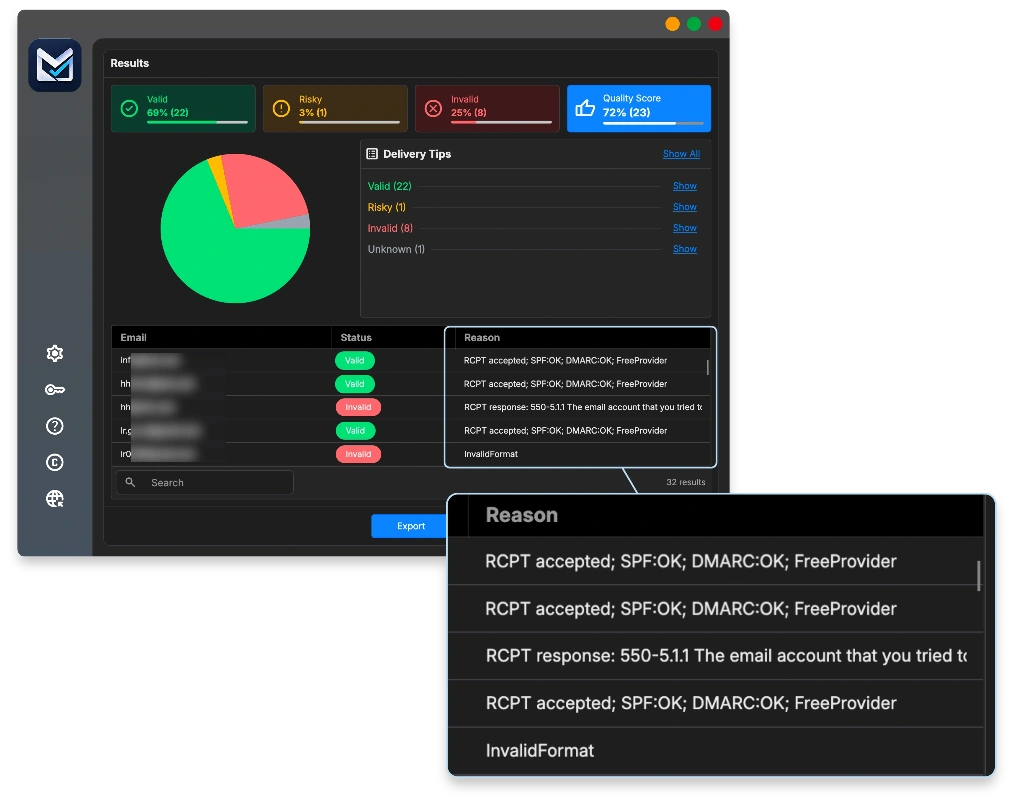
Check your list before the next send. Run your file through MailVexa and see which addresses would have bounced. The trial covers up to 2,000 verifications over 14 days, with no card required.
What to do if your bounce rate suddenly jumps
A sudden spike needs a calm order of steps. Resist the urge to simply send again.
- Pause the affected sending. Amazon advises that you stop sending until you fix the problem, if you can.
- Check where the bounces come from. All domains, or one provider like Gmail? SendGrid recommends identifying which provider is causing most of the failures.
- Group the errors by reason. “User unknown”, “mailbox full” and “blocked” are three different problems.
- Look at what changed recently. A new list, a new domain, a DNS change, a new platform, or a jump in volume.
- Fix the cause. Clean the list, repair authentication, or reduce your sending speed.
- Restart slowly. Send a smaller volume first and watch the bounce report before going back to normal.
Resending is not a fix
Sending the same campaign again without changing anything only produces the same bounces, and adds more damage to your reputation. Amazon notes that simply stopping a bad campaign is not enough. You have to find and fix what caused it.
Common questions
Can a valid email address still bounce?
Yes. The mailbox can be full, the server can be down, or your email can be blocked because of your sending setup. Mailchimp notes that valid addresses do occasionally hard bounce.
Should I remove every soft-bounced address?
No. A single soft bounce is often temporary. Remove an address after repeated soft bounces, following your platform’s own rule.
How many times should an email be retried?
There is no universal number. Your sending platform decides, based on its own policy. Brevo retries for 36 hours and SendGrid for up to 72 hours, for example.
Can email verification prevent all bounces?
No. It removes problems that can be detected before sending. It cannot prevent a mailbox filling up, a rate limit, or a block caused by your sending setup.
Why did an email bounce after the address passed verification?
Something changed between the check and the send, the domain was catch-all so the result was never certain, or the rejection came from your side, such as authentication or reputation. Read the bounce reason to know which.
Does a low bounce rate mean my emails reach the inbox?
No. A bounce means the email was refused. A delivered email can still land in the spam folder. Bounce rate and inbox placement are two different measurements.
Sources
- Mailchimp — Soft vs. hard bounces. Definitions, soft-bounce conversion rules, and blocks counted as hard bounces.
- Brevo — Soft and hard bounces. Retry period and blocklisting rules.
- Postmark — Bounces and spam complaints. Hard bounces that are still valid addresses.
- Amazon SES — Reputation metrics. Bounce rate target, review and pause thresholds.
- Amazon SES — Sending review FAQ. What to do when bounce rate rises.
- SendGrid — Bounce and block classifications. Failure categories and hard bounce guidance.
- Google — Gmail SMTP errors and codes. Meaning of the example error codes.
- Google — Email sender guidelines. Authentication, buying lists, and sending rate.
- RFC 5321 and RFC 3463. Temporary vs permanent error codes.
Provider rules change. Check the original pages before making decisions based on them.
Find the addresses that would bounce, before they do
MailVexa verifies your list on your own computer and shows the reason behind every result, so you can remove what is clearly broken and review what is uncertain.
Windows and macOS. The trial covers up to 2,000 verifications over 14 days, with no credit card required.
We build MetaLogic MailVexa, so weigh our description of it accordingly. Everything else in this guide applies whichever tools you use.