Your emails used to arrive. Now people say they found them in spam, or they never saw them at all.
The natural reaction is to change everything at once: a new subject line, a new template, maybe a new email platform. That is the fastest way to lose the evidence. If you change five things and the problem goes away, you still do not know what caused it. If it comes back, you start from zero.
Spam placement is rarely caused by the words in your email. Mailbox providers also look at how your domain is authenticated, your sending reputation, the quality of your list, and how people react to your messages. Google says this plainly in its email sender guidelines.
This guide is for businesses and people who send newsletters or email campaigns. It will not promise that every email reaches the inbox. Nobody honest can. It gives you a clear order of checks, so you find the most likely cause first and fix only what is actually broken.
Quick answer
Emails usually go to spam for one of five reasons: authentication fails on the real message, your sender reputation has dropped, too many people mark your emails as spam, your list contains people who did not expect your email, or you changed your sending volume too suddenly.
Start by confirming the problem on a real message. Then check authentication, reputation and your list, in that order. Change one thing at a time and measure the result.
Start here: which step do you need first?
You do not have to read all ten steps. Find the sentence below that sounds most like your situation, and start with the step next to it.
| Your situation | Start with |
|---|---|
| “My emails do not arrive at all.” | Step 1: Confirm what is really happening |
| “Only one person says my email went to spam.” | Step 2: Find out who is affected |
| “It started after I moved to a new email platform.” | Step 3: Check authentication |
| “Only Gmail users, or only Outlook users, find my emails in spam.” | Step 4: Check your reputation with that provider |
| “It started after I sent to an old list, or a new one.” | Step 5: Check your list |
| “Only one campaign or one template goes to spam.” | Step 8: Check the message and links |
None of these match, or you are not sure?
Start at Step 1 and work down in order. The steps are arranged so the most common causes come first.
And remember: this table only tells you where to look first. The step itself is what confirms the real cause.
STEP 1: Confirm your emails are really going to spam
Check. Before you fix anything, make sure you know which problem you have. Four different things get called “spam”.
| What happened | Where the email is | What it means |
|---|---|---|
| Spam / Junk | In the spam folder | Accepted, then filtered. This guide is for this one. |
| Promotions tab | In a Gmail inbox tab | Not spam. Gmail sorts mail into tabs such as Primary and Promotions. |
| Bounce | Nowhere. It was refused. | A delivery failure with an error message. |
| Delayed | Not yet arrived | The server said “try again later”. It may still arrive. |
Gmail’s inbox categories put marketing mail into the Promotions tab. That is part of the inbox. If your emails land there, you do not have a spam problem.
What it means. Your platform’s “Delivered” number cannot tell you which one it is. SendGrid explains that “delivered” only means the receiving server accepted the message. A delivered email can still sit in the spam folder.
Open rates will not settle it either. Apple’s Mail Privacy Protection hides whether a message was opened, so a drop in opens can have nothing to do with spam.
What to do next. Ask one affected person to send you a real example: the date and time it arrived, which folder it landed in, and the full message header. One real example is worth more than any number of guesses.
If the email never arrived at all
That is a delivery problem, not a spam problem. Look for a bounce or error message in your platform first. Our guide to reducing email bounce rate explains how to read those errors.
STEP 2: Find out who is affected, and what changed
Check. Answer these questions before touching any settings.
- Is it everyone, or only some recipients?
- Gmail, Yahoo, Outlook.com, or company mailboxes?
- Every message, or only marketing campaigns?
- When exactly did it start?
- What changed around that date: domain, platform, IP address, template, tracking links, volume, or where new contacts came from?
What it means. A problem that started on a specific date almost always has a cause on that date. Writing it down turns a vague feeling into something you can test.
| Date | Change | Who is affected | Evidence |
|---|---|---|---|
| Example: 3 March | Imported a trade-show list | Gmail recipients | Complaints rose the next day |
| Example: 10 March | New email template | All providers | Only this campaign affected |
The Outlook app is not the same as Outlook.com
Someone reading mail in the Outlook app might have a Gmail account, a company mailbox, or anything else behind it. What matters is who hosts the mailbox, which you can see from the address domain or ask the recipient.
What to do next. If only one person is affected, check their own filters and blocked-sender list before anything else. If a whole provider is affected, go to Steps 3 and 4.
STEP 3: Check authentication on a real email
Check. Open a real email that you sent, in the recipient’s mailbox, and look at the authentication results.
- Gmail: open the message, click the three dots, then Show original. Google’s guide to viewing the full header shows where it is.
- Outlook.com and new Outlook: choose View message details. Microsoft explains how to view message headers in each version.
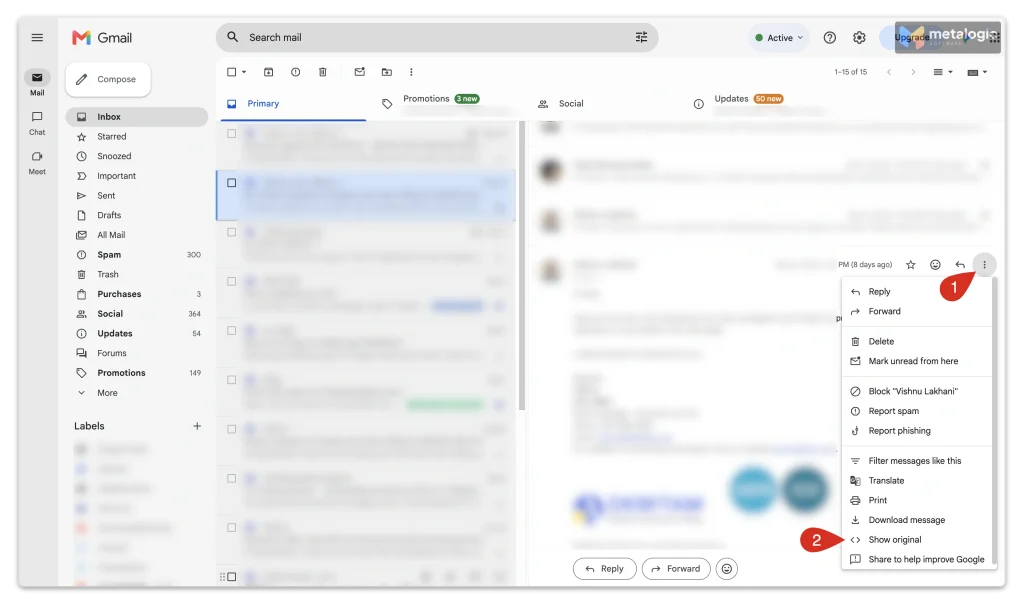
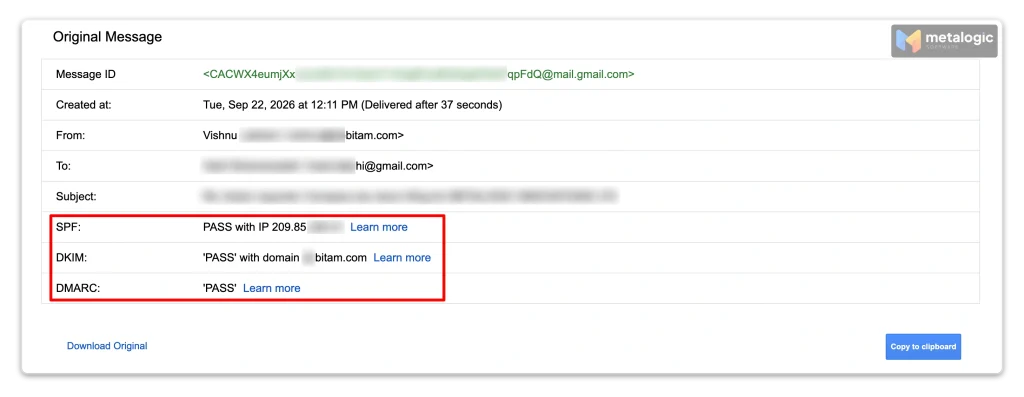
What it means. The three results answer three simple questions.
| Check | The question it answers |
|---|---|
SPF | Was this sent from a server your domain allows? |
DKIM | Is the message signed by your domain, and unchanged? |
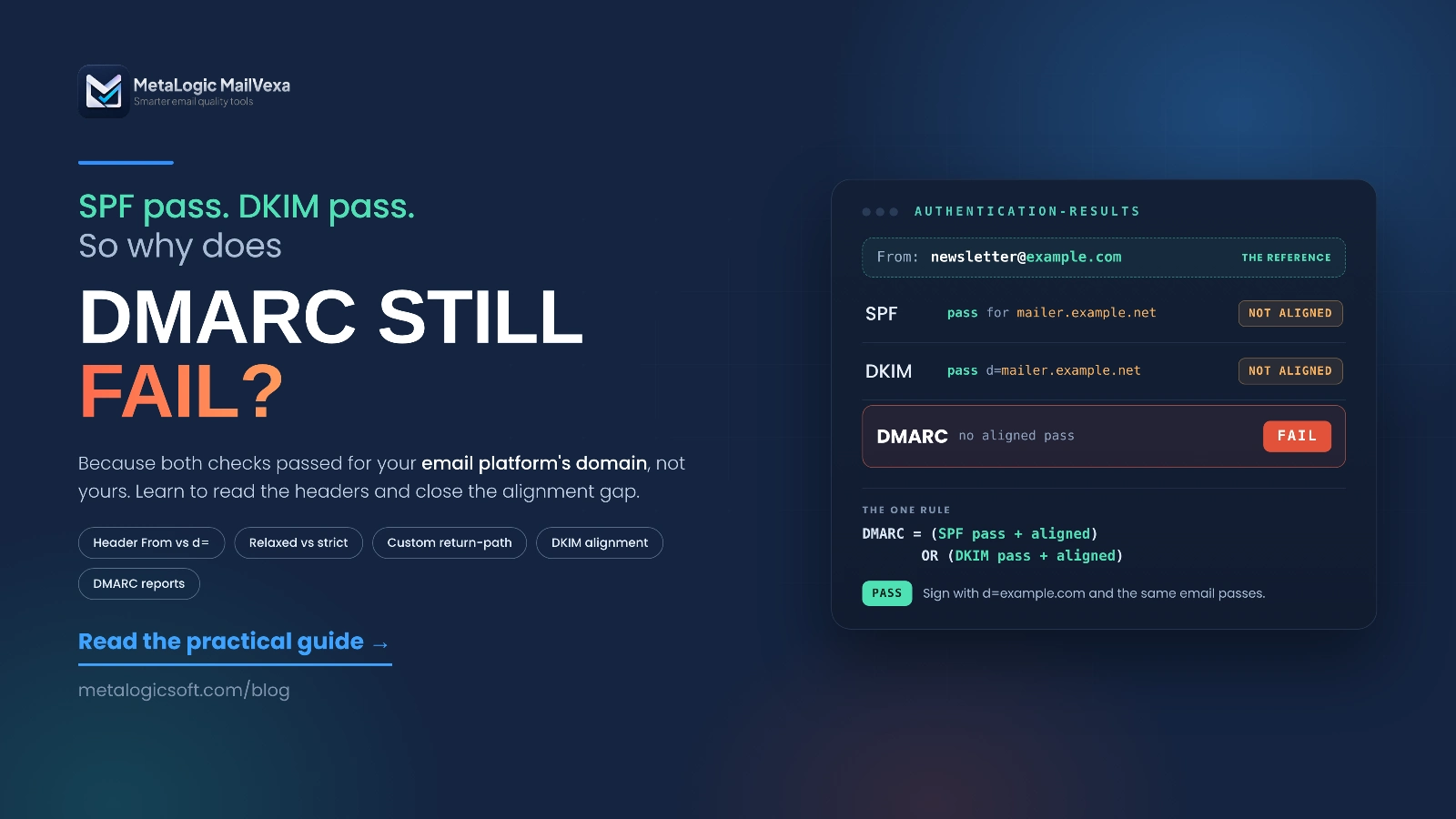
DMARC | Does the domain people see in “From” match a domain that passed SPF or DKIM? |
That last idea is called alignment. The address your readers see in “From” has to belong to the same domain that passed the check. The current DMARC standard, RFC 9989, defines it. It also makes a point worth remembering: a DMARC pass only proves the From domain was used legitimately. It does not prove the email is wanted.
“The record exists” is not the same as “the message passed”
Many people check their DNS, see an SPF record, and stop there. But a record can exist and still fail on real mail, for example if your email platform is missing from it.
Only the result on a real delivered message tells you the truth. And check each sending path separately: your newsletter platform, your website’s contact form and your invoicing system may all be set up differently.
Forwarded mail is harder to judge. Forwarding can break SPF and sometimes DKIM. Google’s guide to forwarding email to Gmail explains this. If the only failing examples are forwarded ones, test with a direct message first.
What the big providers require
| Provider | All senders | Around 5,000+ emails a day |
|---|---|---|
| Gmail | SPF or DKIM, valid reverse DNS, TLS | SPF and DKIM, DMARC, alignment, one-click unsubscribe |
| Outlook.com | Good practice recommended | SPF, DKIM, and DMARC of at least p=none, aligned |
| Yahoo | SPF or DKIM, valid reverse DNS | SPF and DKIM, DMARC, one-click unsubscribe |
Outlook.com now rejects high-volume mail that fails these checks with error 550 5.7.515, which Microsoft documents on its support page for that error.
What to do next. If anything shows FAIL, fix that before any other step. It is the most common cause and the easiest to prove.
STEP 4: Review sender reputation and spam complaints
Check. Look at the data the mailbox providers themselves publish about you.
| Tool | Provider | What it shows |
|---|---|---|
| Postmaster Tools | Gmail | User-reported spam rate, authentication and compliance status |
| SNDS | Outlook.com | Data about sending IP addresses you control |
| JMRP | Outlook.com | Reports when users mark your mail as junk |
In Gmail’s Postmaster Tools dashboards, the spam rate is the share of mail that reached engaged users’ inboxes and was then marked as spam by them.
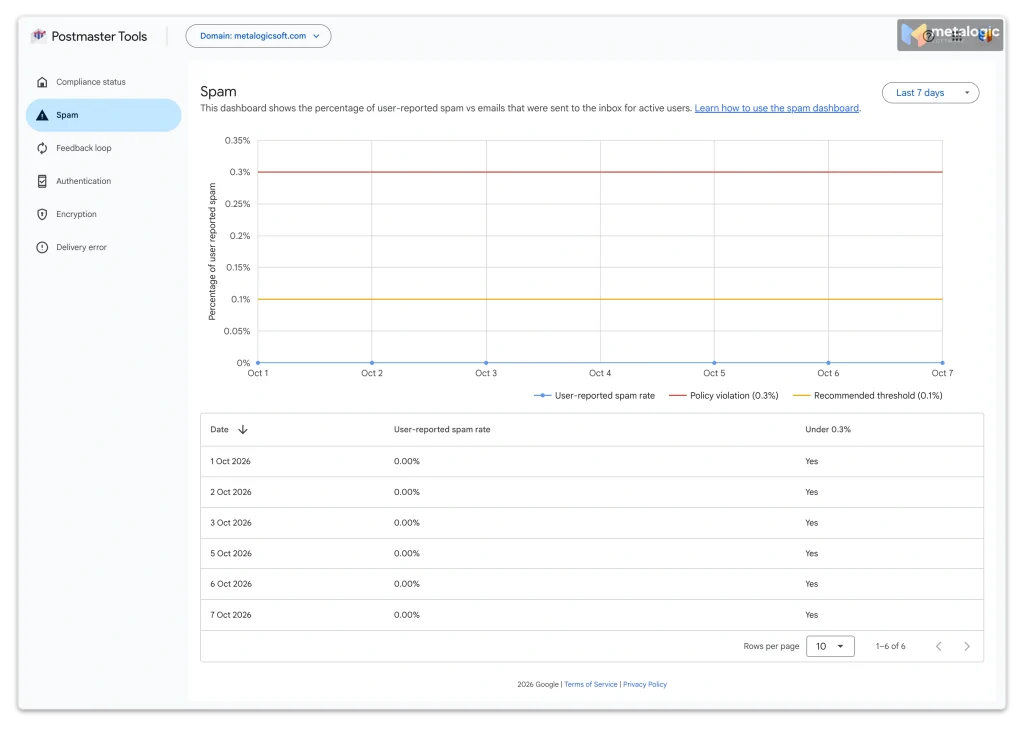
What it means. Three points people often get wrong:
- A low spam rate is not a clean bill of health. If Gmail already filters much of your mail into spam, fewer people see it to complain, so the rate can look low. Google notes that a rate suddenly dropping to zero can mean mail is going straight to spam.
- No data does not mean healthy. If you send little mail to Gmail, the dashboards may simply stay empty.
- Spam rate is not bounce rate. They measure different things.
The number to watch
Gmail requires all senders to keep the reported spam rate below 0.3%. In its list of top Gmail sender issues, Google advises keeping it below 0.1%. Treat 0.1% as your target and 0.3% as the line you must never reach.
Postmaster Tools is changing. Google is moving senders to a new version with a Compliance status dashboard, and the older reputation charts are being phased out. Google’s page on the Postmaster Tools transition has the current status.
For Outlook.com, Microsoft’s SNDS portal gives data about IP addresses you control, and JMRP sends you a report when someone marks your mail as junk.
What to do next. If you use a shared IP from your email platform, you cannot register it in SNDS yourself. Ask your platform’s support team for that data. Domain reputation and IP reputation are separate: on a shared IP, other senders’ behaviour affects you too.
STEP 5: Audit your email list and what subscribers expect
Check. Ask honest questions about the list itself.
- How were these addresses collected?
- Do these people expect this kind of email, from this brand?
- Was an old list or a new source added recently?
- Are invalid addresses, unsubscribes and complainants kept out of future sends?
What it means. Yahoo’s guidance puts it simply: send timely and relevant email to an active, engaged audience. Mail to people who did not expect it produces complaints, and complaints drive spam placement for everyone on your list.
Dead addresses matter too. A list full of addresses that no longer exist tells providers you do not look after your list. That is where email list validation helps: checking each address before you send.
How to handle verification results
| Result | What to do |
|---|---|
| Valid | Candidate for sending, if the person also agreed to receive your email |
| Invalid | Keep out of your sending list |
| Catch-all | Cannot be fully confirmed. Keep separate and send carefully. |
| Unknown | Not a failure. Set aside and check again later. |
Verification providers such as Emailable make the same point: an Unknown result does not automatically mean the address is bad. And a Valid result does not mean your email will land in the inbox. It only means the mailbox appears to exist. Our guide to email verification results covers each category.
Where MailVexa fits
MetaLogic MailVexa is email verification software that runs on your own Windows or Mac computer. You import a CSV, TXT or Excel file, remove duplicates, verify the addresses, and export only the groups you choose. Results come back as Valid, Risky, Invalid or Unknown, each with a reason. Your list never leaves your computer.
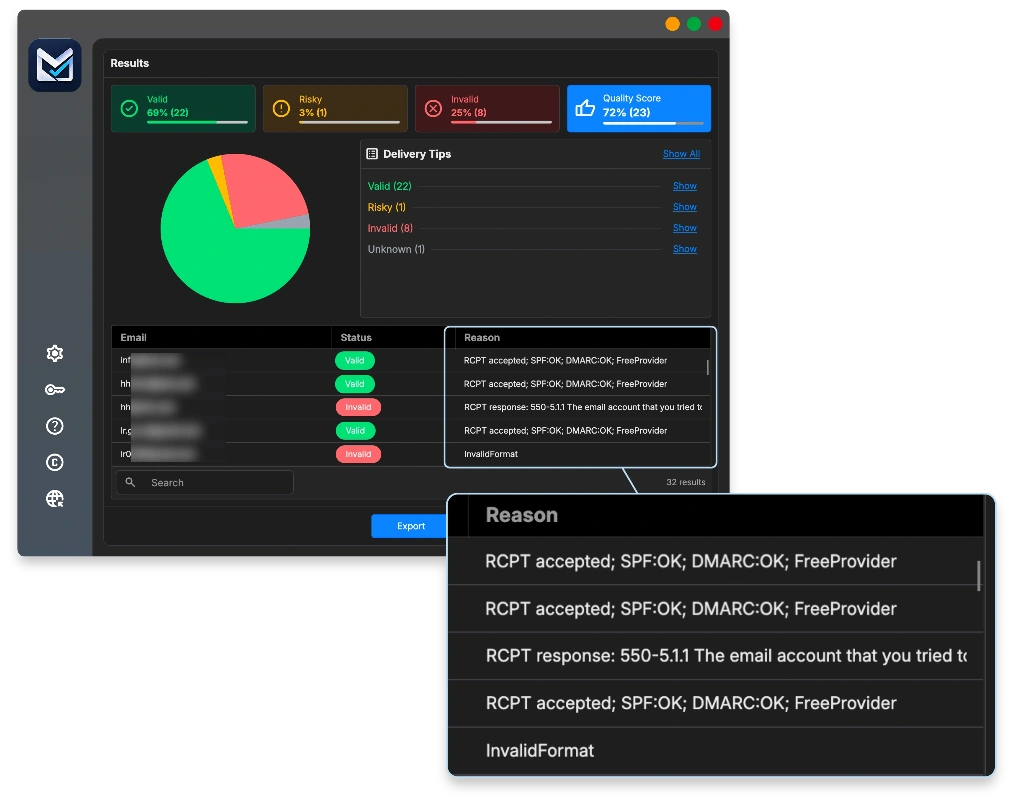
What verification does not do
A verification tool checks whether addresses can receive mail. It does not fix authentication, it does not create permission, and it cannot promise inbox placement. It removes one important cause. The other steps in this guide cover the rest.
What to do next. If the problem started after adding a new or old list, stop sending to that group, verify it, and remove anyone who did not clearly sign up. For the full process, see how to clean your email list before sending a campaign.
STEP 6: Check sending volume, frequency and sudden spikes
Check. Look for any of these:
- A sudden jump in how many emails you send
- Heavy sending from a new domain or new infrastructure
- A big send after a long break
- Newsletter, sales emails and automations all hitting the same person in the same week
- Temporary errors or slowdowns at one specific provider
What it means. Providers are suspicious of sudden change. Google advises sending at a steady rate and avoiding bursts. When Gmail sees an unusual rate, it can temporarily slow you down with error 421 4.7.28, listed in Google’s Gmail SMTP error reference.
What to do next. Google’s own advice when mail is being delayed is concrete:
- Pause for about 15 minutes.
- Send one test message.
- Stay below the volume that caused the delay for 24 hours.
- Then increase by 25% to 100% per day, watching the results.
Reduce volume only for the affected segment. Start again with your most engaged contacts.
STEP 7: Test your unsubscribe process
Check. Do not just confirm the link exists. Actually use it.
- Is the link clear and easy to find?
- Does the request really remove the person from your sending list?
- Can an automation or a re-imported file put them back?
- Does your email include a one-click unsubscribe header, as well as the footer link?
What it means. When unsubscribing is hard, people press “Report spam” instead. That turns a lost subscriber into a complaint against you.
There are two kinds of unsubscribe. The footer link sits inside your email. One-click unsubscribe is a hidden header, defined in RFC 8058, that lets the mailbox show its own unsubscribe button. Bulk senders need both.
Yahoo’s sender FAQ says a footer link alone is not enough, and requires unsubscribes to be honoured within two days. Google’s compliance dashboard checks the same thing, within 48 hours.
What to do next. Unsubscribe from your own list with a test address. Then check that address is excluded from the next campaign and from every automation.
STEP 8: Inspect your message, links and template
Check. Look at these, in order:
- Sender name and subject line. Are they clear and honest?
- Fake replies. Google asks senders not to start a subject with “Re:” or “Fwd:” unless it really is a reply or forward.
- Links. Where does each one really go? Look at redirects and your tracking domain.
- Broken parts. Dead links, unsafe destinations, unnecessary attachments, broken layout.
What it means. Content matters, but less than most people think. And some popular beliefs are simply wrong.
| Common belief | Reality |
|---|---|
| The word “Free” sends you to spam | No single word decides it. Filters look at the whole message. |
| One emoji will get you filtered | Not on its own. |
| There is a safe image-to-text ratio | No provider publishes one. |
| Plain text always reaches the inbox | It helps some cases. It guarantees nothing. |
Mailchimp explains that a campaign would normally need several warning signs together to be filtered, because spam filters judge the email as a whole.
What to do next. Make a simpler version of the same email. Keep the sender, subject and audience the same, and remove images, tracking and extra links. If the simple version reaches the inbox and the original does not, the cause is in the content or links.
STEP 9: Check infrastructure, blocklists and account security
This step is mostly for whoever manages your technical setup.
Check.
- Shared IP: ask your email platform whether the IP you send from has issues.
- Your own server: check reverse DNS (PTR), TLS and the server configuration. If you have never set up reverse DNS, our guide to building your own SOCKS5 proxy shows the same steps on a real server: the PTR record, the matching A record, and why a proxied DNS record breaks the match. That guide sets up a verification server, not a sending server, so use it to understand the steps rather than copying its records.
- Blocklists: check whether your IP or domain is listed, especially if an error message names a blocklist.
- Security: is anything sending email you did not expect? A hacked account, a website form, or a leaked API key?
What it means. You can check listings on Spamhaus, which also points out that removal from its lists is always free. But not being on a public blocklist does not prove your reputation is good. Providers such as Gmail judge you on your own sending behaviour.
Close the leak before you send again
If you find signs of misuse, such as spam sent through your contact form or account, stop that path first. Resuming a campaign while the leak is still open only adds more damage.
STEP 10: Retest carefully and track the results
Check. Before you test again:
- Write down the situation before and after each change.
- Fix every known error first.
- Test through the same real sending path as your campaign.
- Start with a small group of subscribers who recently engaged.
- Look at the results for each provider separately.
What it means. A few test mailboxes cannot show you the full picture. Validity notes that test addresses have no real person behind them opening and engaging, and filters rely heavily on real engagement. Use them as one signal, not the final answer.
Recovery takes time
Do not expect results within a day. Google says it can take some time for Gmail to adjust after your spam rate improves. Its sender guidelines FAQ adds that bulk senders only become eligible for help once the spam rate stays below 0.3% for seven days in a row.
What to do next. Change one thing at a time, wait long enough to see its effect, and write down what happened. That record is what lets you find the real cause if the problem returns.
STEP 11: When to contact your email provider
If you have worked through these steps and still cannot find the cause, contact your email platform’s support team. Send them facts, not a general complaint. SendGrid’s deliverability support guide lists the kind of detail that helps.
| Send them | Ask them |
|---|---|
| Date, time and time zone of affected sends | Is this an authentication problem? |
| Campaign or message ID | Is our sending being rate limited? |
| Affected provider domains | Is there a problem with the shared IP? |
| Full error text and a sample header | Is a receiving provider’s policy blocking us? |
| What changed recently |
Common questions
Why do my emails go to spam even though SPF, DKIM and DMARC pass?
Because authentication only proves who you are. It does not prove people want your email. Reputation, complaints and list quality still decide where your mail lands.
Why does this happen only in Gmail, or only in Outlook?
Each provider measures your reputation separately, with its own data and its own rules. Check that provider’s reports and error messages specifically.
Can email verification stop my emails going to spam?
Not on its own. Validating email addresses removes dead and risky addresses, which helps your reputation. It does not fix authentication, complaints or content.
Will switching email providers fix the problem?
Usually not. Much of your reputation is tied to your domain, and it follows you to the new platform. Switching also removes the history you need to find the cause.
Does asking people to mark my email as “Not spam” solve it?
It helps for the person who does it. It does not fix the problem for everyone else on your list.
How long does it take to recover sender reputation?
There is no fixed time. It depends on what caused the problem and how consistently you send afterwards. Expect days or weeks, not hours.
Your troubleshooting checklist
- I confirmed the email is in spam, not Promotions, bounced or delayed
- I know who is affected and what changed around that date
- SPF, DKIM and DMARC show PASS on a real message, with alignment
- I checked Postmaster Tools and, if possible, SNDS
- My spam rate is below 0.1%
- My list is verified and only contains people who signed up
- Volume is steady, with no sudden spikes
- Unsubscribe works, including one-click, and is honoured quickly
- Subject lines and links are honest and working
- I changed one thing at a time and recorded the results
For the preventive side, see our 15 ways to improve email deliverability.
Sources
Google / Gmail
- Email sender guidelines. Authentication, bulk sender requirements, spam rate, formatting and sending practices.
- Email sender guidelines FAQ. Enforcement and the 7-day rule for mitigation eligibility.
- Top 10 Gmail sender issues. The 0.1% spam rate target and what to do when mail is delayed.
- Postmaster Tools dashboards. How spam rate is measured, compliance status, and the 48-hour unsubscribe check.
- Postmaster Tools transition. Status of the new Postmaster Tools version.
- Trace an email with its full header. How to use Show original in Gmail.
- Best practices for forwarding email to Gmail. Why forwarding can break SPF and DKIM.
- Organize your emails into categories. Gmail inbox tabs, including Promotions.
- Gmail SMTP errors and codes. Meaning of 421 4.7.28 and other error codes.
Microsoft / Outlook
- Outlook’s new requirements for high-volume senders. SPF, DKIM and DMARC requirements for 5,000+ emails a day.
- Fix NDR error 550 5.7.515 in Outlook.com. The rejection error for unauthenticated high-volume mail.
- View internet message headers in Outlook. How to see authentication results in Outlook.
- Smart Network Data Services (SNDS). IP reputation data and the Junk Mail Reporting Program (JMRP).
Yahoo
- Sender Best Practices. Authentication, complaint rate and relevant, wanted email.
- Sender FAQs. One-click unsubscribe and the two-day rule.
Apple
- Use Mail Privacy Protection on iPhone. Why open rates are unreliable.
Standards (IETF)
- RFC 9989: DMARC. Identifier alignment, and what a DMARC pass does and does not prove.
- RFC 8058: One-click unsubscribe. The technical standard behind one-click unsubscribe headers.
Email platforms and tools
- SendGrid: Delivered, bounced, blocked and deferred emails. Why “delivered” does not mean inbox.
- SendGrid: Support deliverability guide. What to include in a support request.
- Mailchimp: About spam filters. Why single trigger words rarely decide spam placement.
- Emailable: Verification results, all states and reasons. Why Unknown is not the same as invalid.
- Validity: The do’s and don’ts of seed testing. Limits of testing with a few test mailboxes.
- Spamhaus: IP and domain reputation checker. Checking blocklist listings.
Product
- MetaLogic MailVexa product page. Supported file formats, result categories and trial terms.
Provider requirements change. Check the original pages before making decisions based on them.
Check your list before the next campaign
If your spam problem started with a new or old list, the fastest fix is to find the addresses that should never have been there. MailVexa verifies your list on your own computer and shows the reason behind every result.
Windows and macOS. Free trial for 14 days, covering up to 2,000 verifications.
We build MetaLogic MailVexa, so weigh our description of it accordingly. Everything else in this guide applies whichever tools you use.