Quick answer
To reach more inboxes, work on three things at the same time: the quality of your list, the setup of your sending domain, and the way you send. Send only to people who asked for your emails. Validate the list before every campaign so dead addresses do not bounce. Set up SPF, DKIM and DMARC on your domain. Keep a consistent sender name. Raise your volume slowly. Make unsubscribing easy.
No single change fixes deliverability. But list quality is the fastest win, because bounces damage your reputation immediately and affect every campaign you send afterwards.
You wrote a good email. You sent it to people who signed up. And a large part of it never reached anyone.
This is the most frustrating problem in email marketing, because nothing looks broken. Your platform says the campaign was sent. Your report shows a number. But the number is lower than it should be, and you cannot see why.
The reason is that email providers do not just carry your message. They judge it first. They look at who you are, how your domain is set up, how clean your list is, and how people have reacted to you in the past. Then they decide.
This guide covers 15 things you can control. They are ordered roughly by impact, so if you only do the first five you will already be in better shape than most senders.
First: delivery is not the same as the inbox
These two words get mixed up constantly, and the difference matters.
| Term | What it means | What your report shows |
|---|---|---|
| Delivery | The receiving server accepted your message. | “Delivered” or “Delivery rate” |
| Inbox placement | Where the message ended up after being accepted. | Usually nothing. Your platform cannot see this. |
A 99 percent delivery rate does not mean 99 percent of people saw your email. It means the servers took it. The message could still be sitting in a spam folder.
The Promotions tab is not spam
Many people panic when their campaign lands in Gmail’s Promotions tab. It is not a punishment. Promotions is a normal inbox tab where users go to look for offers. Marketing email belongs there.
Spam is a different folder, and that is the one to worry about.
Send to people who expect your emails
Everything else in this guide is easier if you get this one right. Deliverability is mostly a reputation system, and reputation comes from how people react to your messages.
If someone asked for your emails and remembers doing it, they open, they click, and they do not complain. If they did not ask, they mark you as spam. A handful of complaints can undo months of careful work.
Make sure people really signed up
- Tell people what they are signing up for. “Get our weekly tips” sets an expectation. “Subscribe” sets none.
- Do not pre-tick the consent box. Some countries do not allow it, and it produces subscribers who do not remember you.
- Consider double opt-in. You send one confirmation email, and only confirmed addresses join the list. You get fewer subscribers, and much better ones.
- Send a welcome email immediately. People are most engaged in the first hour. It also tells you straight away whether the address works.
Never buy an email list
Bought lists are the single fastest way to destroy a sending domain. The people on them never agreed to hear from you, so complaint rates are high. These lists also contain spam traps, which report you directly to the provider.
Google explicitly advises senders not to buy email addresses and not to send to people who did not sign up. No tool can fix a list like this. Cleaning it only makes the bad email deliverable.
Validate your list before sending
This is the fastest improvement available to most senders, and the one people skip most often.
Email list validation means checking whether each address actually exists before you send to it. A validation tool connects to the mail server for each domain and asks whether the mailbox is there. No email is sent during the check.
The reason this matters so much is simple. Dead addresses cause hard bounces, and hard bounces are the clearest signal to a provider that you do not check your list.
| When to validate | Why |
|---|---|
| Before any large campaign | One bad send affects every campaign after it |
| Before mailing a list you have not used in six months | Email data is commonly estimated to decay by 20 to 30 percent a year |
| After importing a list from another system | Old exports often contain addresses already removed elsewhere |
| On a regular schedule | Monthly if you add contacts weekly, quarterly otherwise |
What a good result looks like
A validation tool sorts your addresses into groups. Send to the valid ones. Remove the invalid ones. Keep the uncertain ones in a separate list rather than deleting them, because “uncertain” is not the same as “fake”.
Choosing a tool: check where your list goes
Most email verification software is actually a website. You upload your contact list and it is processed on someone else’s servers. That is fine for many people, but if you handle client data or work under GDPR, it is a decision worth making on purpose.
A desktop application reads the file from your own computer instead, so the list never leaves your machine.
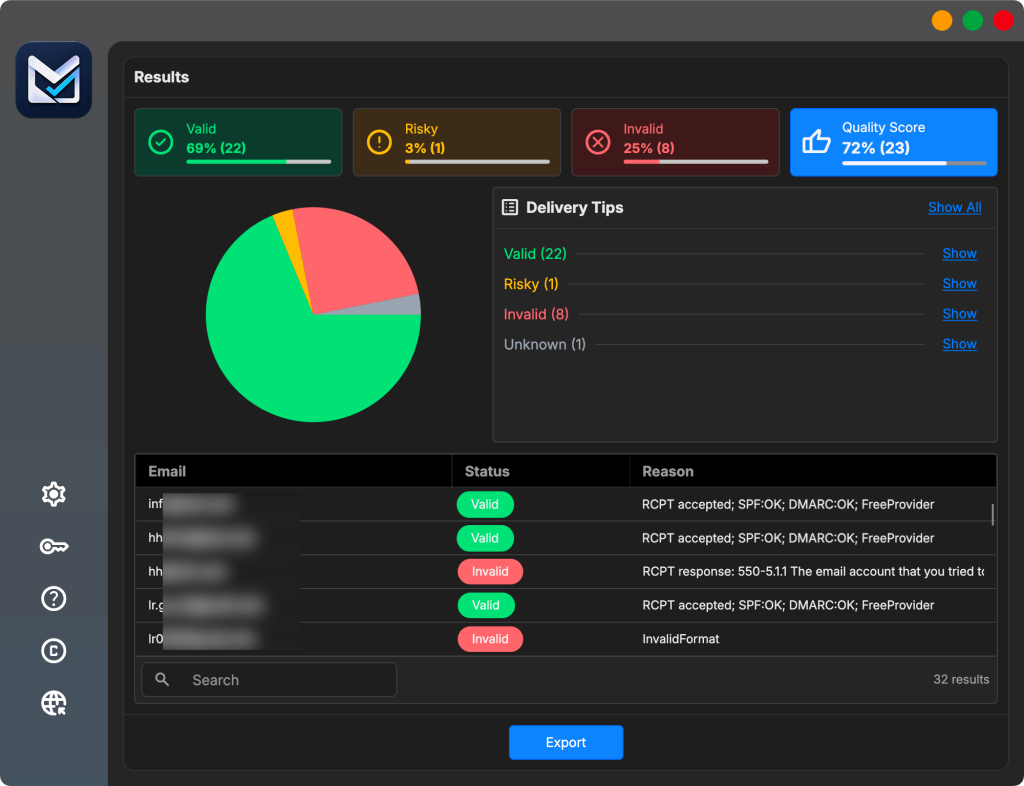
We have two deeper guides if you want them: what email validation is and how it works, and a comparison of seven validation tools including what a year of each one costs.
Check your list before your next campaign. MetaLogic MailVexa validates your list on your own computer, so your contacts are never uploaded. Try it on 2,000 addresses free for 14 days. No card needed.
Clean your list after every campaign
Validation before sending and cleaning after sending are two different jobs. You need both.
| Validation (before) | Cleaning (after) | |
|---|---|---|
| When | Before the send | After each campaign |
| What it uses | A live check of each address | The results your campaign produced |
| What it catches | Addresses that do not exist yet unknown to you | Bounces, complaints, unsubscribes |
| Purpose | Prevent damage | Record what happened |
After every send, do these four things
- Remove hard bounces immediately. The address does not exist. Sending again is the same mistake twice.
- Watch repeated soft bounces. One is normal. Four in a row means the mailbox is probably gone.
- Process unsubscribes fast. Someone who unsubscribes and gets another email will mark it as spam.
- Treat a complaint as a removal. If someone marks you as spam, take them off every list, not just the one they were on.
Keep your lists in sync
Many businesses run more than one system. A CRM, an email platform, maybe a shop. If someone unsubscribes in one and stays active in another, you will eventually email them again. That single mistake generates more spam complaints than almost anything else.
Focus on engaged subscribers
Providers watch how people react to you. Someone who never opens anything for a year is telling Gmail something about your email, and Gmail listens.
Sending to everyone on your list every time feels safe. It is not. A large inactive group quietly drags down the delivery of your whole campaign, including messages to people who do want them.
How to segment without guessing
| Group | What to do |
|---|---|
| Active in the last 90 days | Send normally |
| No activity for 6 months | Reduce frequency, send your best content only |
| No activity for 12 months | Run one re-engagement campaign, then stop sending |
| Never opened anything, ever | Check the address is real, then let them go |
Do not judge engagement by opens alone
Apple Mail Privacy Protection loads images automatically, which registers an open the person never made. Other clients block images entirely, which hides a real open.
Clicks, replies, website visits and purchases are better signals. Use opens as one input, never as the only one.
Authenticate your sending domain
Authentication proves that you are allowed to send email using your domain name. Without it, providers cannot tell you apart from someone pretending to be you.
Since February 2024, Google and Yahoo require this. Microsoft added its own version in 2025. This is no longer optional.
| Record | What it does | Required? |
|---|---|---|
| SPF | Lists which services are allowed to send email for your domain | Yes |
| DKIM | Adds a signature proving the message really came from you and was not changed | Yes |
| DMARC | Tells receiving servers what to do when a message fails the checks | Yes above about 5,000 messages a day |
Set it up, then prove it works
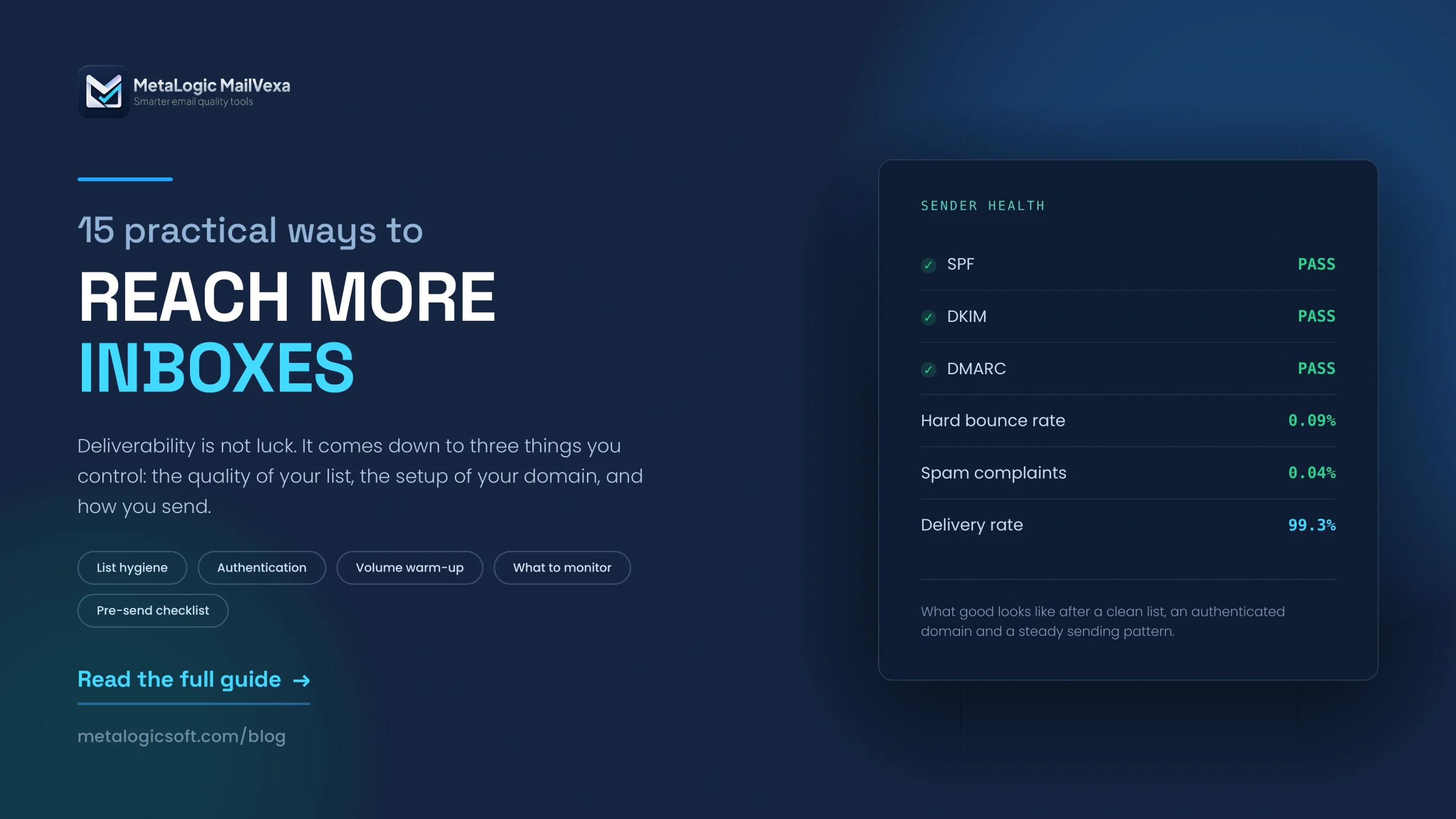
Adding the records is not the same as them working. Send one real email to your own Gmail account. Open the message, choose “Show original”, and look for three lines that say PASS next to SPF, DKIM and DMARC.
If any of them says FAIL or NEUTRAL, fix that before your next campaign.
Using an email platform? You still have work to do
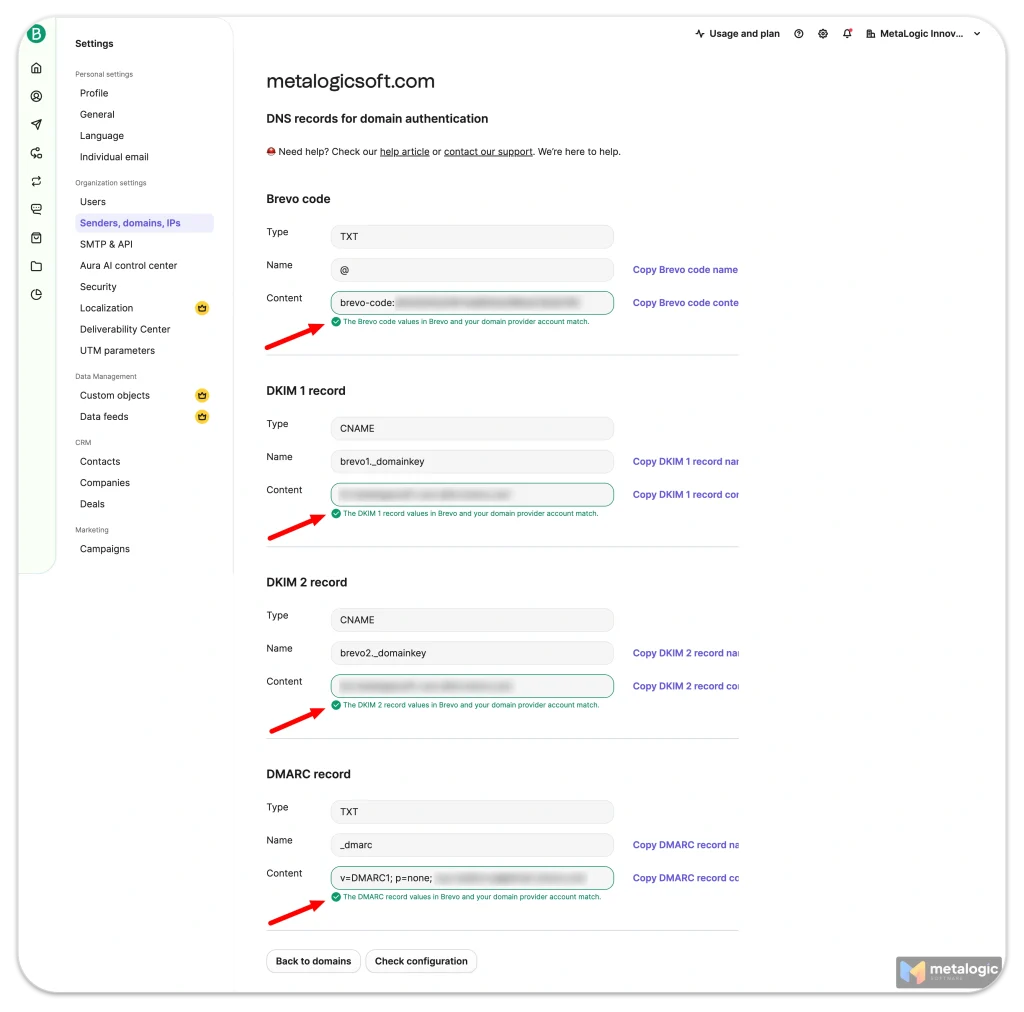
Mailchimp, Brevo, Sendgrid and similar services give you DNS records to add to your own domain. Many people never add them. Open your platform’s domain settings and confirm every record shows as verified.
You can start DMARC with a policy of p=none. It changes nothing about how your mail is handled and only collects reports, which is enough to meet the requirement while you learn. The full official list is here: Google’s email sender guidelines.
Use a clear, consistent sender identity
People decide whether to open your email by looking at the sender name first. Providers watch that name too, and they build reputation around it.
Four rules that cost nothing
- Use a name people recognise. Your brand name, or a person at your brand. Not “Marketing Team” and not “noreply”.
- Send from your own domain. Never send bulk email from a free address like
@gmail.com. Gmail treats that as impersonation. - Use a reply address that works. A
noreply@address tells people you are not listening, and replies are a positive engagement signal you are throwing away. - Stay consistent. Changing your sender name every campaign resets the recognition you built.
Separate your message types
Marketing email and important account email should not share the same sending address. If your promotions cause complaints, you do not want password resets caught in the same net.
| Message type | Example sending address |
|---|---|
| Newsletters and offers | [email protected] |
| Receipts and invoices | [email protected] |
| Account and security | [email protected] |
Display names Google warns about
Your sender name should identify you, and nothing else. Google specifically warns against names like “URGENT REQUEST”, “Last Chance”, or names containing emojis meant to look like verification badges. Names that imply a reply, such as “User (2)”, are also treated as deceptive.
Choose the right email service
Your sending platform does more than press send. It handles the parts of deliverability that are hard to do yourself.
What a good platform must handle
- Bounce processing. It should stop sending to hard bounces automatically.
- Complaint feedback. When someone marks you as spam, the platform should receive that and remove them.
- Unsubscribe handling. Including one-click unsubscribe, which is now required for bulk marketing mail.
- Authentication support. It should give you SPF and DKIM records for your own domain.
- Sending rate control. So a large campaign goes out at a steady pace instead of all at once.
A dedicated IP is not automatically better
People often ask for a dedicated IP, thinking it means more control. It does, and that is the problem. A dedicated IP has no reputation until you build one, and building one takes consistent volume over weeks.
If you send less than roughly 100,000 emails a month, a well managed shared IP will usually deliver better. Choose a dedicated IP when your volume is high and steady, not before.
Increase your sending volume slowly
Providers are suspicious of sudden change. A domain that sends 200 emails a week and then sends 50,000 in one morning looks exactly like a compromised account.
This matters whenever something is new: a new domain, a new IP, a new platform, or a list you have not mailed in a long time.
A simple warm-up plan
| Week | Send to | Who |
|---|---|---|
| 1 | Your most engaged 500 | People who opened something in the last 30 days |
| 2 | Around 1,500 | Active in the last 90 days |
| 3 | Around 5,000 | Active in the last 6 months |
| 4 and after | Increase by about half each week | Widen gradually |
Watch your bounce and complaint rates at every step. If either rises, stop increasing and fix the cause before continuing. Google’s own advice is to send at a steady rate and avoid sudden spikes.
The most common warm-up mistake
Sending to an old list first, because it is the biggest one. Old lists have the most dead addresses and the least engagement, so you are starting your reputation with your worst data.
Start with your most engaged people, always.
Control how often you send
There is no perfect sending frequency. There is only the frequency your subscribers expect.
If you promised a weekly newsletter, send weekly. If you suddenly send three times a week, people do not think “more value”. They think “too much” and reach for the spam button.
Watch for accidental overlap
This is the hidden problem. You have a newsletter. You also have an automated welcome sequence, an abandoned cart email, and a promotion running this week.
One person can receive all four in two days. Each one seemed reasonable on its own. Together they look like spam.
Set a sending limit per person
Most platforms let you cap how many messages one contact can receive in a period. Set it. Three or four a week is plenty for most businesses.
Even better, let people choose their own frequency when they subscribe. Someone who picks monthly and gets monthly will stay for years.
Make unsubscribing easy
This feels wrong to many marketers. It should not. An unsubscribe costs you one contact. A spam complaint costs you deliverability for everyone.
When the unsubscribe link is hidden, tiny, or broken, people do not give up. They click the spam button instead, because it is right there and it works.
| Type | Where it appears | Required? |
|---|---|---|
| One-click unsubscribe | A link at the top of the message, added by the provider from a header in your email | Yes, for marketing mail above about 5,000 a day |
| Footer link | Inside your message, at the bottom | Always include one as well |
One-click unsubscribe is a technical header your platform adds, defined in RFC 8058. Most modern platforms support it, but you may need to enable it. It does not replace your footer link. You need both.
Act on unsubscribes within 48 hours
Do not make people log in, answer a survey, or confirm twice. One click should be enough, and the removal should take effect quickly. Sending one more campaign to someone who already left is the most reliable way to earn a complaint.
Write honest subject lines
A misleading subject line can win you one open. It then costs you every open after that, because people learn not to trust you.
Spam filters read the gap between your subject line and your content. So do humans, and their reaction is what the filters measure.
Avoid these
- Fake replies and forwards. Starting a subject with “Re:” or “Fwd:” when it is neither. Google names this specifically.
- False urgency. “Last chance” every single week teaches people your deadlines are not real.
- ALL CAPS and rows of exclamation marks. They look like the spam people already recognise.
- Promises the email does not keep. If the subject says 50 percent off, the offer must be in the email.
The best subject line test
Read your subject line, then read the first line of your email. If someone opened because of the subject, would the first line feel like the right answer?
If not, one of the two needs rewriting.
Keep your design and links trustworthy
How your email is built affects whether it arrives, not just how it looks.
Design
- Never send an email that is one big image. Filters cannot read it, and many people have images turned off. They see a blank message.
- Keep a healthy balance of text. Real sentences, in real text, not inside pictures.
- Design for a phone first. Most people will read it on one.
- Watch the size. Gmail is widely reported to clip messages larger than about 102 KB, hiding the rest behind a “View entire message” link, including your unsubscribe footer. Google does not document a figure, so treat it as a practical limit rather than an exact one.
Links
- Link to your own domain where you can. Links to unfamiliar domains look worse.
- Avoid public link shorteners. Spammers use them to hide destinations, so filters treat them with suspicion.
- Check every link before sending. A broken or redirected link can trigger a filter.
- Do not attach files to marketing email. Link to them instead. Attachments raise suspicion and increase size.
Test the real email before launch
A preview inside your email platform is not a test. It does not go through your actual sending path, so it cannot show you what recipients will see.
Send the real campaign to yourself, through the same platform, from the same address.
What to check in that test message
- Authentication. Open “Show original” in Gmail and confirm SPF, DKIM and DMARC all say PASS.
- The sender name. Is it what you expected, on both phone and desktop?
- Every link. Click all of them, including the ones in the footer.
- The unsubscribe link. Actually use it on a test address and confirm it works.
- Personalisation. Look for empty gaps where a first name should be.
- Where it landed. Check Gmail, Outlook and one more provider if you can.
- Clipping. If Gmail shows “View entire message”, your email is too large.
Test with real accounts, not just a preview tool
Preview tools show rendering. They do not show placement. A few free accounts on Gmail, Outlook and Yahoo will tell you more about inbox placement than any preview.
Monitor more than open rates
Open rate is the number everyone looks at, and it is the least reliable one you have. Privacy features inflate it, image blocking hides it, and Google does not track it at all.
| Metric | Healthy | Take action |
|---|---|---|
| Hard bounce rate | Under 1% | Above 2% |
| Total bounce rate | Under 2% | Above 5% |
| Spam complaint rate | Under 0.1% | Approaching 0.3% |
| Unsubscribe rate | Under 0.5% | Above 1% |
| Click rate | Varies by industry | Any sudden drop |
Look at providers separately
Your overall numbers can hide a serious problem. If Gmail delivery collapses but Outlook is fine, the average still looks acceptable. Split your reporting by provider so you see it early.
Use Google Postmaster Tools
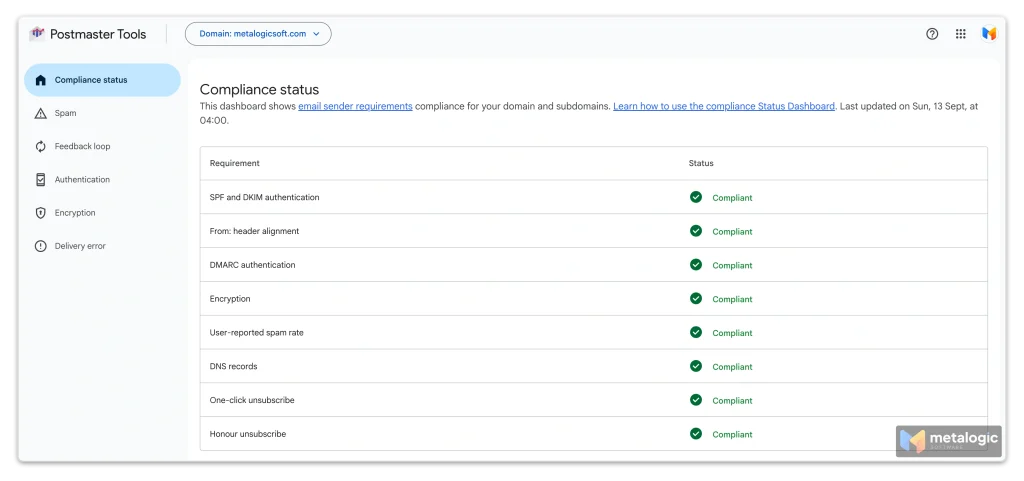
Postmaster Tools is free, and it shows things your email platform cannot: your spam complaint rate as Google measures it, your domain reputation, and whether your messages are authenticated.
Google’s guidance is to stay below 0.10 percent spam complaints and never reach 0.30 percent. This is the single most important number to watch.
Act fast when problems appear
Deliverability problems get worse while you wait. The provider is forming an opinion, and every campaign you send adds to it.
The moment you notice something wrong
- Pause the affected sending. Not everything, just the segment or campaign showing the problem.
- Read the actual error. Bounce messages contain a code and a sentence. They usually tell you the real cause.
- Check what changed. New list, new template, new platform, higher volume? The cause is usually the most recent change.
- Fix it, then restart small. Go back to your most engaged subscribers and build up again.
| What you see | Usual cause |
|---|---|
| Sudden rise in hard bounces | An unvalidated or old list |
550 5.7.1 rejections | Your sending IP has a poor reputation or is on a blocklist |
5.7.26 errors | Authentication failing. Check SPF, DKIM and DMARC. See Google’s SMTP error reference |
| Messages deferred or slowed | Sending too fast, or volume increased too quickly |
| Gmail delivery drops, others fine | Check your spam rate in Postmaster Tools |
Changing your domain or IP is not a fix
When delivery gets bad, people often want to start again with a fresh domain. This almost never works. You lose the reputation you had, you begin with none, and whatever caused the problem comes with you.
Find the cause first. A new domain is a last resort, not a repair.
Your pre-send checklist
Run through this before every campaign. It takes a few minutes.
- The list contains only people who signed up
- The list was validated recently, and invalid addresses were removed
- Hard bounces and complaints from the last campaign are removed
- Unsubscribes are synced across every system I use
- SPF, DKIM and DMARC show PASS on a real test email
- The sender name and reply address are correct and consistent
- The subject line matches what is actually inside
- The email is not one large image, and it is under 102 KB
- Every link works, including the unsubscribe link
- I sent a real test to Gmail and Outlook and checked where it landed
- Volume is similar to my recent sends, or increasing gradually
- I know which numbers I will check afterwards, and when
Frequently asked questions
Can I guarantee that every email reaches the inbox?
No, and nobody can. You control your list, your setup and your sending behaviour. The receiving provider makes the final decision, using signals you cannot see. Doing everything in this guide gives you the best possible chance, not a guarantee. Be careful with any service that promises one.
Is Gmail’s Promotions tab the same as spam?
No. Promotions is part of the inbox. People open it on purpose when they are looking for offers. Spam is a separate folder that most people never open. Landing in Promotions is normal for marketing email and is not a deliverability problem.
Does email validation prevent every bounce?
No. It removes addresses that do not exist, which is the largest cause of hard bounces. It cannot prevent a mailbox filling up, a server going down, or an address that closes the day after you checked it. Expect a big reduction, not zero.
Is a dedicated IP always better?
No. A dedicated IP starts with no reputation, and you have to build one with consistent volume. Below roughly 100,000 emails a month, a well managed shared IP usually performs better. Choose a dedicated IP when your volume is high and regular.
Does plain text always perform better than HTML?
No. HTML email is completely normal and delivers well when it is built properly. What causes problems is bad HTML: emails that are one large image, very heavy files, or messy code. A clean HTML email with real text is fine.
How long does it take to fix a damaged sender reputation?
Usually weeks, sometimes months. Reputation is built from a history of good sending, so the only way back is a period of clean, small, engaged sending. There is no fast reset, which is exactly why prevention is worth the effort.
Sources
The provider requirements and thresholds in this guide come from official documentation. These rules change, so check the originals before making decisions:
- Google — Email sender guidelines. Authentication requirements, the 5,000 per day threshold, spam rate limits, one-click unsubscribe, and sending practices.
- Google — Email sender guidelines FAQ. Updates and clarifications to the rules above.
- Google Postmaster Tools. Spam complaint rate, domain reputation and authentication reporting.
- Google — SMTP error reference. The meaning of bounce codes such as 550 5.7.1 and 5.7.26.
- Yahoo — Sender Best Practices. Reverse DNS requirements, complaint rate guidance, and separating bulk from transactional mail.
- RFC 8058. The technical standard behind one-click unsubscribe.
Figures without a link, such as typical list decay rates and healthy click rates, are widely used industry estimates rather than published standards. Treat them as guidance, and measure your own numbers wherever you can.
Start with the fastest win: clean your list
Of the 15 actions in this guide, list validation is the one that changes your numbers the quickest. MailVexa checks your list on your own computer, so your contacts are never uploaded to anyone’s servers.
Windows and macOS. Pay once, not per check. Try 2,000 addresses free for 14 days, no card required.
We build MetaLogic MailVexa, so weigh our opinion of it accordingly. Everything else in this guide applies whichever tools you use. Provider requirements change, so check Google’s sender guidelines for the current rules.