You have a list of past customers or subscribers. You haven’t emailed them in months, maybe longer. Now you have a new product, a sale, or a fresh newsletter, and that list is sitting right there.
It is tempting to send to everyone at once. That is usually the most expensive mistake you can make with an old list. Dead addresses bounce. People who forgot you mark you as spam. One careless send can hurt the delivery of every email that comes after it.
Deleting the whole list isn’t right either. Some of those people still want to hear from you.
This guide gives you a clear path between those two mistakes: check the list, sort the contacts, re-engage the right ones, and stop emailing the rest.
Quick answer
Don’t send to an old list all at once, and don’t delete it all at once. First, remove unsubscribes, complaints and known bad addresses. Then verify the rest, so dead addresses never get your email. Next, sort contacts by permission and past activity.
Send a short re-engagement campaign only to contacts with clear permission, starting with the most recently active. Anyone who still doesn’t respond after that goes into your sunset policy: you stop sending them marketing email.
Inactive, old, invalid, unsubscribed: four different problems
These words get mixed up all the time. Each one needs a different action.
| Status | What it means | Typical action |
|---|---|---|
| Inactive subscriber | You email them regularly, but they haven’t engaged in a while | Try to re-engage |
| Old (stale) contact | You haven’t emailed them in a long time, so you don’t know if the address or the interest is still there | Check, then reconfirm |
| Invalid address | The address no longer works, or never did | Remove from sending |
| Unsubscribed | The person asked to stop receiving marketing email | Never send marketing again |
Mailchimp draws the same line between inactive and stale addresses: inactive people still receive your email, stale ones haven’t heard from you in a long time.
Inactive does not mean invalid, and old does not mean bad
An inactive subscriber may have a perfectly working address. They just stopped opening. And a subscriber who joined five years ago may still read every email you send. Judge each contact by what they do, not by how long they’ve been on your list.
Why sending to an old list can cause problems
Here is what usually happens when you send to a list that has been sitting unused:
| What happens | Why it matters |
|---|---|
| Bounces | People change jobs and close accounts. Those mailboxes no longer exist, and your email bounces. |
| Spam complaints | People who forgot they signed up often press “Report spam” instead of unsubscribing. |
| Unsubscribes | Interests change. What someone wanted two years ago may not fit them today. |
| Spam traps | Some abandoned addresses are later turned into recycled spam traps that catch careless senders. |
| Wasted money | Many platforms charge per contact or per email, including people who will never read it. |
Mailbox providers watch these signals closely. Gmail’s sender guidelines ask you to send only to people who want your email, and to keep the reported spam rate below 0.1%. It must never reach 0.3%. For how bounces work and how to keep them low, see our guide to reducing email bounce rate.
The damage spreads to your good contacts
Your sender reputation belongs to your domain, not to one list. If an old list causes bounces and complaints, your emails to loyal, active customers can start landing in spam too.
How to identify truly inactive subscribers
“Hasn’t opened my emails” is not enough to call someone inactive. Look at the full picture:
- Real clicks on links in your emails
- Replies to your emails
- Purchases, bookings or account logins
- How many emails you actually sent them in that period
Open rates are not reliable anymore
Apple’s Mail Privacy Protection downloads email images in the background, whether or not the person reads the email. So many Apple Mail users look like they opened everything.
Security scanners also open emails and click links automatically. Mailchimp explains how it filters this bot activity. An “open” can be a machine, and a missing open can still be a reader.
Two people who look the same, but aren’t
| Customer A | Customer B | |
|---|---|---|
| Opened your last 10 newsletters | No | No |
| Bought something last week | Yes | No |
| Any activity in the past year | Yes | None |
| Really inactive? | No | Probably |
One caution: a purchase shows the person is active as a customer. It does not, on its own, give you permission to send them a marketing newsletter.
How long should you wait before calling someone inactive?
There is no universal number. The right window depends on:
- How often you send. Six months of silence means a lot for a weekly newsletter, and much less for a seasonal one.
- Your buying cycle. People buy coffee every week, but a car every few years.
- How many emails they received. Ignoring two emails is not the same as ignoring forty.
- How new they are. Give new subscribers enough time before judging them.
Mailchimp’s own guide to identifying inactive subscribers says plainly that the length of the inactive period is up to you. Here is how some platforms set it, as examples only:
| Platform | Their example rule |
|---|---|
| HubSpot | Stops sending to contacts who never engaged with their last 11 emails, or who stopped engaging for their last 16 |
| Klaviyo | Builds engagement groups at 30, 60, 90, 180 and 275 days |
| A simple starting policy | No click, reply or purchase in 90 days for weekly senders, or 180 days for monthly senders |
Pick a rule, write it down, and apply it the same way
The exact number matters less than using it consistently. A written rule stops you from making emotional decisions about each contact, and makes the next clean-up easy.
Audit the list before you send anything
Before any email goes out, answer these questions:
| Question | Why it matters |
|---|---|
| Where did these contacts come from? | A signup form is very different from a business card or an imported spreadsheet. |
| What did they sign up for? | Agreeing to order updates is not agreeing to weekly promotions. |
| When did they join, and when did you last email them? | This tells you whether they are inactive or old. |
| Do you have their unsubscribes, complaints and bounces? | These must stay excluded forever. |
| Has your brand name or content changed? | People may not recognise you anymore. |
| Did you move between email platforms? | Engagement history often doesn’t fully transfer. |
| Are there duplicates or files with unknown sources? | Merged files hide problems. |
“No history” is not the same as “no activity”
If you moved to a new email platform, a contact may show zero opens or clicks only because their history stayed in the old system. Check your old exports before marking anyone inactive.
A bought list is not an “old list”
If you can’t say where a list came from, or it was bought, it is not something to re-engage. These people never asked to hear from you. Mailchimp’s acceptable use policy bans purchased and third-party lists, and its list examples even mark trade-show contacts from a few years ago as not compliant.
Verify old addresses before you re-engage
Before you ask anyone “are you still interested?”, make sure the address can still receive email. That is what email list validation does, and it is the step that protects your re-engagement campaign from bounces.
Two questions, two different tools
Verification answers: “Can this address still receive email?”
Re-engagement answers: “Does this person still want my email?”
You need both. Mailchimp warns that list cleaning alone can hide problems with how contacts were collected. That is true: verification removes dead addresses, but it does not create permission. That is why it comes before re-engagement, not instead of it.
The right order
- Exclude the clear no’s first. Unsubscribes, complaints and past hard bounces stay out, whatever happens next.
- Verify the rest, and note the date of the check.
- Remove Invalid addresses. Yahoo’s sender best practices say to remove invalid recipients promptly.
- Keep Risky and Unknown separate. Decide on them one by one. See our guide to catch-all email addresses.
- Combine the result with the history. A Valid address with no permission is still a no.
How MailVexa helps with an old list
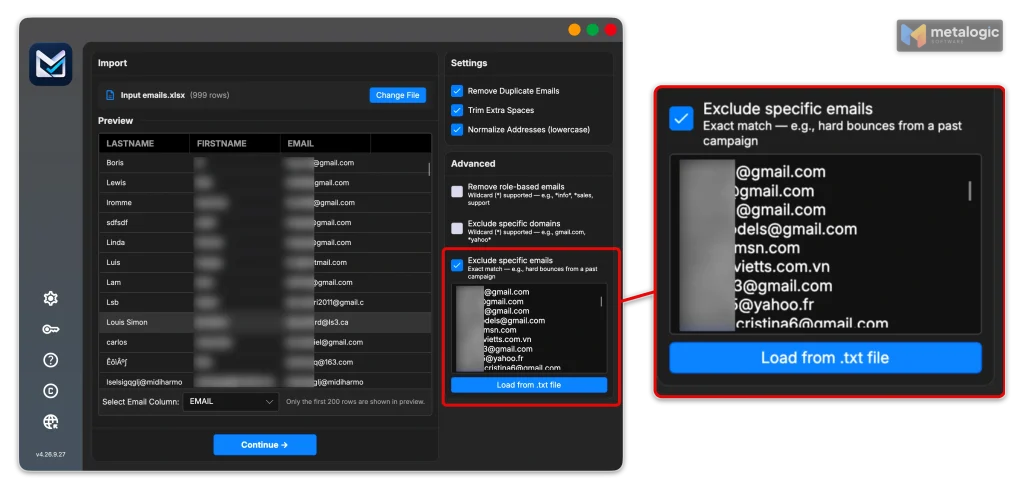
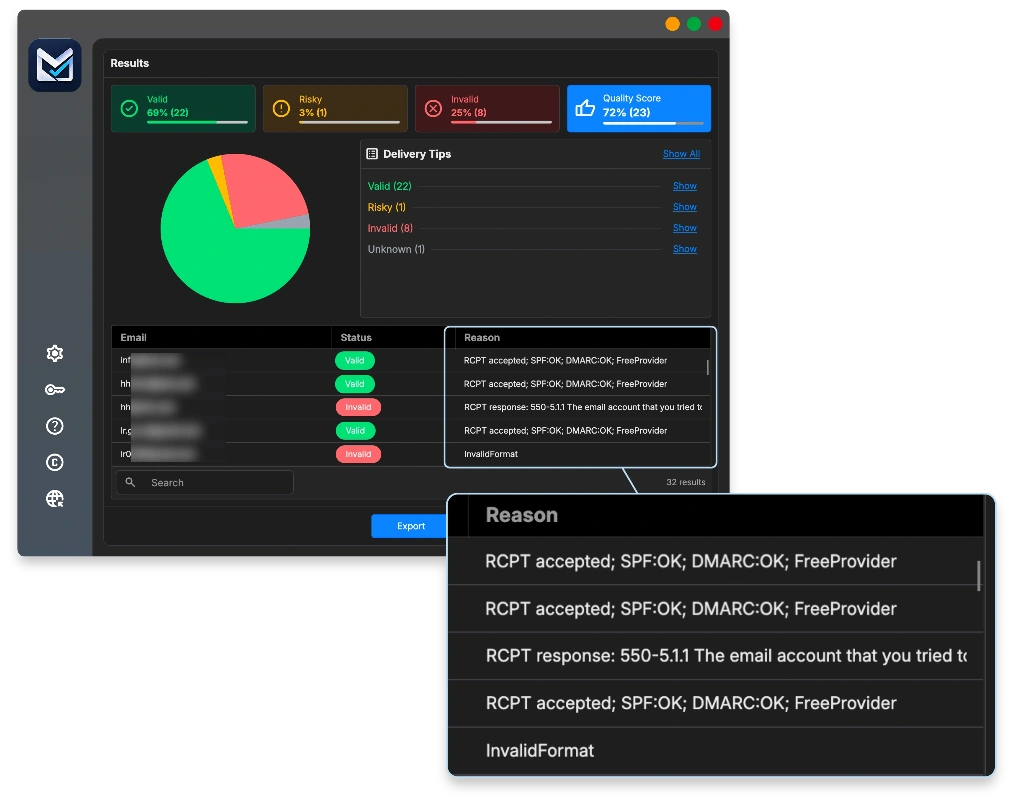
MetaLogic MailVexa is email verification software that runs on your own Windows or Mac computer. Your contact list stays on your machine the whole time. For old lists, three features matter most:
| Feature | How it helps with an old list |
|---|---|
| Exclusion list | Paste your unsubscribes, complaints and past hard bounces, or load them from a .txt file. They are skipped and marked Invalid with the reason “ExcludedEmail”, so they can never slip back in. |
| Result groups with reasons | Every address lands in Valid, Risky, Invalid or Unknown, with the reason shown. You know exactly why. |
| Export by group | Export each group as its own file, ready for the decision table in the next section. |
A bought list is not an “old list”
A Valid result does not mean the person is interested, gave permission, or will see your email in their inbox. It means the address can receive mail. For the full meaning of every result, see email verification results explained.
For a step-by-step walkthrough of the app, read how to use MailVexa from import to verified export.
Sort the list and choose the next step
Now combine everything you know. Use this table to decide what happens to each group.
| The contact… | Next step |
|---|---|
| Signed up clearly and engaged recently | Keep sending email that matches what they asked for. |
| Signed up clearly, has a working address, but engagement dropped | Small re-engagement campaign (section 08). |
| Very old contact who has probably forgotten you | Reconfirm permission before any marketing email. |
| Unknown source or unclear permission | Don’t send. Invite them to sign up again through your normal form. |
| Unsubscribed or complained | Stop all marketing. Not even a re-engagement email. |
| Invalid or confirmed “mailbox does not exist” | Remove from sending. |
| Risky (catch-all) or Unknown | Review separately. Don’t assume valid or invalid. |
Re-engagement and reconfirmation are not the same thing
Re-engagement keeps the person subscribed and tries to win back their interest.
Reconfirmation asks them for a fresh, clear “yes”. If they don’t answer, they stay out.
Very old lists usually need reconfirmation. Mailchimp’s guide to reconfirming contacts notes that the reconfirmation email itself can affect your sending reputation, so send it carefully.
How to run a small re-engagement campaign
This is only for contacts who passed every step above: clear permission and a working address.
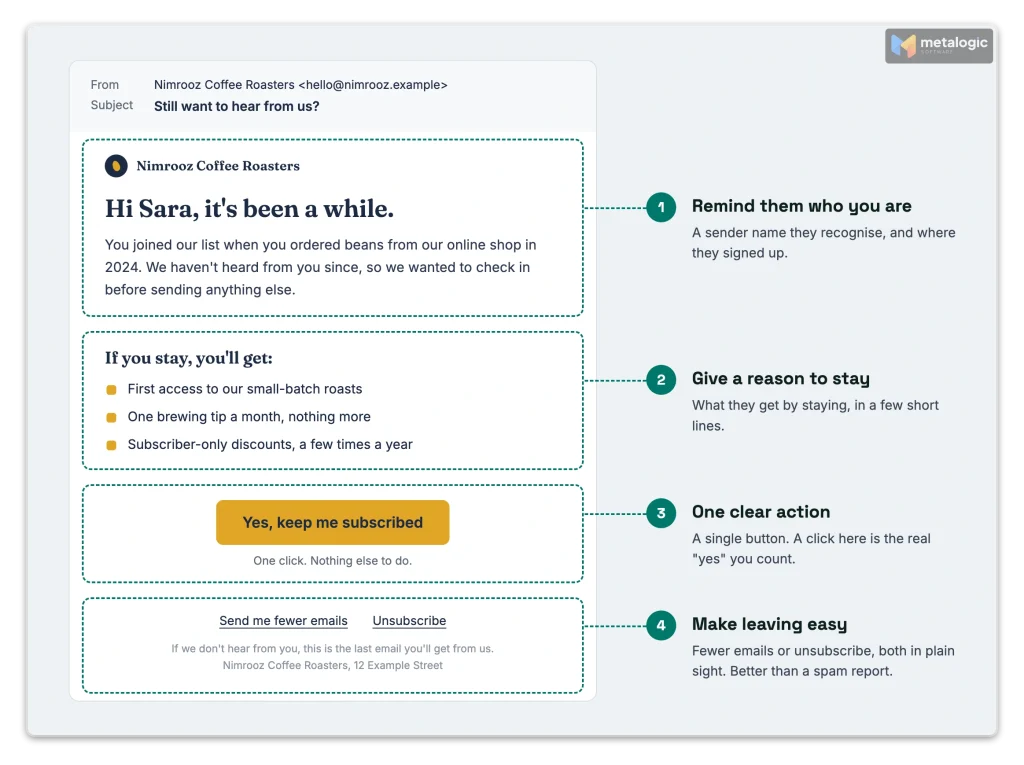
- Start small. Begin with the contacts who engaged most recently. Watch the results before you send to the next group.
- Say who you are. Use a sender name they will recognise, and remind them where they signed up.
- Give a reason to stay. What will they get if they keep receiving your emails?
- Offer choices. Let them pick topics or receive fewer emails, instead of only “stay or go”.
- Make leaving easy. A clear unsubscribe link is far better than a spam complaint.
- Decide the end in advance. How many emails, over how long, and what happens if there’s no answer.
A simple example
| When | What it says | |
|---|---|---|
| 1. “Still want to hear from us?” | Day 1 | Reminds them who you are, shows what’s new, one clear button: “Yes, keep me subscribed”. |
| 2. Reminder (if it fits your list) | About a week later | Short and friendly. Says this is the last email unless they choose to stay. |
This is an example, not a fixed formula. Mailchimp’s guide to re-engaging inactive contacts has more ideas, such as short polls and personal recommendations.
Opening the email is not saying “yes”
Because opens are unreliable, count only a real action: a click on “keep me subscribed”, a reply, or a preference change.
When to stop sending: create a sunset policy
A sunset policy is a simple rule that says when you stop sending marketing email to someone who no longer engages. Klaviyo, for example, builds this as an automatic sunset flow: a few final emails, then non-responders are flagged so they can be suppressed.
A good sunset policy answers five questions:
| Question | Example answer |
|---|---|
| Who enters the re-engagement step? | No click, reply or purchase in 180 days |
| How many attempts? | Two emails over two weeks |
| What counts as “back”? | A click on “keep me subscribed”, a reply or a purchase |
| What happens if there’s no response? | Stop all marketing email |
| How can they come back? | Only by signing up again themselves |
Stop, unsubscribe, archive or delete?
| Option | What it does | Use it when |
|---|---|---|
| Suppress | Stops sending, keeps the record | Your sunset policy ends a contact |
| Unsubscribe | Marks them as not wanting marketing email | They asked, or they didn’t reconfirm |
| Archive | Hides the contact but keeps the data; usually reversible | Housekeeping. Mailchimp lets archived contacts rejoin by signing up again |
| Delete | Removes the contact permanently | A privacy request. Mailchimp warns that deleted contacts can never be re-imported |
The exact behaviour depends on your email platform, so check its help pages before you choose.
Never lose your “do not send” list
When you change platforms or re-import an old file, your unsubscribes and suppressed contacts can quietly come back. Keep a separate file of every address that must never receive marketing email, and apply it every time. In MailVexa, that file goes straight into the exclusion list.
Measure the results and keep the list healthy
Don’t judge your campaign by open rate. Look at what really matters:
| Measure | What it tells you |
|---|---|
| People who clicked “keep me subscribed” | How many you truly won back |
| Real clicks, replies and purchases | Whether they care about your content |
| Bounces | Whether verification caught the dead addresses |
| Spam complaints | Whether you emailed people who didn’t want it. Gmail shows this in Postmaster Tools. |
| Unsubscribes | Normal and healthy, as long as they don’t spike |
| Engagement in the next campaigns | Whether the people who came back are staying |
A smaller list is not the goal
Success is not “we removed 40% of our list”. Success is that the people who remain want your email, and your messages reach their inbox.
Stop the list from going old again
- Send a welcome email right after signup, so people remember you.
- Set expectations: tell new subscribers what you’ll send and how often.
- Record where each contact came from and when they joined.
- Review inactive contacts on a schedule, for example every quarter.
- Automate your sunset policy so it runs without you remembering.
- Verify before big sends. Follow our guide to cleaning your email list before a campaign.
Common questions
Can I email subscribers I haven’t contacted in two years?
You can, but don’t send them a normal campaign. Verify the addresses first, then send a reconfirmation email and only keep those who say yes. Some laws also set time limits: under Canada’s anti-spam law, for example, implied consent from a purchase lasts two years, as Constant Contact explains.
Should I remove everyone who hasn’t opened my emails?
No. Opens are unreliable. Look at clicks, replies and purchases too, and try a re-engagement step before removing anyone.
Can email verification tell me if a subscriber is still interested?
No. Validating email addresses tells you whether they can receive mail. Only the person’s actions can tell you whether they’re interested.
What if I have no engagement history at all?
Treat the list as old. Verify it, then send a reconfirmation email, starting with a small group.
Should I delete or suppress inactive contacts?
Usually suppress or unsubscribe. That stops the emails while keeping a record, so they don’t slip back in through a later import. Delete only for privacy requests.
Can unsubscribed contacts receive a re-engagement email?
No. An unsubscribe is final for marketing email. They can only come back by signing up again themselves.
How often should I review inactive subscribers?
Regularly, for example every three months. Better still, automate it with a sunset policy.
Old list checklist
- I know where every contact came from and what they signed up for
- Unsubscribes, complaints and past hard bounces are excluded
- The remaining addresses have been verified, with the date recorded
- Invalid addresses are removed; Risky and Unknown are kept separate
- Contacts are sorted by permission and real activity, not just opens
- Very old contacts get a reconfirmation email, not a sales email
- My re-engagement campaign starts small and has a clear end
- I have a written sunset policy, and my “do not send” list is saved
Sources
Mailbox providers and laws
- Gmail email sender guidelines. Send only to people who want your email; spam rate below 0.1%, never 0.3%.
- Gmail Postmaster Tools dashboards. How Gmail reports your spam rate.
- Yahoo Sender Best Practices. Remove invalid recipients promptly; send to an engaged audience.
- Apple: Mail Privacy Protection. Remote content is downloaded whether or not the email is read.
- Constant Contact: Questions about CASL. Two-year limit on implied consent under Canadian law.
Mailchimp
- About inactive and stale addresses. Difference between inactive and stale contacts.
- About bot activity and bot filtering. Security scanners and automated opens and clicks.
- Identify inactive subscribers. The inactive period is up to you.
- Acceptable use policy. Purchased and third-party lists are prohibited.
- Examples of compliant and non-compliant lists. Old trade-show contacts are not compliant.
- About list cleaning services. Why cleaning alone can hide collection problems.
- Reconfirm contacts. How reconfirmation works and its effect on reputation.
- Re-engage inactive subscribed contacts. Ideas for re-engagement campaigns.
- Archive or unarchive contacts. Archived contacts can rejoin by signing up.
- Delete contacts. Deleted contacts can never be re-imported.
Other email platforms
- HubSpot: Spam traps and blocklists. Abandoned addresses recycled as spam traps.
- HubSpot: Graymail and unengaged contacts. The 11 and 16 email unengaged rule.
- Klaviyo: Engagement-based sending schedule. Example engagement windows from 30 to 275 days.
- Klaviyo: How to create a sunset flow. Final emails, then flag non-responders for suppression.
Product
- MetaLogic MailVexa product page. Exclusion list, result groups, export by group.
Check your old list before you send
Before you ask old contacts if they’re still interested, make sure their addresses still work. MailVexa keeps your past unsubscribes and bounces out, sorts every address with a reason, and exports each group separately, all on your own computer.
Windows and macOS. Pay once, use for life. Free 14-day trial with up to 2,000 verifications.
We build MetaLogic MailVexa, so weigh our description of it accordingly. Everything else in this guide applies whichever tools you use.