You set up a new domain. Or you bought a dedicated IP. Or you just moved to a new email platform. Everything is ready, and your list has 40,000 contacts.
So you press “Send” on all of them. Two days later, half your emails are in spam, Gmail is slowing you down, and your new provider wants to talk to you.
This happens because mailbox providers like Gmail, Outlook and Yahoo don’t know you yet. A new sender that suddenly sends thousands of emails looks exactly like a spammer. Warm-up is how you introduce yourself slowly, so they learn to trust you.
This guide shows you how to do it step by step: what to prepare, who to email first, how fast to grow, which numbers to watch, and what to do when something goes wrong.
Quick answer
Warming up means increasing your sending volume slowly, so mailbox providers can see that people want your email before you send at full volume.
First, set up SPF, DKIM and DMARC, one-click unsubscribe and your suppression lists. Then start with a small group of your most engaged, verified contacts. Increase volume step by step, but only when bounces, complaints and delays stay low. If problems appear, hold or reduce.
Most warm-ups take 2 to 6 weeks. There is no fixed schedule that works for everyone. Your results decide your speed, not the calendar.
What is email warm-up?
Email warm-up is the process of building trust for a new or quiet sender. You start with low volume and grow it over days and weeks. SendGrid describes it as a way to gradually increase the volume of email sent through an IP address, so receiving providers can watch how you send and how people react.
Think of it like a new employee at a bank. On day one, nobody gives them the keys to the safe. They get more trust as they show they can handle it.
During warm-up, mailbox providers watch a few simple things:
- Do your emails reach real mailboxes? Many bounces mean a careless sender.
- Do people want them? Opens, replies and clicks are good signs. Spam reports are bad ones.
- Is your sending steady? Sudden jumps look like a hacked account.
- Are you who you say you are? Authentication must pass on every email.
Warm-up does not replace good email
Warm-up only gives providers time to judge you. If your list is old or people never asked for your email, slow sending will not save you. It just makes the problem appear more slowly. For the other parts of the picture, see 15 ways to improve email deliverability.
Domain reputation vs IP reputation
Mailbox providers judge two things separately: your domain (like news.example.com) and your IP address (the server your email leaves from).
| Domain reputation | IP reputation | |
|---|---|---|
| What it is tied to | The domain in your From address and authentication | The sending server’s IP address |
| Does it move with you? | Yes. It follows you to any provider | No. It stays with the IP |
| Who builds it? | Always you | On a shared IP, you and other senders. On a dedicated IP, only you |
| Needs warm-up when | The domain or subdomain is new for sending, or has been quiet | The dedicated IP is new, or has been quiet |
The key point: a warm IP does not make a new domain warm. Amazon’s own guide to IP and domain warming says you can have fully warmed IPs and still need to warm a new sending domain. It also notes that shared IP pools are more forgiving, but still need care.
So even if your provider gives you a shared IP that is already warm, your domain still has to earn its own reputation. If you are not sure which IP type you have, see our guide on shared IP vs dedicated IP.
“My domain is 10 years old. Is it already warm?”
Not for email. An old website domain may be trusted for browsing, but if it has never sent bulk email, mailbox providers have no sending history for it. Treat it as new for email, and warm it up. An old domain with a bad email history is worse: you will need extra patience.
When do you need to warm up?
You need a warm-up whenever mailbox providers see something new or something that has been quiet:
| Situation | What needs warming |
|---|---|
| New domain or new sending subdomain | Domain |
| New dedicated IP | IP, and the domain if it is new too |
| Moving to a new email provider | New IPs, and a gradual move of your traffic |
| Long break from sending | The domain and dedicated IP may need to start again |
| Big jump in volume (for example, 5,000 a week to 100,000) | The new, higher volume |
| A new type of email from the same domain | Usually a separate subdomain, warmed on its own |
Providers know that new senders need help. Yahoo’s sender FAQ, for example, asks new senders or senders with a new IP who have trouble reaching Yahoo to fill in its Sender Support Request.
You don’t need to warm up if…
You send a small, steady volume on a shared IP from a domain that already has a good sending history, and you aren’t changing anything. Keep doing what works. Just avoid sudden spikes.
Before your first email: the setup checklist
Warm-up fails fast if the basics are broken. Every email you send during warm-up is a test, so make sure each one passes. Gmail’s email sender guidelines list most of these as requirements.
| Check | Why it matters |
|---|---|
| SPF and DKIM for your sending domain | Proves the email really comes from you |
| DMARC, with the From domain aligned to SPF or DKIM | Required by Gmail, Yahoo and Outlook for bulk senders |
| Forward and reverse DNS (PTR) for your sending IP | Gmail requires valid DNS records for sending domains or IPs |
| TLS connection | Gmail asks for encrypted sending |
| A clear sender name and a working reply-to address | People must recognise you and be able to answer |
| One-click unsubscribe plus a visible link | Required for marketing mail. An easy exit beats a spam report |
| Suppression lists loaded | Past unsubscribes, complaints and bounces must never get an email |
| Reports turned on | You can’t make decisions without bounce, complaint and delay data |
Outlook has the same rules. Microsoft announced that domains sending more than 5,000 emails a day to Outlook.com must pass SPF, DKIM and DMARC. If authentication is new to you, start with our guide to SPF, DKIM and DMARC explained.
Test with a real email, not just a DNS checker
Send one email to your own Gmail and Outlook addresses. Open it, choose “Show original” (Gmail) or view the message source (Outlook), and check that SPF, DKIM and DMARC all say pass. A green DNS checker doesn’t prove the real email passes.
Choose who gets your first emails
This is the most important decision in your whole warm-up. Your first emails create your first impression, and first impressions are hard to change.
Send first to the people most likely to open, read and reply. Amazon SES’s dedicated IP warm-up guide gives the same advice: send to your most engaged users first, to keep complaints low.
Who goes first, and who waits
| Group | When to email them |
|---|---|
| Opened or clicked in the last 30 days | First |
| Recent customers and new subscribers who confirmed | First |
| Engaged 31 to 90 days ago | Next, once the first groups look healthy |
| Engaged 3 to 6 months ago | Later in the warm-up |
| No engagement for 6 months or more | Only after warm-up, through a small re-engagement campaign |
| Unsubscribes, complaints, past hard bounces | Never |
| Bought, rented or scraped lists | Never |
For the quiet contacts at the bottom, follow our guide to handling inactive subscribers and old email lists.
Verify before you send, not after you bounce
During warm-up, every bounce hurts more than usual, because providers have very little history to balance it against. One old segment full of dead addresses can undo a week of careful work.
That’s why email list validation belongs before your first batch. Our guide on how to clean your email list before sending a campaign covers the full process. Here is how MetaLogic MailVexa fits into your warm-up preparation:
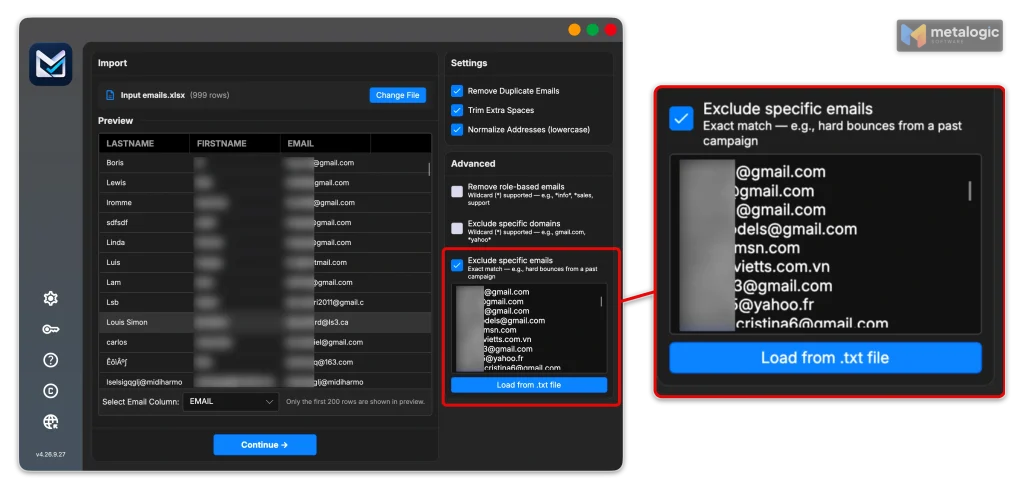
- Exclude first. Load your unsubscribes, complaints and past bounces into MailVexa’s exclude list. They are skipped and marked “ExcludedEmail”, so they can’t slip back into your warm-up groups.
- Clean. MailVexa removes duplicates and fixes spacing and capital letters.
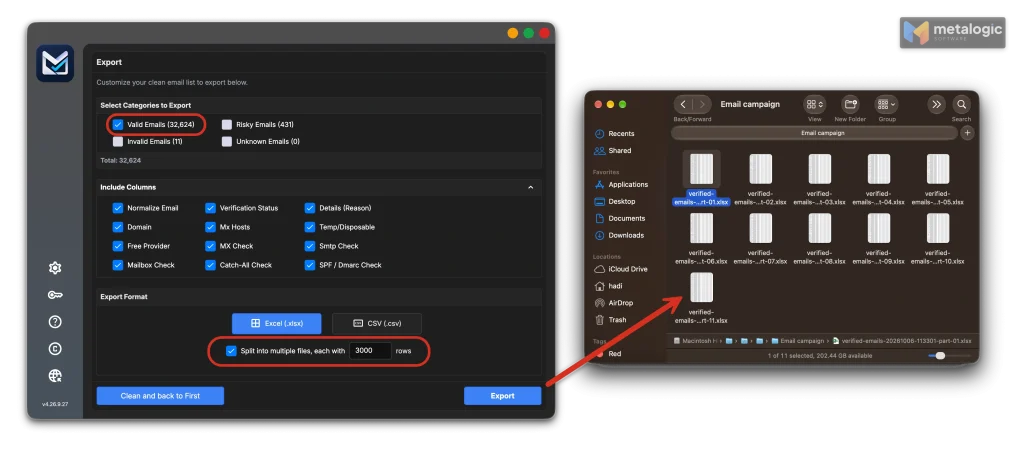
- Verify. Each address is checked and sorted into Valid, Risky, Invalid or Unknown, with a reason.
- Export by group. Export each result group to its own file, and split large files into smaller parts. Small parts are perfect for warm-up batches.
New to the app? Our guide on how to use MailVexa walks through each screen.
Then use the results like this:
| MailVexa result | What to do during warm-up |
|---|---|
| Valid + recently engaged | Your first batches |
| Valid + not engaged for months | Wait until warm-up is done, then re-engage carefully |
| Risky (for example catch-all) | Keep out of early batches. Add later, in small groups |
| Unknown | Keep out for now. Verify again later |
| Invalid | Remove. Never send |
Not sure what each result means? Read email verification results explained, and for the Risky group, what a catch-all address is.
Valid means the mailbox exists, not that the person agreed
Email verification software tells you an address can receive email. It doesn’t tell you the person wants your email. Only send to people who asked to hear from you. Permission and engagement decide your warm-up groups. Verification removes the addresses that would bounce.
Does verifying use up my warm-up volume?
No. MailVexa checks each address by talking to the receiving mail server, and stops before any message is sent. These checks come from your own computer, or from the proxy you set in MailVexa, not from your email provider’s sending IP. Your warm-up volume and your sending IP are not touched.
Build your warm-up plan
There is no magic schedule. A good plan starts from your own numbers. Write these down first:
| Question | Why it matters |
|---|---|
| How many emails will you send per campaign, when warm-up is done? | This is your target |
| How many truly engaged contacts do you have? | This decides how big your first groups can be |
| What share of your list is Gmail, Outlook and Yahoo? | Each provider builds trust separately |
| Is the domain new? Is the IP shared or dedicated? | A new domain on a new dedicated IP needs the most patience |
| Does your provider limit new accounts or run its own warm-up? | Your plan must fit inside their limits |
| How often will you really send after warm-up? | Warm-up should lead into your normal rhythm |
The simple warm-up loop
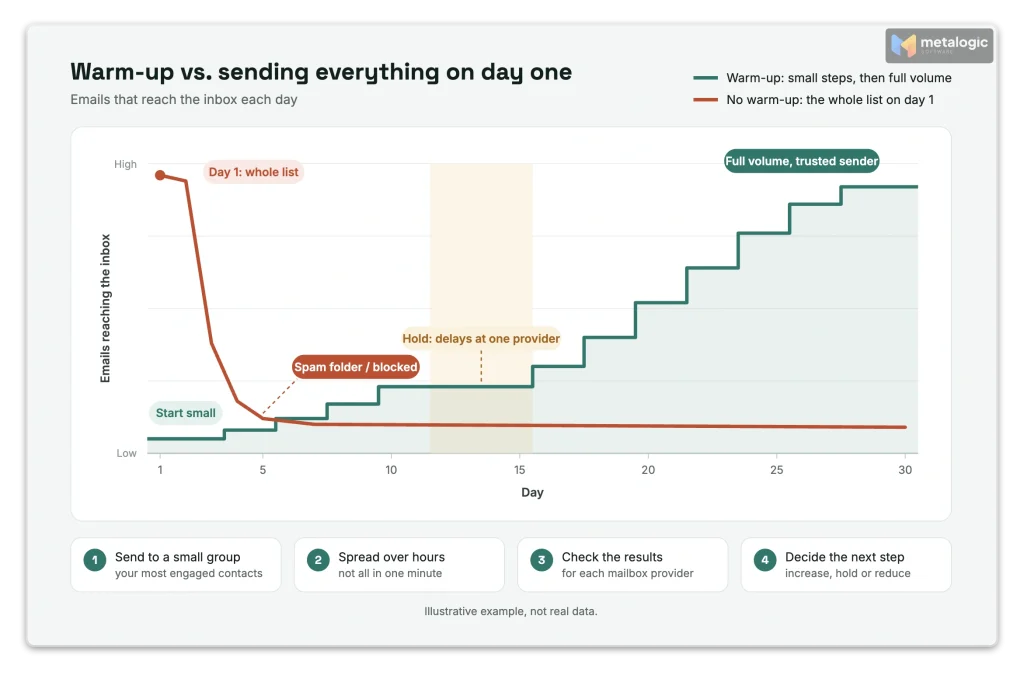
Every day of warm-up follows the same four steps:
- Send to a small group of your best contacts.
- Spread the sending over hours, not seconds.
- Check bounces, delays and complaints, by mailbox provider.
- Decide: increase, hold, reduce or pause (see section 09).
Daily volume and sending speed are different things
Sending 2,000 emails in one day is fine. Sending all 2,000 in the first 60 seconds is not. Gmail’s top sender issues page suggests sending at a steady pace, such as one message per second, instead of fast bursts followed by long pauses. It also says steady volume matters most for new domains.
Avoid the “double it every day” rule
Many online schedules say “double your volume every day”. The math gets out of hand fast: 500 becomes 64,000 in eight days. Your results, not a formula, should decide each step. When things go well, Gmail’s own advice for recovering from delays mentions daily increases of 25% to 100%. Use the lower end when you are unsure.
A practical example plan
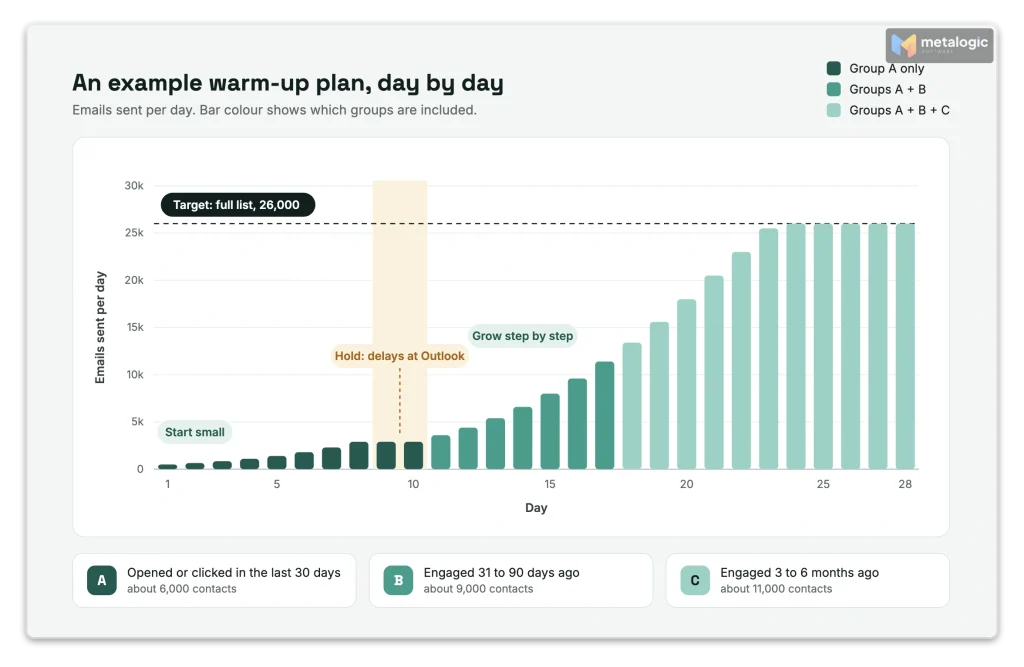
Here is how one sender might plan it. Imagine an online shop that set up a new sending subdomain. It has 40,000 contacts who agreed to its newsletter, and it wants to send one newsletter a week.
After verification and segmenting, the list looks like this:
- Group A: opened or clicked in the last 30 days, about 6,000
- Group B: engaged 31 to 90 days ago, about 9,000
- Group C: engaged 3 to 6 months ago, about 11,000
- Group D: no engagement for 6 months or more, about 12,000
- Invalid and excluded addresses, about 2,000, already removed
| Stage | Who gets email | Example daily volume | Move on when |
|---|---|---|---|
| 1. Prepare | Nobody yet | 0 | Authentication passes on a real test email, suppressions are loaded, the list is verified |
| 2. Start (first days) | Group A only | 500 to 1,000, spread over the day | Bounces and complaints are very low, no delays |
| 3. Grow | Rest of A, then B | Increase 25% to 50% a day while signals stay clean | Each provider looks healthy on its own |
| 4. Fix (only if needed) | Back to A only | Hold or reduce | The cause is found and results recover |
| 5. Reach target (weeks 3 to 6) | Add C. Full weekly newsletter | Normal volume | Results stay stable for several sends |
| After warm-up | Group D, in small re-engagement batches | Small | Only people who respond return to the main list |
These numbers are an example, not a schedule to copy
They show the logic: best contacts first, small steps, and decisions based on results. Your own steps depend on your list, your provider and how each mailbox provider reacts. Spamhaus, for example, advises not sending more than 1,000 emails a day in the first few days of a new or quiet IP.
What to monitor during warm-up
Look at your numbers after every send, for each mailbox provider separately. Gmail can love you while Outlook is still unsure. An average across all providers can hide that.
| Signal | What it tells you | Where to see it |
|---|---|---|
| Bounces and their reasons | Dead addresses, or blocks because of your reputation | Your email provider’s bounce report |
| Deferrals (temporary delays) | The provider is slowing you down. You are going too fast | Your provider’s delivery logs |
| Spam complaints | People don’t want this email | Your provider’s reports, Gmail Postmaster Tools |
| Authentication results | Whether every email passes SPF, DKIM and DMARC | Postmaster Tools, DMARC reports |
| Unsubscribes | Interest is dropping in a group | Your provider’s reports |
| Clicks and replies | Real interest. More reliable than opens | Your provider’s reports |
Gmail’s numbers
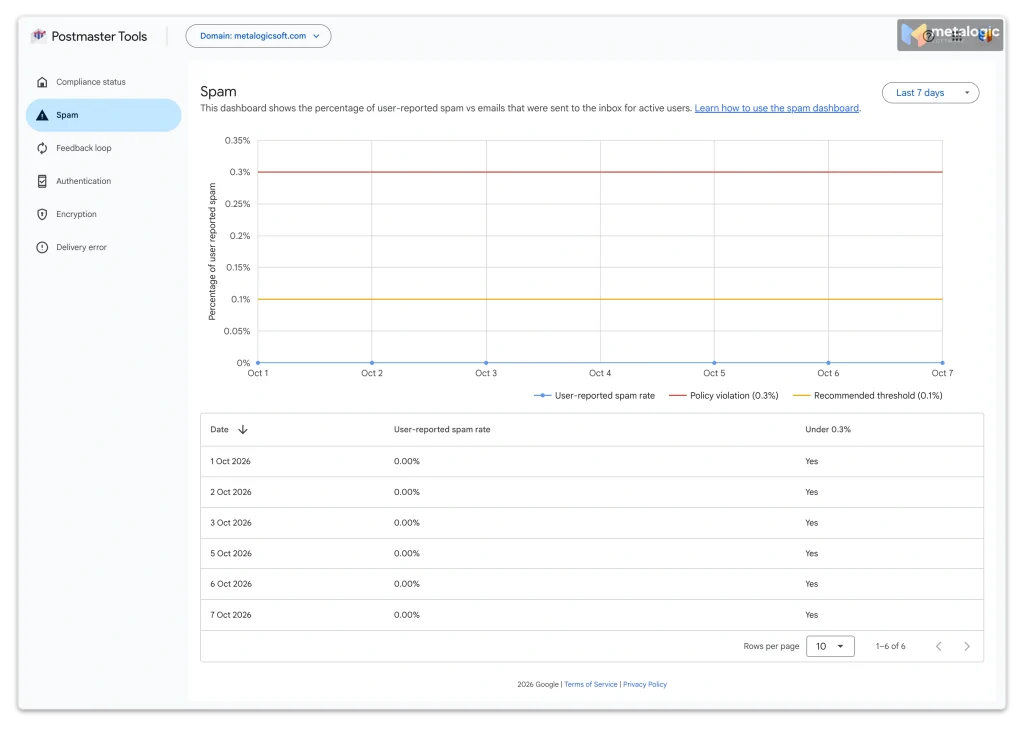
Gmail asks senders to keep their spam rate below 0.1%, and never let it reach 0.3%. Use Gmail Postmaster Tools to watch it. Google is moving everyone to a newer version of the tool, and its Postmaster Tools update explains that the old domain and IP reputation dashboards are being retired. Focus on spam rate, authentication and compliance status instead.
Microsoft and others
For Outlook.com, Microsoft’s Smart Network Data Services (SNDS) shows data about the IPs you control, which is useful on a dedicated IP. For most other providers, your email provider’s report, split by mailbox provider, is your main view.
Read the delay codes
A temporary error starts with 4. It means “not now, try later”. When Gmail sees an unusual sending rate, it can delay you with a code like 421 4.7.28. Google lists these codes in its Gmail SMTP error reference. If you see many of them, you are growing too fast for that provider.
Valid means the mailbox exists, not that the person agreed
Apple Mail Privacy Protection can load emails automatically, so an “open” may not be a person. Some security systems also click links to scan them. Give more weight to real clicks, replies and purchases. For bounce details, see our guide to reducing email bounce rate, and if emails land in spam, use our spam troubleshooting guide.
Increase, hold, reduce or pause?
After every send, use this table to decide your next step. Make the decision for each mailbox provider on its own.
| What you see | Decision | What to do |
|---|---|---|
| Low bounces, almost no complaints, no delays, real clicks | Increase | Grow the next send by a small step. Add the next engaged group |
| Some delays at one provider, everything else fine | Hold | Keep the same volume for that provider until delays stop |
| Complaints rising, or many delays | Reduce | Go back to your most engaged group. Check content and how often you send |
| Blocks (5xx errors that mention reputation, policy or spam) | Pause for that provider | Stop, read the error text, fix the cause before you send again |
| Many “user unknown” hard bounces | Pause that segment | Your list has a data problem. Verify it again before sending |
Many providers help with this. SendGrid’s Deliverability Insights, for example, shows delivery, bounce and spam report numbers by mailbox provider.
Not every 5xx error means a dead mailbox
A permanent error (starting with 5) can mean the address doesn’t exist. But it can also mean the provider blocked you because of reputation or authentication. Always read the text after the code. Deleting good contacts because of a block is a costly mistake.
After a Gmail delay: the recovery steps
Gmail’s guidance is clear. Pause for at least 10 to 15 minutes. Send one test message. Stay below the volume that caused the delay for 24 hours. Then increase slowly again, watching each step.
Manual or automated warm-up?
Many email providers can warm up a dedicated IP for you. Here is how some of them work:
| Provider | How its automatic warm-up works |
|---|---|
| Amazon SES (standard dedicated IPs) | On by default. Moves a growing share of your mail to the new IP over about 45 days, while the rest goes through already-warm IPs |
| Amazon SES (managed dedicated IPs) | Warms up separately for each mailbox provider. Extra mail goes through the shared pool in the early phase |
| Twilio SendGrid | Limits hourly volume for 41 days. Extra mail uses your other IPs or waits in a queue for up to 72 hours |
| Mailgun | Grows in stages, with rest periods between them |
Which one should you choose?
- Automated is easier and safer for most senders. The provider controls the speed of the IP.
- Manual gives you more control, but every mistake is yours. Amazon warns that if you turn off its automatic warm-up, you are responsible for doing it right.
Automated IP warm-up doesn’t choose your contacts
Your provider controls how much mail goes through the new IP. It doesn’t decide who gets your mail. If you send to an old, unverified list, the automatic warm-up still delivers that bad list, just slowly. Your domain still needs engaged, verified contacts first.
Stay away from “fake engagement” warm-up tools
Some services promise to warm up your domain by sending emails between their own mailboxes that open, reply and rescue each other from spam. Spamhaus strongly discourages them, because they try to fool filters by inflating engagement. Real trust comes from real people.
Migration, transactional email and long breaks
Moving to a new email provider
- Bring your “do not send” lists. Import unsubscribes, complaints and bounces first.
- Move traffic gradually. Keep sending most email from the old provider while the new one warms up. Move your most engaged groups first.
- Pause old automations before you start new ones, so nobody gets the same email twice.
- Keep the old account until the new one is stable.
Transactional email (receipts, password resets)
Keep important system emails separate from marketing, for example on their own subdomain such as mail.example.com versus news.example.com. This way, a bad marketing week can’t delay a password reset. Amazon’s guide recommends this split as well. Warm up each stream on its own.
After a long break
Reputation fades when you stop sending. SendGrid says to warm an IP up again if you haven’t sent through it for more than 30 days. Postmark’s dedicated IP rules say an IP must be warmed up again if volume stays below 20,000 messages a week for four weeks. After a long break, start again with your most engaged contacts, and verify the list first: addresses die while you are away.
Common warm-up mistakes
| Mistake | What happens | Do this instead |
|---|---|---|
| Sending to the whole list on day one | Delays, spam folder, blocks | Start with a small engaged group |
| Starting with your oldest list because it is the biggest | Many bounces and complaints in the first days | Start with your best contacts. Old contacts come last |
| Skipping verification | Bounces break your warm-up early | Verify the list before the first batch |
| Following a fixed schedule no matter what | Problems grow with every send | Let results decide each step |
| Looking only at averages | One provider blocks you and you don’t notice | Check each mailbox provider separately |
| Sending everything in one fast burst | Rate limits and delays | Spread sending over hours |
| Changing many things at once | You can’t tell what caused a problem | Change one thing at a time |
| Stopping after warm-up, then sending a huge campaign weeks later | You lose the trust you built | Keep a steady rhythm |
| Buying a dedicated IP for low volume | Not enough mail to build trust | Use a shared IP until volume is high and steady |
Your warm-up checklist
- SPF, DKIM and DMARC pass on a real test email
- Forward and reverse DNS are set for my sending IP
- One-click unsubscribe and a visible unsubscribe link work
- Unsubscribes, complaints and past bounces are loaded as suppressions
- My list is verified, and Invalid addresses are removed
- Risky and Unknown addresses are kept out of early batches
- My first groups are my most engaged, opted-in contacts
- I spread sending over hours, not seconds
- I check results for each mailbox provider after every send
- I increase only when bounces, complaints and delays stay low
- I know when to hold, reduce or pause
- After warm-up, I keep a steady sending rhythm
Common questions
How long does email warm-up take?
Usually 2 to 6 weeks. Amazon SES and Postmark both give ranges in this window. It can be shorter for a small, very engaged list and longer for a big list or a domain with a bad history.
How many emails should I send on the first day?
Start small, and only to your most engaged contacts. Spamhaus advises no more than 1,000 a day in the first few days of a new or quiet IP. If your engaged group is smaller, start with fewer.
Do I need to warm up my domain if I use a shared IP?
Yes. A shared IP may already be warm, but your domain has its own reputation. A new sending domain still needs to start slowly.
My website domain is old. Do I still need to warm it up?
Yes, if it has never sent bulk email. Providers judge your sending history, not your website’s age.
What if I don’t have an engaged list?
Then build one before you send in volume. Use signup forms with clear permission, start with recent customers, and send small batches. An old or bought list is not a substitute.
I send a weekly newsletter. Do I have to send every day during warm-up?
Not every day. You can split your first newsletters into smaller parts and send them over a few days. After warm-up, go back to your normal weekly rhythm and keep it steady.
I stopped sending for a few weeks. Do I need to start again?
Often, yes. SendGrid suggests warming up again after more than 30 days without sending. Start with your most engaged contacts and grow back step by step.
Does warm-up guarantee my emails reach the inbox?
No. Warm-up gives providers time to judge you fairly. Inbox placement still depends on your list quality, permission, content and how people react.
Sources
Mailbox providers and standards
- Gmail email sender guidelines. Authentication, PTR, TLS, one-click unsubscribe, spam rate, starting with low volume to engaged users, pause after error 4.7.28.
- Top Gmail sender issues. Consistent volume for new domains, one message per second, recovery after deferrals, 25% to 100% daily increases.
- Gmail Postmaster Tools transition. Move to Postmaster Tools v2 and retirement of the reputation dashboards.
- Gmail SMTP errors and codes. Code 421 4.7.28 for unusual sending rates.
- Microsoft: Outlook’s requirements for high-volume senders. SPF, DKIM and DMARC for domains sending more than 5,000 emails a day.
- Microsoft Smart Network Data Services (SNDS). IP data for Outlook.com.
- Yahoo Sender FAQ. Sender Support Request for new senders and new IPs.
- Spamhaus FAQ: marketing email. Warm-up definition, 1,000 emails a day in the first days, warm-up services discouraged, no bought lists.
Email providers
- Amazon SES: Warming up dedicated IP addresses. 2 to 6 weeks, 45-day automatic warm-up, engaged users first.
- Amazon SES: Managed dedicated IPs. Warm-up for each mailbox provider, shared pool for extra mail.
- AWS: Guide to IP and domain warming and migrating to Amazon SES. Domain vs IP warming, best audience first, separate subdomains.
- SendGrid: Warm up an IP address. 41-day automated warm-up, 72-hour queue, re-warm after 30 days.
- SendGrid: Deliverability Insights. Results by mailbox provider.
- Mailgun: Automatic IP Warmup. Stages and rest periods.
- Postmark: Dedicated IPs. 3 to 6 weeks, re-warm rule, minimum volume.
Product
- MetaLogic MailVexa. Desktop email verification software for Windows and macOS.
Start your warm-up with addresses that won’t bounce
Your first batches set your reputation. MailVexa keeps past unsubscribes and bounces out, verifies every address with a reason, and exports small, clean files ready for each warm-up step, all on your own computer.
Windows and macOS. Pay once, use for life. Free 14-day trial with up to 2,000 verifications.
We build MetaLogic MailVexa, so weigh our description of it accordingly. We have no commercial relationship with any email provider mentioned in this guide. Provider rules and warm-up schedules were checked in October 2026 and change often, so confirm them on each provider’s own site.