Your email platform says 99% delivered. Does that mean 99% of your readers saw your email in their inbox?
No. It means 99% of your emails were accepted by the receiving servers. Some of them may be sitting in the spam folder right now, and the report will not tell you.
Deliverability problems rarely arrive with an alarm. They start small: a few more bounces, a few more complaints, slower delivery at one provider. If you watch the right numbers, you see them days before they hurt your sales. If you don’t, you find out when a campaign suddenly fails.
This guide shows you which tools to use, how to set up Google Postmaster Tools, which metrics matter, how to read them without fooling yourself, and what to do when a number gets worse. It ends with a simple routine you can follow every week. It is the measuring side of our guide to 15 ways to improve email deliverability.
Quick answer
To monitor email deliverability, combine three kinds of data: your email platform’s report (bounces, delays, complaints, unsubscribes), the mailbox providers’ own tools (Google Postmaster Tools, Microsoft SNDS, Yahoo’s complaint feedback loop), and real engagement (clicks, replies, sales).
Check them before, during and after each campaign. Compare every result with your own normal level, and split it by provider (Gmail, Outlook, Yahoo). No single number, including “Delivered” and open rate, can tell you if your emails reach the inbox.
What deliverability monitoring actually tells you
An email goes through four steps. Each step leaves different data, and each tool sees only some of it:
| Step | The question | Who has the data |
|---|---|---|
| Sent | Did your platform try to send it? | Your email platform |
| Delivered | Did the receiving server accept it? | Your email platform (bounces, delays) |
| Inbox placement | Did it land in the inbox or in spam? | Only the mailbox provider. You see clues, not the full answer |
| Engagement | Did a person click, reply or buy? | Your platform and your website |
Amazon SES defines a delivery as an email “successfully delivered” to the recipient’s mail server. The server, not the inbox. What happens after that is the mailbox provider’s decision. We explain this step in detail in email delivery vs. inbox placement.
So monitoring is like a doctor’s check-up. No single test gives the full picture. Blood pressure, temperature and blood tests together do. In the same way, you put bounces, complaints, authentication results and engagement side by side, and look for the number that changed.
Never judge a campaign by one number
A high delivery rate can hide a spam-folder problem. A low open rate can be caused by privacy features, not by spam. A zero complaint rate can even be a bad sign (more on that in section 05). Always look for a second signal before you decide.
Build your monitoring toolkit
These are the main sources of deliverability data. Each one sees a different slice. Notice the “Scope” and “Day” columns. They explain most of the “why don’t my numbers match?” questions.
| Tool | What it shows | Scope | Day | Who can use it |
|---|---|---|---|---|
| Your email platform’s report | Sent, delivered, bounces, delays, complaints, unsubscribes, clicks | All your recipients | Your account’s time zone | Everyone |
| Google Postmaster Tools | Compliance, spam rate, authentication, encryption, delivery errors | Personal Gmail accounts only | UTC | Anyone who can verify the sending domain |
| Microsoft SNDS | Per-IP traffic, filter result, complaint rate, trap hits | Outlook.com, Hotmail, Live | Pacific time | Only owners of the sending IP |
| Microsoft JMRP | Reports when Outlook.com users click “Junk” | Outlook.com consumers | — | IP owners, managed inside SNDS |
| Yahoo Complaint Feedback Loop | A report each time a Yahoo user marks your email as spam | Yahoo and AOL | — | Owners of the DKIM signing domain |
| DMARC aggregate reports | Who sends email with your domain, and whether it passes SPF and DKIM | Receivers that send reports | Usually daily | Anyone with a DMARC record |
| Inbox placement (seed) tests | Inbox or spam for a set of test mailboxes | Only the test mailboxes | Per test | Paid tools or some platforms |
Start small
You don’t need every tool on day one. Start with your platform’s report and Google Postmaster Tools. Gmail is usually the biggest part of a list, and these two cover most problems. Add the others when your volume grows.
On a shared IP? SNDS is not for you
Microsoft only gives SNDS access to the people responsible for an IP address. It checks this by email to the contacts in the IP’s reverse DNS or registration data, and it does not accept manual requests. If your platform sends from shared IPs, you can’t add them. Ask your platform’s support about Microsoft data instead.
Two small details matter here. First, Yahoo’s feedback loop only works for email signed with DKIM, and it is tied to the signing domain. If your platform signs with its own domain, the complaints go to the platform, not to you. Second, DMARC aggregate reports are the only source here that can reveal unknown senders using your domain. The DMARC standard was updated in May 2026, and the new aggregate reporting standard (RFC 9990) describes these reports. For the basics, see SPF, DKIM and DMARC explained.
How to set up Google Postmaster Tools
Postmaster Tools is free. It is Google’s own view of your email. Setup takes about 15 minutes, plus some waiting for DNS.
Step 0: find the right domain first
This is where most people go wrong. The domain you add is not always your website’s domain. Google’s setup guide says to add “either the DKIM (d=) domain or the SPF (Return-Path) domain”.
To find them, send a real campaign email to a Gmail address. Open it, click the three dots, then Show original. Look for these two lines:
Return-Path: <[email protected]m>
DKIM-Signature: v=1; a=rsa-sha256; d=example.com; s=mail; ...
Here, example.com (from d=) is the domain to add. If both lines show your email platform’s domain instead of yours, Postmaster Tools can’t show you anything yet. First set up custom domain authentication in your platform, so it signs with your own domain.
Steps 1 to 4: add and verify the domain
- Sign in at
postmaster.google.comwith a Google account. Open Manage Domains. - Click Add new domain (top right). Enter the domain from Step 0 and click Create.
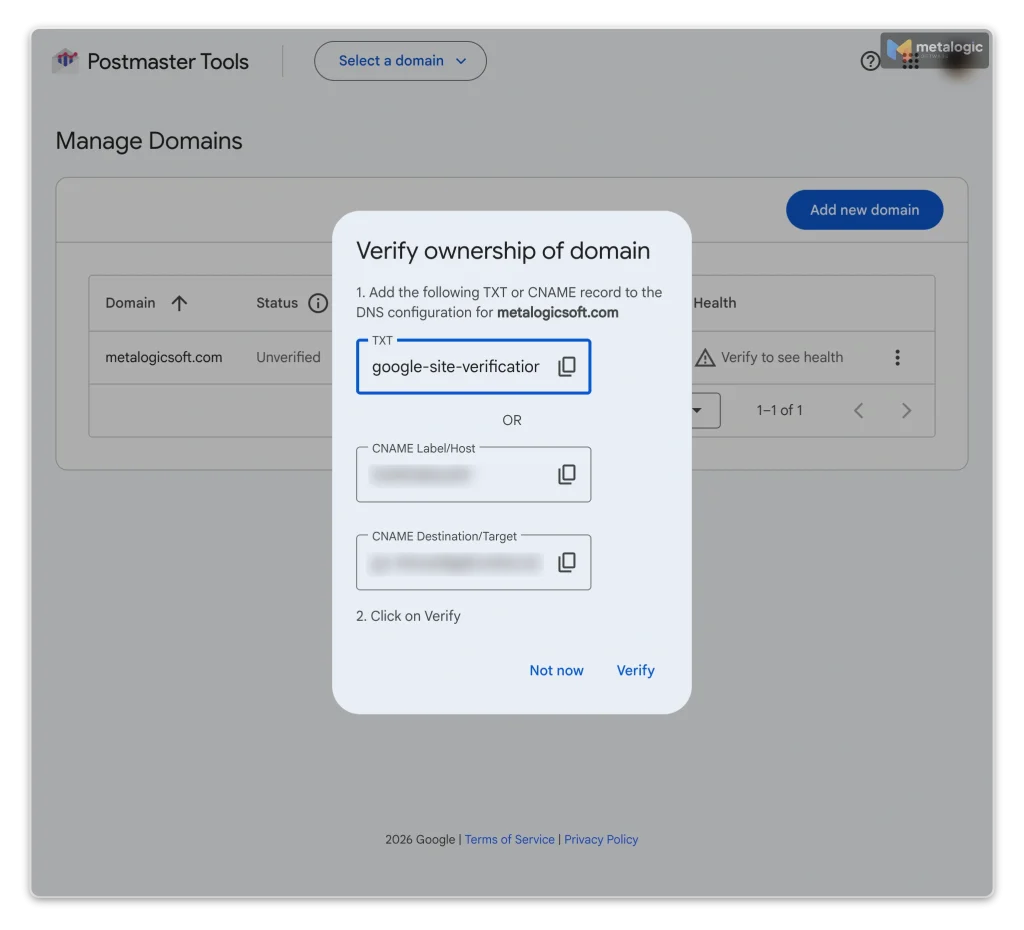
- Next to the domain, click More options (⋮), then Verify domain. Copy the TXT or CNAME record.
- Add the record in your DNS provider (for example Cloudflare). Go back and click Verify. Google says this usually works at once, but it can take up to 10 minutes.
Step 5: subdomains (optional)
If you send from subdomains, like news.example.com for marketing and mail.example.com for receipts, add them too. Add and verify the main domain first. After that, the subdomains don’t need their own verification. You then get separate dashboards for each stream.
Step 6: share access (optional)
Click More options > Manage users > New user and enter a colleague’s Google email. Google does not notify them, so tell them yourself.
What Postmaster Tools can’t see
It only counts email sent to personal Gmail accounts (@gmail.com and @googlemail.com). Company addresses on Google Workspace are not included. So a B2B list with few Gmail users may show very little data.
Which Postmaster reports to check
Postmaster Tools now uses a new interface (often called “v2”). It has six main dashboards. For each one, ask one simple question:
| Dashboard | The question it answers | What “bad” looks like |
|---|---|---|
| Compliance status | Do I meet each Gmail sender requirement? | “Needs work” on any line |
| Spam rate | How many readers report my inbox emails as spam? | Above 0.10%, and never 0.30% or higher |
| Feedback loop | Which campaign type gets the most complaints? | One campaign type far above the others |
| Authentication | Do my emails pass SPF, DKIM and DMARC? | A sudden drop, or DKIM/DMARC below about 95% |
| Encryption | Is my email sent over TLS? | Anything below 100% for inbound TLS |
| Delivery errors | How many authenticated emails were rejected or delayed, and why? | A new spike, or a new reason |
Compliance status and “Deliverability analysis”
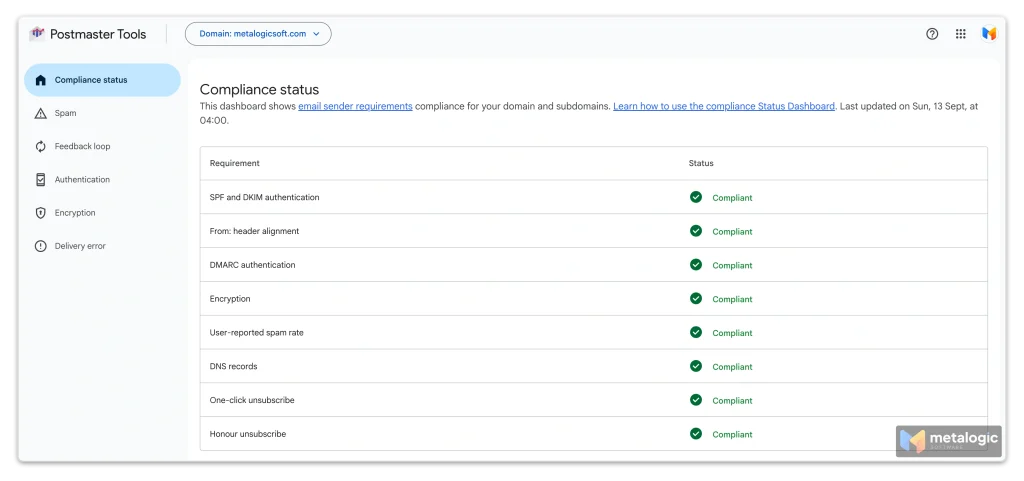
Compliance status checks every sender for SPF and DKIM, DNS records, message format, encryption and spam rate. If you send about 5,000 or more emails a day to Gmail, it also checks DMARC, one-click unsubscribe and whether you honor unsubscribes. Each line says Compliant, Needs work or No data found.
Inside this dashboard, Google added a tool called Deliverability analysis. It gives a short recommendation about your domain. For example, it may say you send too little email, your emails fail to deliver, your spam rate is too high, or readers don’t interact with your emails. It is the closest thing Google gives to a plain-language “health check”.
Delivery errors: the reasons Google gives
This dashboard shows the share of authenticated emails that were rejected or temporarily failed. It also gives a reason. Each reason points to a different fix:
| Reason in Postmaster | What it usually points to |
|---|---|
| Rate limit exceeded | You send too fast. Slow down and spread the campaign |
| Suspected spam / content possibly spammy | Content, links, or a sudden change in what you send |
| DMARC policy of the sender domain | An authentication or alignment problem |
| Sending IP or domain has a low reputation | Complaints, bounces or unwanted email over time |
| Domain or IP is in public blocklists | Check the blocklists and the cause behind the listing |
| Bad or missing PTR record | The sending IP has no proper reverse DNS (your platform’s job on shared IPs) |
Google also warns that temporary failures are a throttling signal. If you don’t slow down after them, “it’s likely your email will have some period of permanent failures.”
Feedback loop: find the campaign behind the complaints
The spam rate tells you how many people complain. The Gmail feedback loop helps you find which kind of email causes it. Your platform adds a Feedback-ID header with labels, such as the campaign type. Postmaster then shows a spam rate per label. Many platforms do this for you. Ask yours.
Don’t build your routine on “Domain reputation” or “IP reputation”
Google is retiring these two old dashboards. It says reputation data is “not easily actionable” and can mislead. Many accounts no longer see them. Google has postponed shutting down the old interface, but the reputation dashboards are not part of the new one. Use compliance, spam rate and delivery errors instead.
Why Postmaster data can be missing or misleading
Postmaster Tools is useful, but it is easy to read it wrong. Google’s own dashboard guide lists the limits. Here they are in plain words:
- It is not live. Data usually arrives within 24 hours, sometimes later.
- Small senders may see nothing. On low-volume days, Google hides data to protect user privacy. Google does not publish an exact minimum.
- “No data” does not mean “no problems”. It only means Google is not showing data for that day.
- The day is in UTC. Your platform probably uses your local time zone. So the daily numbers won’t match exactly.
- Some dashboards count only DKIM-signed email. Spam rate is one of them.
- Compliance status uses a rolling average over several days. A fix can take up to 7 days to show as green.
- Compliance status covers the whole main domain. If you added
news.example.com, this dashboard still shows data for all ofexample.com. Use the other dashboards for each subdomain.
The most misunderstood number: spam rate
Google defines the spam rate as the share of your emails “delivered to engaged recipient’s Inbox and then marked as spam by the recipient”. Read that again. It only counts emails that reached the inbox.
So the spam rate is not “the percentage of my emails that went to spam”. Emails that Gmail filtered to spam on its own are not in this number at all.
When zero complaints is bad news
If Gmail sends most of your email straight to spam, almost nobody sees it in the inbox, so almost nobody can report it. The spam rate then looks perfect. Google warns about exactly this: a high spam rate that “suddenly changed to a rate of 0” can mean “many messages are automatically being sent to spam”. Microsoft says the same about SNDS in its SNDS FAQ: filtered mail gets fewer complaints, so the complaint rate “naturally tends to be lower”. If complaints drop to zero while clicks also fall, investigate. Don’t celebra
Why Postmaster and your platform show different numbers
| Difference | Your platform | Postmaster Tools |
|---|---|---|
| Recipients | Everyone on your list | Personal Gmail accounts only |
| Day boundary | Your account’s time zone | UTC |
| Complaints | Reports sent back to your platform | Gmail users’ spam clicks on inbox emails |
| Which emails count | All emails it sent | Often only DKIM-authenticated emails |
| Speed | Minutes | About a day, sometimes more |
Different numbers are normal. Compare trends, not single days.
The key metrics to track after every campaign
This table is the heart of your monitoring. For every rate, know three things: what is counted (the top of the fraction), what it is divided by (the bottom), and where the number comes from.
| Metric | How it’s usually calculated | What it tells you | Be careful |
|---|---|---|---|
| Send volume | Emails sent in this campaign | Context for every other number | A sudden jump changes all the other rates |
| Delivery rate | Delivered ÷ sent | How many servers accepted your email | It is not the inbox rate |
| Hard bounce rate | Permanent failures ÷ sent | List quality, and sometimes blocks | Not every permanent error means “address doesn’t exist”. Read the code |
| Soft bounces and delays | Temporary failures and retries | Throttling, full mailboxes, server problems | A delay is not the final result. Wait for retries to finish |
| Complaint rate | Spam reports ÷ delivered (varies by tool) | Unwanted email, wrong expectations | Each tool uses a different bottom number |
| Authentication | Share passing SPF, DKIM, DMARC | Whether receivers can trust your domain | Passing doesn’t guarantee the inbox |
| Unsubscribe rate | Unsubscribes ÷ delivered | Interest and frequency | Unsubscribing is healthy. A spam report is not |
| Clicks, replies, sales | Actions ÷ delivered | Real results | They don’t measure placement directly |
A worked example (made-up numbers)
Here is how one campaign looks when you write every rate with its count:
| Metric | Count | Rate |
|---|---|---|
| Sent | 8,000 | — |
| Delivered | 7,880 | 98.5% of sent |
| Hard bounces | 72 | 0.9% of sent |
| Soft bounces (after retries) | 48 | 0.6% of sent |
| Spam complaints | 6 | 0.08% of delivered |
| Unsubscribes | 24 | 0.3% of delivered |
| Clicks (unique) | 312 | 4.0% of delivered |
Always write the count next to the percentage
“0.08% complaints” sounds abstract. “6 complaints out of 7,880” is clear. On small lists this matters even more: 2 complaints out of 500 is 0.4%, which sounds scary, but it is only two people. The count helps you decide if a change is real or just chance.
Why open and click rates need context
Opens are counted with a tiny invisible image. When the image loads, the platform records an “open”. That sounds simple, but many things load the image without a person reading anything, and many real readers never load it:
- Apple Mail Privacy Protection loads images in the background. Mailchimp’s Apple privacy FAQ says these emails are reported as “opened,” regardless of the contact’s activity.
- Security scanners at companies often open emails and test every link before the person sees them. This creates fake opens and fake clicks.
- Readers with images turned off read your email, but no open is recorded.
- Gmail itself doesn’t track opens. Google says in its sender guidelines that it “can’t verify the accuracy of open rates reported by third parties.”
| Signal | How reliable | Use it for |
|---|---|---|
| Opens | Low | Rough trends inside one audience, never alone |
| Clicks | Medium (bots can click) | Interest, after bot filtering |
| Replies | High | Real attention (people rarely reply from spam) |
| Sign-ups, sales | High | The real goal |
Turn on bot filtering if your platform has it
Some platforms can hide machine activity. Mailchimp, for example, filters bot activity from security tools, Apple’s Mail Privacy Protection and link preview generators. It hides that data from reports without deleting it. Check if your platform has a similar setting.
A higher open rate does not prove better inbox placement
If more of your readers moved to Apple Mail, your open rate goes up. Nothing changed in your deliverability. Always check clicks and sales before you believe an open-rate change.
Break down your results by provider and stream
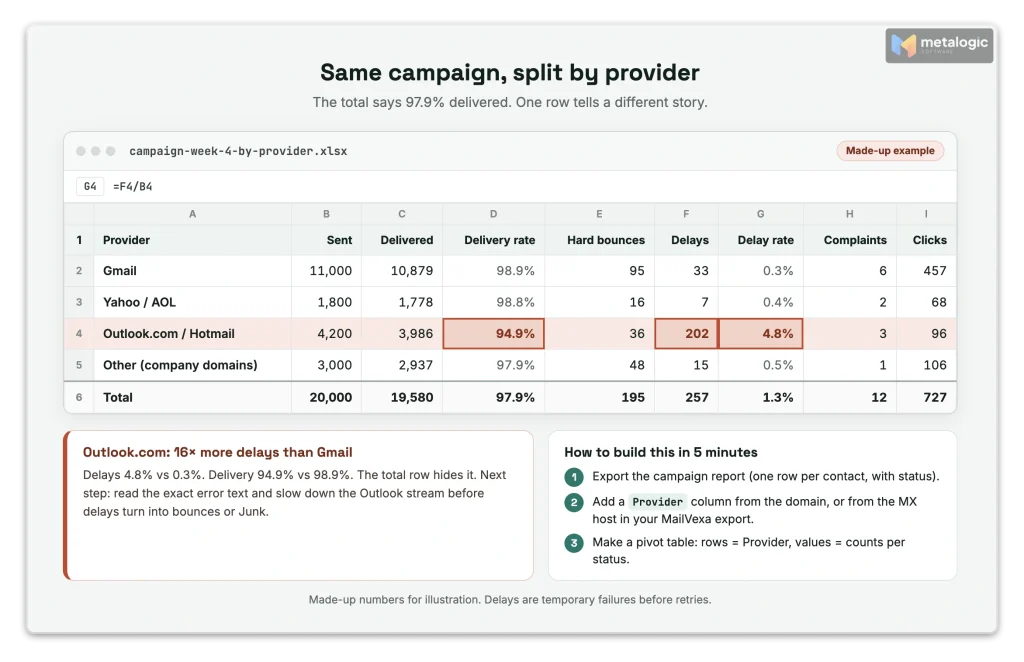
An average can hide a problem. Gmail, Outlook and Yahoo use different filters. A problem at one of them disappears in the total.
A made-up example
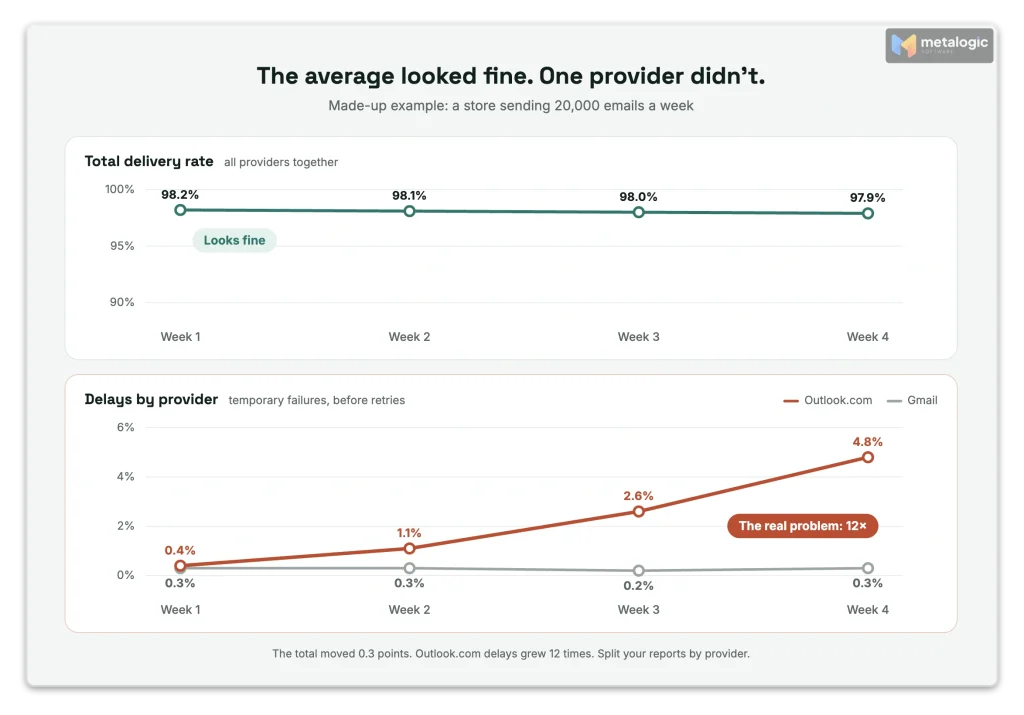
A store sends 20,000 emails a week. The total delivery rate stays around 98% for a month. Everything looks fine. But when the results are split by provider, the picture changes:
| Week | Total delivery | Gmail delays | Outlook.com delays |
|---|---|---|---|
| 1 | 98.2% | 0.3% | 0.4% |
| 2 | 98.1% | 0.3% | 1.1% |
| 3 | 98.0% | 0.2% | 2.6% |
| 4 | 97.9% | 0.3% | 4.8% |
The total moved only 0.3 points. But Outlook.com delays grew twelve times. That is an early warning. It needs action now, on the Outlook stream, before the delays turn into bounces or the junk folder.
Ways to split your results
- By mailbox provider: Gmail, Outlook/Hotmail, Yahoo/AOL, others.
- By stream: marketing and transactional email (receipts, passwords) should use separate subdomains and be checked separately.
- By campaign type: newsletter, promotion, re-engagement.
- By signup source and list age: a new signup form or an old segment often explains a sudden change.
- By IP or IP pool, if you have dedicated IPs.
Some platforms do this split for you. Amazon SES, for example, includes an ISP view in its Virtual Deliverability Manager. If yours doesn’t, export the report and group it by recipient domain in a spreadsheet.
The domain doesn’t always tell you the provider
[email protected] looks like a company server. But the company may use Google Workspace or Microsoft 365. The mail server (MX) record tells you the truth. If it ends in google.com, Google filters it. If it ends in mail.protection.outlook.com, Microsoft does. MailVexa exports the MX hosts for every address, so you can tag your contacts by their real provider before you split your reports (see section 13).
Set useful baselines and alerts
A number means little on its own. “Is 0.6% bounces good?” depends on what is normal for you. So the first step is a baseline.
How to build a baseline
- Take your last 5 to 10 similar campaigns (same type, similar size, same list).
- For each key metric, write down the typical value. The middle value (median) works better than the average, because one strange campaign won’t pull it.
- Keep a separate baseline for each provider and each stream.
- Update it every month.
Provider limits are not targets
Mailbox providers and sending platforms publish some lines. These are limits to stay far away from. They are not goals:
| Who | What they say |
|---|---|
| Gmail | Keep spam rates in Postmaster Tools “below 0.10%” and “avoid ever reaching” 0.30% |
| Yahoo | Keep your spam rate below 0.3%, based on mail delivered to the inbox |
| Microsoft (SNDS) | A complaint rate under 0.3% is “a good bar to shoot for” |
| Amazon SES | Bounces below 2% (review at 5%, may pause at 10%); complaints below 0.1% (review at 0.1%, may pause at 0.5%) |
Gmail is serious about these lines. Its sender FAQ says that since November 2025, email that doesn’t meet the requirements faces “temporary and permanent rejections”. It also says spam rates above 0.1% already hurt inbox delivery for bulk senders.
Your own alerts
Internal alerts should fire long before a provider limit. A simple rule works well:
| Alert when… | Example |
|---|---|
| A rate is about 2× your baseline | Hard bounces usually 0.4%, now 0.9% |
| One provider moves, even if the total doesn’t | Outlook delays from 0.4% to 2.6% |
| Authentication drops at all | DKIM pass from 100% to 92% |
| Any Compliance line shows “Needs work” | One-click unsubscribe failing |
| Complaints go to zero while clicks also fall | Possible spam-folder placement |
These numbers are examples. Choose your own, based on your volume and your history.
Keep a change log
Most deliverability problems start with a change. Write every change down, with the date, so you can match it to the charts later:
2026-10-02  New signup form on pricing page
2026-10-06  Imported 3,200 contacts from 2023 webinar
2026-10-07  Bounce rate 0.4% -> 1.3%  (Gmail + Outlook)
2026-10-09  Switched DKIM to new selector "mail2"
2026-10-10 Daily volume 5,000 -> 12,000In this log, the cause of the bounce spike is easy to see: the old webinar list. Sudden volume jumps also deserve a note. If you plan one, follow a domain and IP warm-up plan.
A simple monitoring routine
Here is a suggested schedule. A small sender may need 15 minutes a week. A large sender may check some things daily. Adjust it to your volume.
| When | What to check | Where |
|---|---|---|
| Before the campaign | List verified, “do not send” list excluded, authentication passing, no “Needs work” in Compliance, change log reviewed | Verifier, Postmaster, platform |
| During sending (first hour) | Sudden bounces, new error codes, delays at one provider | Platform’s live report |
| After retries finish (1 to 3 days) | Final bounces, complaints, unsubscribes, clicks, sales. Compare with baseline | Platform, Postmaster |
| Weekly | Trends by provider and stream, spam rate, delivery errors, which list source causes problems | Postmaster, SNDS, platform |
| Monthly | Update baselines, check DMARC reports for unknown senders, check tool access, review fixes | All tools |
Why wait 1 to 3 days?
Platforms retry temporary failures for hours or days. Postmaster Tools usually needs about 24 hours. If you judge a campaign after one hour, you see a half-finished picture.
What to do when a metric gets worse
When an alert fires, don’t change everything at once. First find the type of problem:
| What you see | Check next | Read more |
|---|---|---|
More “user unknown” bounces (code 5.1.1) | The list source, the age of the data, whether it was verified | Reduce your bounce rate |
| More complaints | Consent, what people expected, frequency, a visible unsubscribe link | Permission and double opt-in |
Delays at one provider (codes starting 4.7) | The exact error text, your sending speed and volume to that provider | Slow down that stream |
Authentication failures (for example Gmail’s 5.7.26) | Recent DNS changes, a new sending service, a real email’s headers | Section 03 and your DNS |
| Opens drop, delivery looks the same | Tracking changes, audience mix, clicks and sales | Section 07 |
| An old segment performs badly | When those people last engaged | Inactive subscribers and old lists |
Read the error code before you guess
The first digits tell you a lot. Codes starting 5.1 usually mean the address is wrong: a list problem. Codes starting 5.7 or 4.7 usually mean policy, authentication, reputation or speed: a sending problem. If the errors are spread across many domains, suspect your list. If they come from one provider, suspect how you send to it. Google lists its codes and their meaning in its SMTP error reference.
When the problem is serious
- Pause or reduce the affected marketing stream. Keep transactional email (receipts, password resets) running if it uses a separate stream.
- Find the change. Check your change log first.
- Fix one thing at a time. If you change three things, you won’t know which one helped.
- Restart small. Send to your most engaged readers first, then grow the volume.
- Watch the result for a few days before you go back to normal.
For the full troubleshooting process, see why your emails go to spam, and how to fix it.
What inbox placement tests can and can’t prove
A seed test sends your campaign to a set of test mailboxes at different providers. The tool then checks where each copy landed: inbox, spam, or missing. Some platforms offer this, like Amazon SES inbox placement tests.
| A seed test can | A seed test can’t |
|---|---|
| Show a clear filtering problem at one provider | Tell you the inbox rate for your real list |
| Compare two versions of one email | Copy your readers’ history with you (opens, replies, contacts) |
| Check a new domain or setup before a big send | Represent every reader at that provider |
Test mailboxes have no history with you. Your real readers do. Gmail and others personalize their filtering, so the same email can land differently for each person.
Don’t report a seed result as your inbox rate
“18 of 20 test mailboxes were inbox” is a fact about 20 test mailboxes. It is not “90% of our list saw the email”. For a fair test, use the same sending domain, the same IP, the same content and the same settings as the real campaign. Then read the result next to your bounces, complaints and clicks.
Where email verification fits into monitoring
Monitoring tells you something went wrong. It does not stop the next campaign from making the same mistake. That is the job of the step before sending.
A bounce is the one deliverability problem you can mostly prevent in advance. Addresses that no longer exist, typos and fake signups can be found before you press send. That is what email list validation does. And it protects your reputation, because receivers watch how many of your emails go to addresses that don’t exist.
The monitoring and verification loop
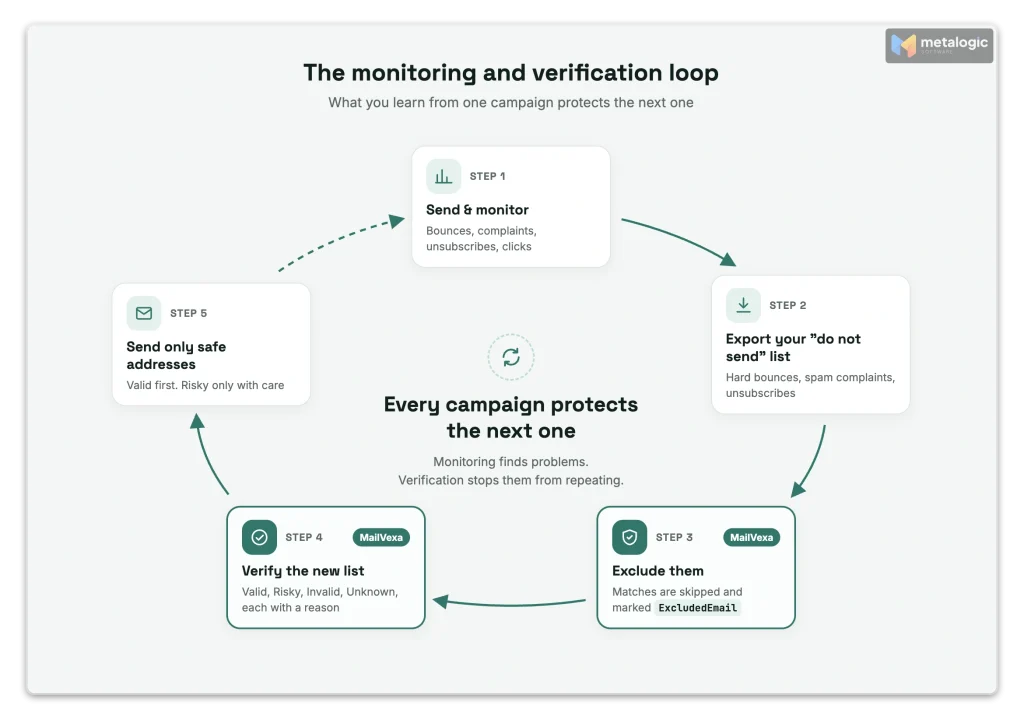
The two work best as one loop. What you learn from one campaign protects the next:
- Send and monitor. Your reports show hard bounces, complaints and unsubscribes.
- Export your “do not send” addresses from your platform: hard bounces, spam complaints, unsubscribes.
- Load them into your verifier’s exclude list, so they can never slip back into a new import.
- Verify the next list and remove addresses that would bounce.
- Send only the safe group, and monitor again.
From signal to action
| What monitoring shows | What to do before the next send |
|---|---|
| Hard bounces rising after a new import | Verify that list source before any more email goes to it |
| Past bounces and complaints keep coming back | Keep them in a permanent exclude list |
| An old segment you want to re-mail | Verify it first, then send to a small part |
| A B2B list with many “accept everything” domains | Treat catch-all results as a separate, careful group |
| You need to split reports by real provider | Export each address with its MX hosts |
How MailVexa does this
MetaLogic MailVexa is email verification software for Windows and Mac. It runs on your own computer, so your list never leaves your machine. For the monitoring loop above, these features matter most:
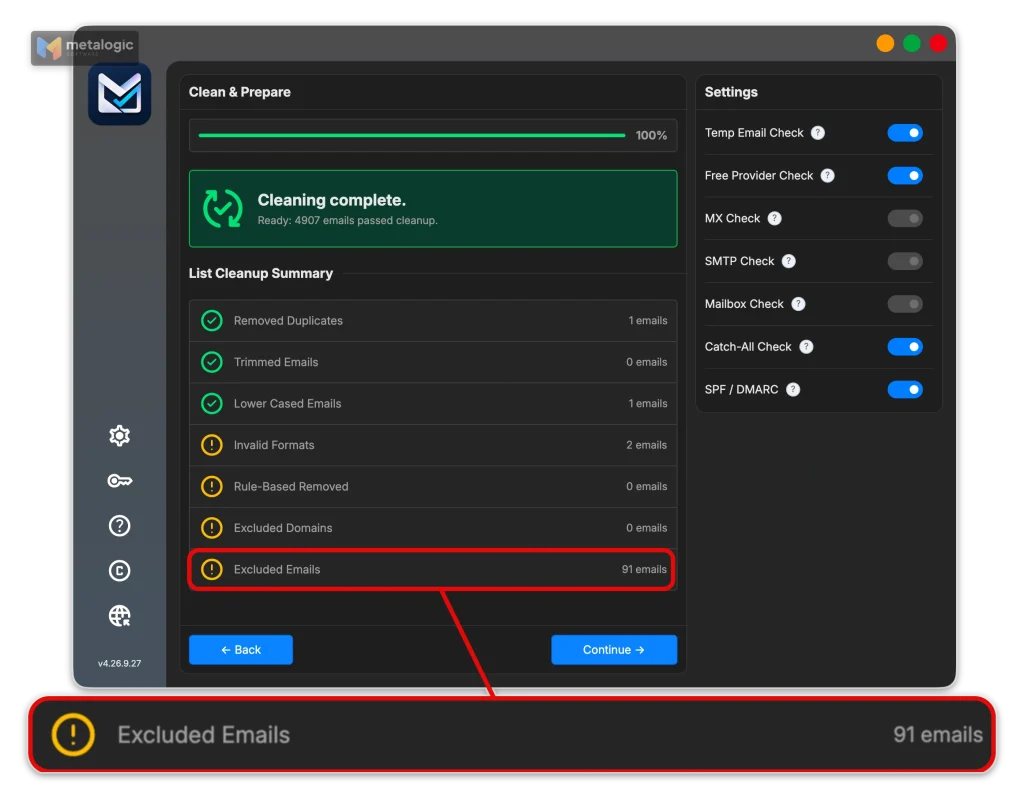
- Exclude specific emails. Paste your hard bounces, complaints and unsubscribes, or load them from a .txt file. Matching rows are not verified. They are exported as Invalid with the reason
ExcludedEmail, so you can see exactly what was removed and why. - An “Excluded Emails” counter in the cleanup summary shows how many blocked addresses were in the new file. A large number tells you something about that list source.
- Layered checks for each address: format, disposable domains, free providers, mail server (MX), SMTP and mailbox, catch-all, and the domain’s SPF/DMARC.
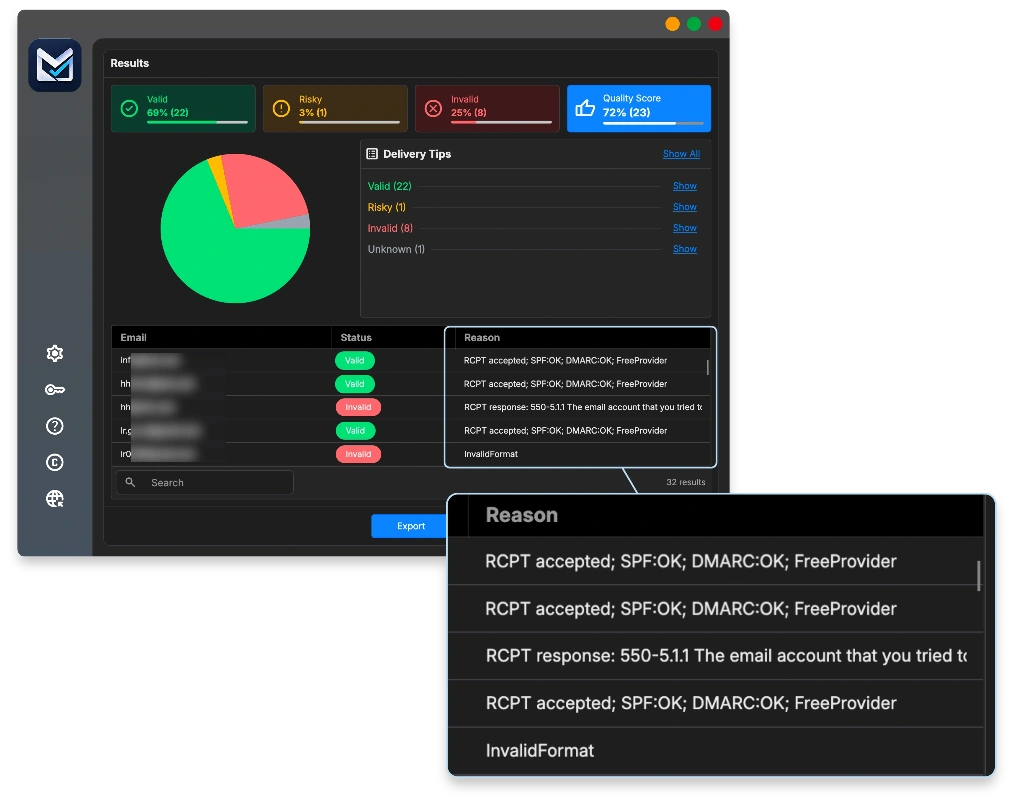
- Four clear groups: Valid, Risky, Invalid and Unknown, each with a reason. Unknown results can be checked again later.
- Export with details: status, reason, domain, MX hosts, and flags for disposable and free providers. That MX column is what lets you split your campaign reports by real provider (section 08).
- Split large exports into several files with a fixed number of rows each, if your platform has an import limit.
It imports CSV, TXT, XLSX and XLS files and keeps your other columns. With one proxy, it checks about 10,000 emails an hour. To set up your own proxy, see build your own SOCKS5 proxy.
A “Valid” result never cancels a suppression
Someone who unsubscribed or reported spam may still have a perfectly working mailbox. A verifier will say “Valid”, because the mailbox exists. But that person said no. Never remove an address from your suppression list just because it passed verification. Amazon SES, for example, keeps addresses on its suppression list until you remove them yourself. Keep yours just as strict.
Be clear about what each step does:
| Validating email does | Validating email doesn’t |
|---|---|
| Find addresses that would bounce | Prove that a person gave consent |
| Flag risky ones (catch-all, disposable) | Decide inbox or spam |
| Keep your “do not send” list out of new files | Replace monitoring after you send |
For the full routine before a campaign, read how to clean your email list. To understand each result, see email verification results explained, and for B2B lists, what a catch-all address means. New to the app? Verify an email list step by step with MailVexa. Ready to try it? Download MailVexa and test it with up to 2,000 verifications for free.
Your monitoring checklist
Save this list. Go through it for every campaign:
- Postmaster Tools is set up for the domain my emails are signed with (DKIM d=).
- I know which tools see which recipients, and which time zone each one uses.
- I have a baseline for bounces, complaints, unsubscribes and clicks.
- I check results by provider and by stream, not only the total.
- I read every rate with its count (“6 out of 7,880”).
- I wait for retries to finish before I judge a campaign.
- I don’t trust open rates alone, and I filter bot activity when I can.
- I read error codes before I guess the cause.
- I keep a change log with dates.
- I verify new or old lists before sending, and exclude past bounces, complaints and unsubscribes.
- I never remove a suppressed address because it verified as valid.
Common questions
Can Google Postmaster Tools show my exact inbox placement rate?
No. It shows compliance, spam complaints, authentication, encryption and delivery errors for personal Gmail accounts. It does not show what share of your emails landed in the inbox or in spam.
Why is my Postmaster Tools dashboard empty?
Usually for one of four reasons: the domain isn’t verified yet, you added the wrong domain (not the DKIM d= or Return-Path domain), your daily Gmail volume is too low, or data simply hasn’t arrived yet. It can take about a day.
Why does Gmail show zero spam complaints while my emails still land in spam?
Because the spam rate only counts emails that reached the inbox and were then reported. If Gmail filters your email to spam, readers can’t report it, so the rate stays low. Check clicks and delivery errors too.
Why do Postmaster Tools and my email platform show different numbers?
They measure different things. Postmaster only sees personal Gmail accounts, often only DKIM-signed email, and uses UTC days. Your platform sees all recipients in your own time zone. Compare trends, not exact daily numbers.
Can I use Microsoft SNDS with a shared IP?
Usually not. Microsoft only gives access to the people responsible for the IP, and checks this through the IP’s DNS or registration contacts. On a shared IP, ask your email platform for Microsoft data instead.
How often should I check deliverability reports?
At least before and after each campaign, plus a short weekly review of trends and a monthly review of baselines and DMARC reports. Larger senders check some numbers daily.
Does passing SPF, DKIM and DMARC guarantee inbox delivery?
No. Authentication proves who you are. It is required, but the inbox also depends on consent, complaints, engagement and your sending habits.
Can email verification replace deliverability monitoring?
No. Verification works before you send. It removes addresses that would bounce. Monitoring works after you send. It shows complaints, delays and filtering. You need both.
Sources
- Set up Postmaster Tools. Which domain to add, verification, subdomains and users.
- Postmaster Tools dashboards. Definitions, data delay, UTC, low-volume days, spam rate.
- New Postmaster Tools and API v2. Legacy interface and reputation dashboards.
- Gmail feedback loop. Feedback-ID header.
- Email sender guidelines. Spam rate 0.10% and 0.30%, no open tracking.
- Email sender guidelines FAQ. Enforcement since November 2025.
- Gmail SMTP errors and codes
Microsoft and Yahoo
- Microsoft SNDS portal
- Microsoft SNDS FAQ. Access, filter results, complaint rate, PST days, 90-day history.
- Yahoo Complaint Feedback Loop. DKIM-based, domain-based.
- Yahoo sender requirements. Spam rate below 0.3%.
Email platforms and standards
- Amazon SES: Event types. Delivery means accepted by the recipient’s mail server.
- Amazon SES: Enforcement FAQ. Bounce and complaint thresholds.
- Amazon SES: Monitoring sending activity. Virtual Deliverability Manager by ISP.
- Amazon SES: Inbox placement tests
- Amazon SES: Account-level suppression list
- RFC 9990: DMARC aggregate reporting (May 2026)
Measurement
Product
- MetaLogic MailVexa. Desktop email verification software for Windows and macOS.
Stop the next bounce before it reaches your report
Monitoring shows you what went wrong. MailVexa makes sure it doesn’t happen twice: it removes addresses that would bounce, keeps your past bounces, complaints and unsubscribes out of every new list, and shows a reason for every result, all on your own computer.
Windows and macOS. Pay once, use for life. Free 14-day trial with up to 2,000 verifications.
We build MetaLogic MailVexa, so weigh our description of it accordingly. We have no commercial relationship with any email platform or mailbox provider mentioned in this guide. Tool features, dashboard names and limits were checked in October 2026. They change often, so confirm them on each official site.