You have a list of 40,000 customers. The campaign goes out on Monday. First, you need to remove the addresses that will bounce.
So you face a simple choice. Do you upload the file to an online verification service? Or do you run the check on your own computer with desktop software?
Most guides only ask “which tool is most accurate?”. But two other questions matter just as much: where does your customer data go, and what will you pay over a whole year, not just today?
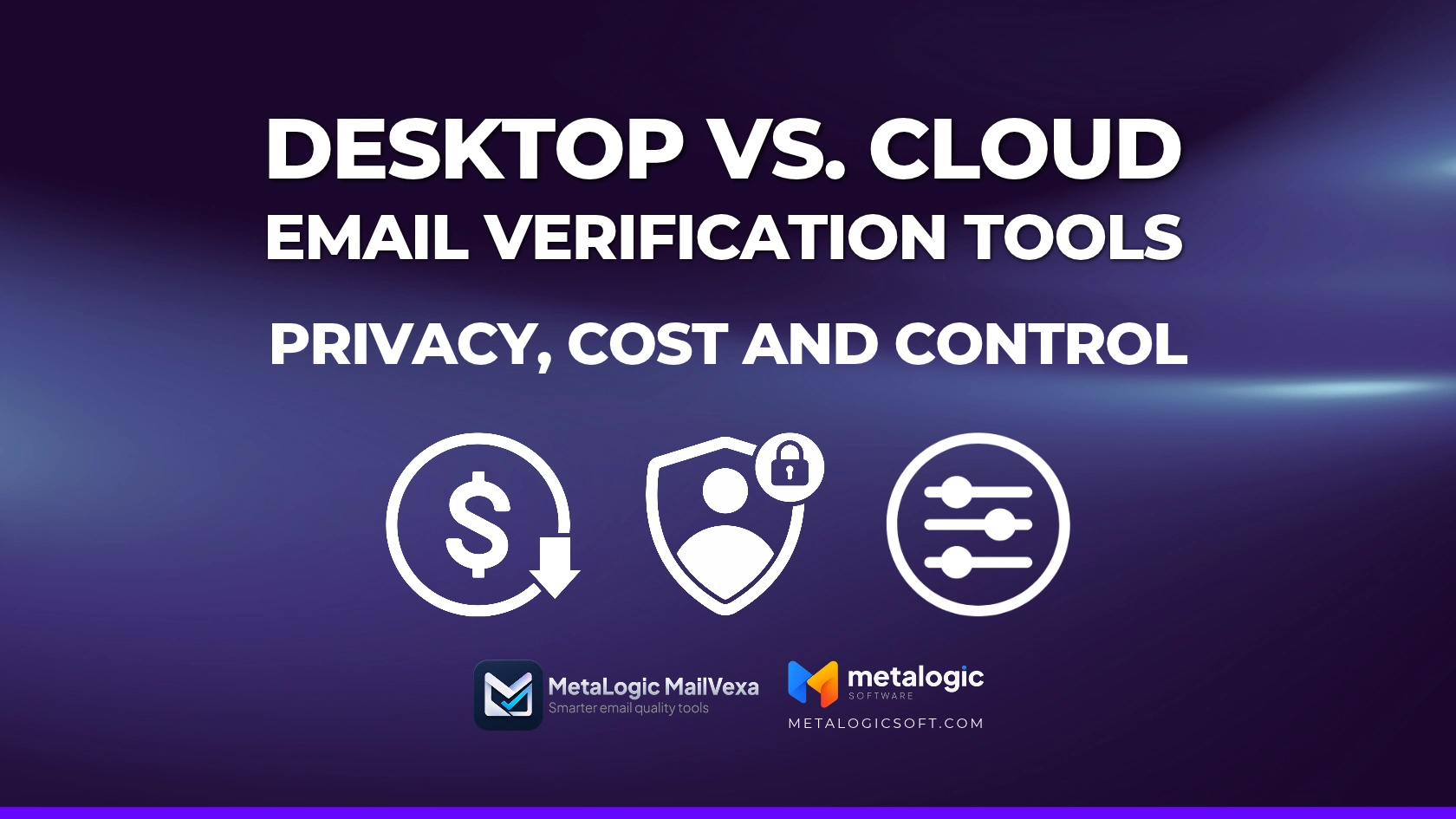
This guide compares the two ways of working on three things: privacy, cost and control. It also clears up a few common myths, shows real prices, and ends with a simple table to help you choose.
Quick answer
Desktop verification keeps your list file on your own computer and is usually paid once. It fits people who clean lists often, handle sensitive customer data, or want to see and tune every step.
Cloud verification runs on the provider’s servers and is usually paid per check. It fits people who need real-time checks on signup forms, ready-made CRM connections, or only verify a small list once in a while.
Neither is “always better”. The right choice depends on how often you verify, your data rules, and whether you need automation. Many teams use both.
Who is asking? Different users, different needs
The same question has different answers for different people:
| Who you are | What usually matters most |
|---|---|
| Solo marketer or small shop | A low, predictable cost. Simple steps. Not sharing the customer list with more companies than needed |
| Agency | Many client lists every week. Cost per list. Keeping each client’s data separate and under control |
| Team with a CRM and signup forms | Automatic checks when people sign up. Connections to other tools. Shared access for the team |
Keep your own row in mind as you read. It will make the final choice in section 10 easy.
How desktop and cloud email verification work
Both do the same job: checking if each address can receive email, before you send. If you are new to this, start with what email validation is and why it matters. The difference is where the work happens:
| Model | The usual workflow |
|---|---|
| Desktop (local processing) | You open the file in the app. The app runs the checks from your computer (or through a proxy you choose). Results and exports are saved on your computer |
| Cloud service | You upload the file, or send addresses through an API. The provider’s servers run the checks. You download the results or get them back through the API |
Three myths to drop before you compare
- “An installed app means local processing.” Not always. Some apps, add-ins and browser extensions only send your addresses to a cloud API. They use the provider’s credits and the provider’s storage rules.
- “Cloud means uploading a file by hand.” Not always. Many cloud services check addresses automatically from your CRM or your signup form.
- “Desktop means one payment, cloud means monthly fees.” Not always. Where the work happens, how you pay and which features you get are three separate questions. Some desktop tools sell yearly renewals. Many cloud services sell credits with no subscription.
Privacy: what data actually leaves your computer?
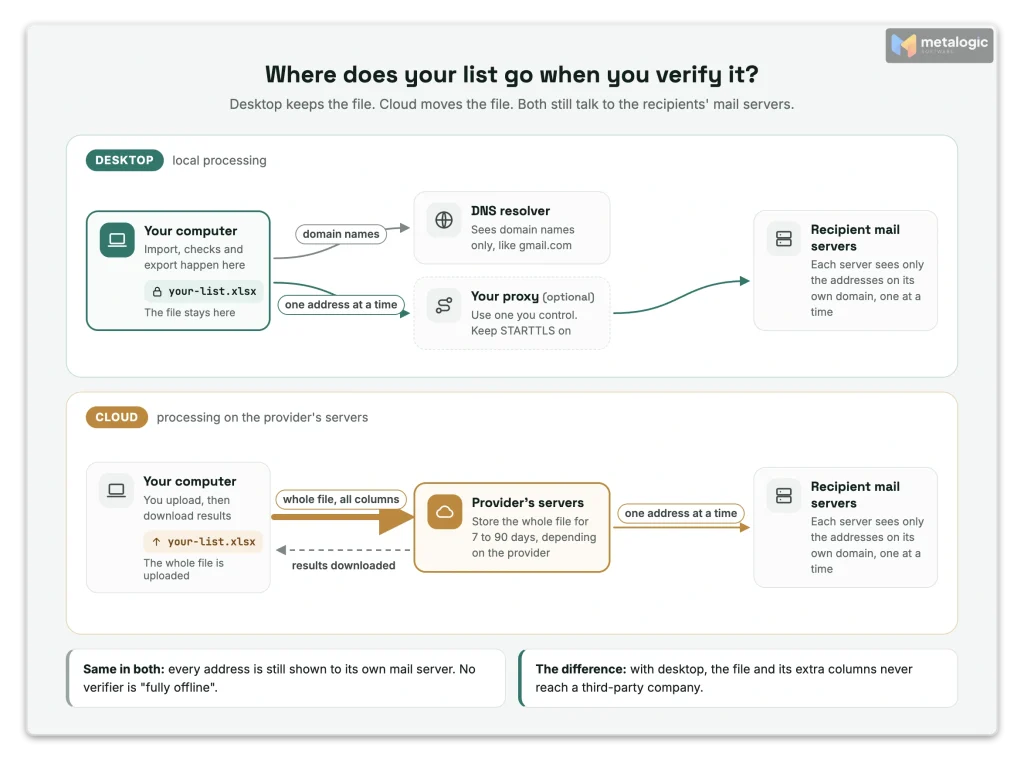
This is the biggest difference between the two models, so let’s be precise. “Not uploading the list” and “nothing leaves your computer” are not the same thing.
To check a mailbox, any verifier, desktop or cloud, has to ask the recipient’s mail server. It looks up the domain’s mail servers in DNS. Then it starts an SMTP conversation and names the address it wants to check, using the RCPT TO command defined in the email standard, RFC 5321. So each address is shown, one at a time, to the server that owns it.
Who sees what
| Who | With desktop verification | With cloud verification |
|---|---|---|
| The verification company | Nothing from your list, if the tool truly processes locally | The whole uploaded file, including any extra columns |
| Your DNS resolver | Domain names (for example gmail.com) | Not you. The provider’s resolver does this |
| Recipient mail servers | Each address on their own domain, plus your IP (or your proxy’s IP) | Each address on their own domain, plus the provider’s IP |
| Your proxy, if you use one | Where you connect. Possibly the addresses, if the SMTP session is not encrypted (see below) | — |
| Sync and backup services | Any file you save in a synced folder | The same, for files you download |
The honest way to describe local verification
“The list file stays on your computer” is true for real desktop tools. “Fully offline” is not. MailVexa’s own product page says it clearly: “Verification does need internet access to perform DNS lookups and SMTP probes — but the list itself never leaves your device.” Be careful with any tool that claims more than that.
Proxies: choose them like you choose a vendor
Desktop verifiers often connect through a proxy (section 07 explains why). A proxy passes your connection through another server. If the SMTP session is upgraded to encryption with STARTTLS before the address is named, the proxy only sees which server you connect to. If not, the proxy operator could technically read the addresses you check.
So use a proxy you control, or a provider you trust, and keep STARTTLS on. MetaLogic has a step-by-step guide to building your own SOCKS5 proxy for exactly this reason.
Send less data, whichever model you choose
Verification only needs the email address. Names, phone numbers and purchase history are not needed. Data protection laws like the GDPR call this “data minimisation”: use only the data the task requires.
- For cloud: upload only the email column. Keep the other columns in your own file and match the results back later.
- For desktop: the other columns can stay, because the file doesn’t go anywhere. A good desktop tool keeps them in the export, so you don’t need to match anything.
Local can quietly become cloud
If your list sits in a OneDrive, Dropbox or Google Drive folder, it is copied to the cloud anyway. The same is true for exports, temporary copies and backups. Desktop apps that can resume an interrupted job also keep job data on your disk (MailVexa does this so it can continue after a crash). Keep lists and exports in a folder that is not synced, and delete old exports when you’re done.
Security and retention: who protects and deletes the list?
Privacy asks who sees the data. Security and retention ask who keeps it, for how long, and how well it is protected.
With a cloud service, the provider stores your list for a while
Each provider sets its own rules. Here is how six of them describe it on their own pages (checked October 2026):
| Provider | How long uploaded lists and results are kept |
|---|---|
| DeBounce | 7 days after upload or validation, whichever is later |
| Verifalia | You choose: from 5 minutes to 30 days |
| ZeroBounce | Up to 30 days. You can delete files at any time |
| MillionVerifier | Normally within 30 days. Deleted data may stay in backups until the normal backup cycle overwrites it |
| Bouncer | 60 days, or sooner on request |
| NeverBounce | 90 days after upload, unless you delete it sooner |
These are not good or bad on their own. They are different. A 7-day policy and a 90-day policy can both be fine, if they match your own data rules. What matters is that you know the number before you upload.
“Deleted” may not mean “gone from backups”
Read the small print. MillionVerifier, for example, is open about it: “Deleted data may remain temporarily in restricted backups until overwritten in the normal backup cycle.” That’s normal practice for many online services. Ask any provider how its backups are handled.
Questions to ask a cloud provider
- Where are files processed and stored (which country or region)?
- How long are uploads, results and logs kept? Can I delete them myself?
- Does deletion include backups?
- Do you offer a data processing agreement (DPA) and a list of subprocessors?
- Is two-factor login available? Can I limit what each team member can see?
Why the DPA? Under the GDPR, a company that processes personal data for you is a “processor”. Article 28 says you may only use processors that give “sufficient guarantees” about security, under a written contract. (This is general information, not legal advice.)
With desktop software, the responsibility moves to you
If the list never reaches the software company, that company is not storing it. But now the security of the list is your job:
- Lock the computer: a login password and full-disk encryption (BitLocker on Windows, FileVault on Mac).
- Limit access: don’t share the computer account that holds client lists.
- Keep things updated: the operating system and the app.
- Decide your own retention: for example, delete exports 30 days after the campaign.
- Check your other providers: a rented proxy or server now carries your traffic, so judge it like any other vendor.
Cost: compare the total cost, not just the price tag
“$49 one time” vs. “$60 for 10,000 checks” says very little alone. The real question is: what will you spend in a whole year, for the way you actually work?
| Possible desktop costs | Possible cloud costs |
|---|---|
| The license | Credits or a subscription |
| Upgrades, support renewal or extra devices | Paying again every time you re-check the same addresses |
| A proxy or small server, if your network needs one | API access, integrations or extra users, depending on the plan |
| Your time to set it up | Your time to upload, download and manage the account |
The small print that changes the real price
- Do credits expire? Bouncer’s credits never expire. NeverBounce says on its pricing page: “Credits expire 12 months after purchase.”
- Do you pay for “Unknown” results? Bouncer and ZeroBounce say they don’t charge for them. NeverBounce’s developer docs say you pay for “the number of unique syntactically valid emails“. An Unknown address is still syntactically valid, so it is counted.
- Do duplicates cost money? Some services remove them for free. Others charge.
- Are there limits? Monthly limits, per-file limits, or minimum purchases.
- For a one-time license: how long are updates and support included? Is it really unlimited, or are there monthly limits?
A real example from our own test
In October 2026 we ran the same 999-address list through NeverBounce and MailVexa. NeverBounce counted 996 records as billable, including the 179 addresses it returned as Unknown. That’s 18% of the list paid for without a clear answer. The full test is in our email verification tools comparison. The lesson isn’t “one tool is bad”. It’s this: compare the price per usable result, not the price per credit.
Three scenarios over 12 months
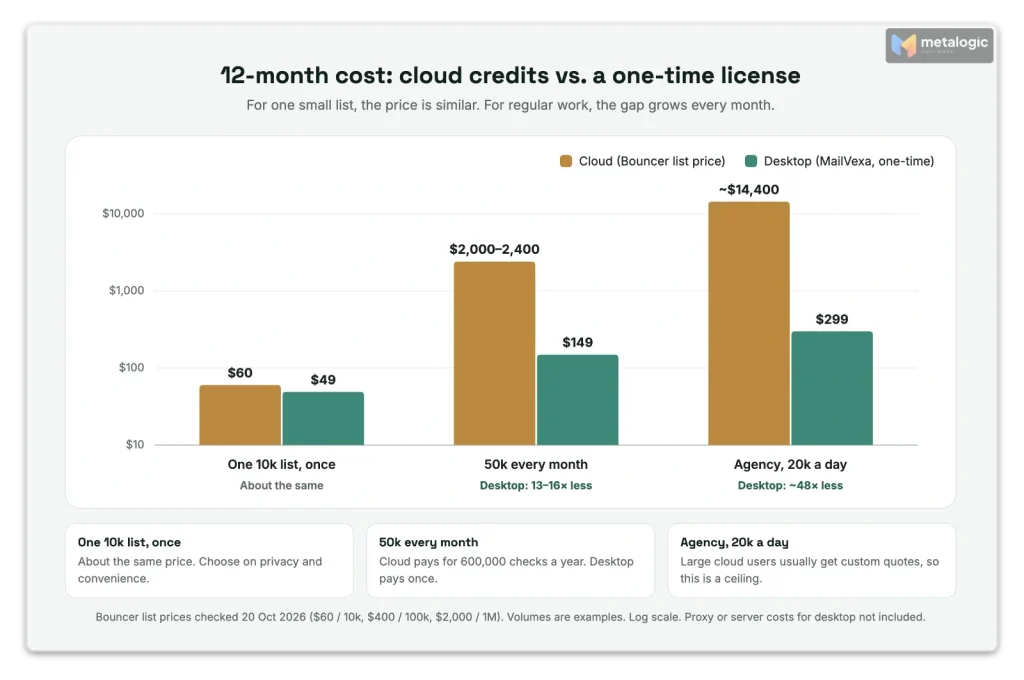
For a fair comparison, we used a cloud provider with friendly terms: Bouncer’s list prices, checked on 20 October 2026 ($60 for 10,000, $400 for 100,000, $2,000 for 1,000,000; credits never expire; Unknowns are free). The volumes are made-up examples.
| Scenario | Cloud (Bouncer list price) | Desktop (MailVexa, one-time) |
|---|---|---|
| One list of 10,000, once | $60 | $49 (Personal) |
| A 50,000 list every month (600,000 a year) | About $2,000 to $2,400 | $149 (Professional) |
| An agency checking 20,000 a day (about 7.2 million a year) | About $14,400 at the 1-million price | $299 (Agency, unlimited) |
Read the table honestly:
- For one small list, the difference is small. Choose on privacy and convenience, not price.
- For repeat work, the gap grows every month. Cloud costs grow with volume. A one-time license doesn’t.
- Large cloud customers usually get custom quotes, so the agency number is a ceiling, not a final price.
- Desktop has extra costs too: a proxy or small server if you need one, and your setup time. MailVexa’s price includes one year of updates and support.
Control: what can you configure and inspect?
“Control” sounds abstract. In practice, it means answers to questions like these:
| Control | Why it matters |
|---|---|
| Choose which checks run | Skip what you don’t need, or add extra checks for risky lists |
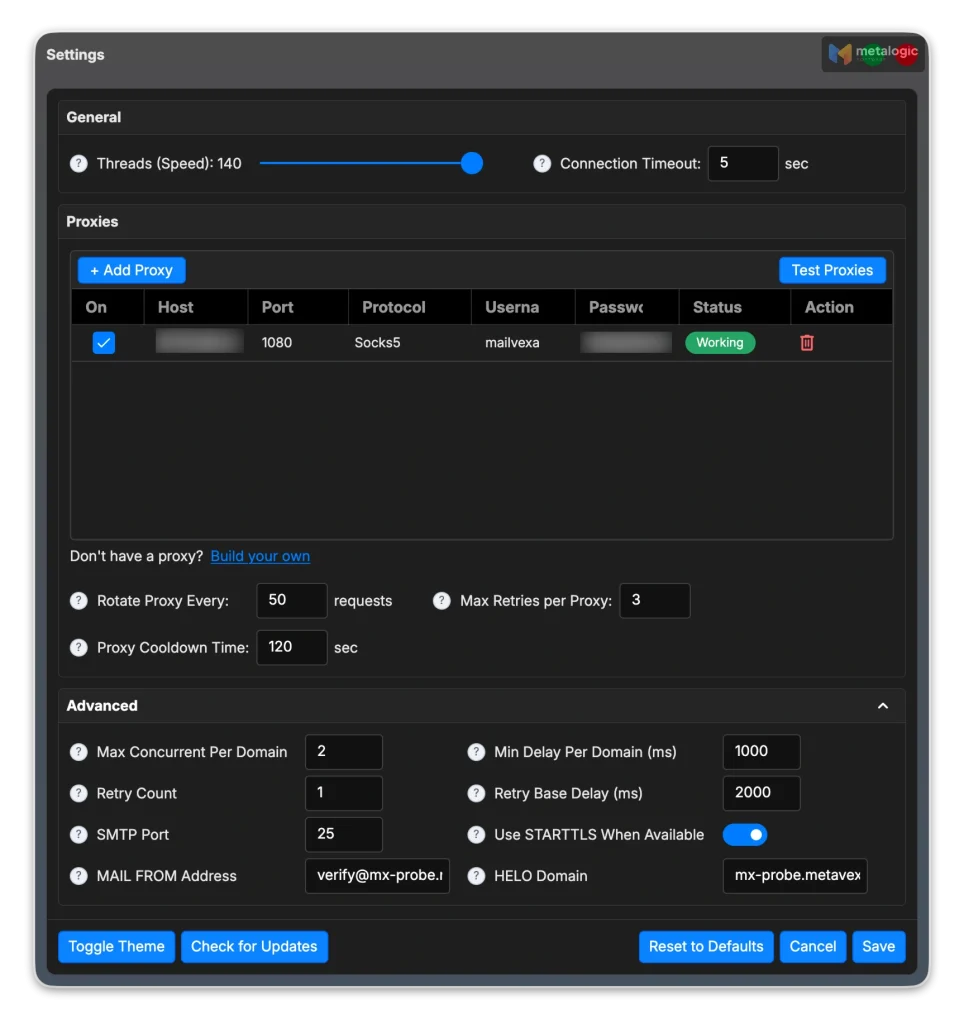
| Connections, timeouts and retries | Slow servers need patience. Too much speed causes blocks and more Unknowns |
| Speed per domain | Big providers like Gmail and Outlook limit how fast you can ask them |
| Pause, resume and recovery | Big lists take time. A crash or a closed laptop shouldn’t mean starting over |
| See the reason and the server’s reply | “Invalid” is a verdict. “550 mailbox unavailable” is evidence |
| Choose columns, groups and file format | Export exactly what your email platform needs, with your own columns kept |
| Decide how long results are kept | Your retention rule, not someone else’s |
Desktop tools often give you more of these. Cloud services often hide them, because they manage the infrastructure for you. But this depends on the product, not the model. Some cloud services show detailed reasons. Some desktop tools show almost nothing.
More control also means more responsibility
If you can set timeouts and speed, you can also set them wrong. Some people want that control. Others prefer a provider that makes those choices for them. Neither is wrong. Good desktop tools come with sensible defaults, so you only change settings when you have a reason.
Accuracy and speed: does desktop or cloud give better results?
Short answer: the location alone doesn’t decide accuracy. A verifier on a laptop and a verifier in a data center ask the same mail servers the same question. What changes the result is:
- The method: which checks run, and in what order.
- The network: whether the tool can reach mail servers on port 25, and from an IP with a clean reputation.
- Patience: how long it waits, and how often it retries after a “try again later” reply.
- Interpretation: how it labels catch-all domains, timeouts and unclear replies.
Some answers will always stay uncertain. A catch-all domain accepts every address, so no tool can prove one mailbox exists. A busy server may answer “try later” for hours. For what each label means, see email verification results explained.
The port 25 problem nobody mentions
Mailbox checks use port 25, the port mail servers talk to each other on. Many networks block it. AWS says: “By default, AWS blocks outbound traffic on port 25 for all EC2 instances.” On Google Cloud, connections to port 25 are blocked when the destination is outside your network. Many home internet providers block it too.
That’s why “just run it on a cloud server” often fails, and why desktop verifiers use proxies or a small server where port 25 is open. Cloud verification services solve this for you. It’s part of what you pay for.
Faster is not always better
Large mailbox providers protect themselves against address probing. Microsoft’s Outlook.com policies, for example, don’t allow servers to verify addresses without sending email, and can reject servers that do it. So a good verifier, desktop or cloud, slows down per domain. Opening more connections usually brings more blocks and more Unknowns, not better answers.
For reference: MailVexa checks about 10,000 emails an hour with one proxy. Adding proxies spreads the load, but the per-domain limits still apply.
A higher “Valid” percentage doesn’t prove higher accuracy
A tool that labels unclear addresses as Valid looks better on paper. Then those addresses bounce. When two tools disagree, that alone doesn’t tell you which one is right.e old exports when you’re done.
How to run a fair test yourself
- Take a sample of 500 to 1,000 addresses from your own list (one you have permission to use).
- Run it through both tools on the same day.
- Compare four things: Unknown share, the reasons given, the time it took, and the real cost.
- Look closely at the addresses where the tools disagree. Check their reasons.
- If you can, send to a small part of the list and see which predictions the bounces confirm.
Workflow and integrations: bulk files, APIs and team access
There are two different jobs, and they often need different tools:
| Bulk list cleaning | Real-time checking | |
|---|---|---|
| When | Before a campaign, or when you import an old list | The moment someone types an address in a form |
| What it needs | A file in, a clean file out | An API that answers in seconds |
| Fits best | Desktop or cloud | Usually a cloud API |
Other practical points:
- Desktop needs the computer on while the job runs. Good tools can pause and resume, so a sleeping laptop only delays the job.
- Cloud needs your account to stay active and within its plan limits, and depends on the service being up.
- Teams: cloud services often have shared accounts and user roles. Desktop tools are usually licensed per device.
- Integrations: cloud services often connect to CRMs and email platforms directly. With desktop tools, you import and export files.
You can use both
A common, sensible setup: a small cloud API checks new signups in real time, and a desktop tool cleans the full list before each campaign. You pay per check only for the trickle of new signups, and pay once for the heavy bulk work. For the bulk routine, see how to clean your email list before a campaign.
Desktop vs. cloud: side by side
| Desktop (local processing) | Cloud service | |
|---|---|---|
| Where the file is processed and stored | On your computer | On the provider’s servers, for a period set by the provider |
| What leaves your computer | Domain lookups and one address at a time to its own mail server | The whole uploaded file |
| Security and deletion | Your responsibility | Shared: the provider stores it, you choose the provider |
| Payment model | Often a one-time license (check limits and update terms) | Usually credits or a subscription |
| Cost of checking again | Usually none, within plan limits | You pay again each time |
| Network setup | May need a proxy or server with port 25 open | None. The provider handles it |
| Control and transparency | Often detailed settings and reasons (depends on product) | Varies. Often fewer settings |
| Integrations and automation | Usually files in and out | Often APIs and ready-made connections |
| Team access | Usually per device | Often shared accounts and roles |
| Scaling up | Limited by your plan, network and proxies | Limited by your budget and plan |
Which approach fits your situation?
| If this sounds like you… | Look first at… |
|---|---|
| You clean lists regularly and want the file to stay with you | A desktop tool with local processing |
| You need real-time checks on forms and a ready CRM connection | A cloud service with an API |
| You have one small list, once | Compare: a few credits vs. a license (try a free trial first) |
| Your team works in different places and shares one account | A tool with team features and user roles |
| Your company has strict rules about sending customer data out | Check the data path and the provider’s terms before you choose. Local processing is often easier to approve |
| You have both forms and big periodic lists | Both: an API for forms, desktop for bulk cleaning |
Where MailVexa fits
MetaLogic MailVexa is email verification software for Windows and Mac, built for the first row of that table: regular bulk list cleaning with the file under your control. Here is how it maps to the three topics of this guide:
Privacy
- Import, verification and export happen on your computer. Your list, license key and proxy credentials stay local.
- Your extra columns (names, notes, tags) stay in the file and come back in the export. Nothing to upload, nothing to match back.
- STARTTLS is supported, and you choose your own proxies.
Cost
| Plan (one-time payment) | Devices | Per month | Per job |
|---|---|---|---|
| Personal, $49 | 1 | 300,000 emails | 25,000 emails |
| Professional, $149 | 2 | 1,000,000 emails | 100,000 emails |
| Agency, $299 | 5 | Unlimited | Unlimited |
Pay once, use for life, with one year of updates and support included. Note that only Agency is unlimited, and proxy services are not included in any plan.
Control
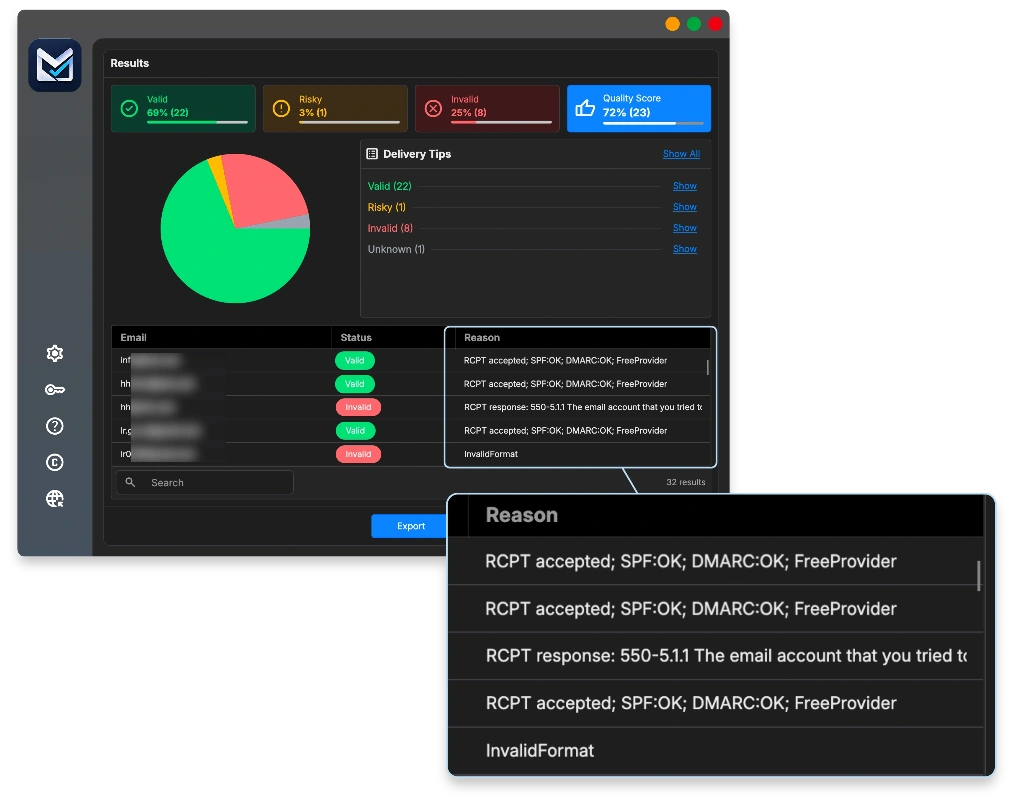
- Layered checks: format, disposable domains, free providers, MX, SMTP and mailbox, catch-all, and the domain’s SPF/DMARC.
- Engine settings: per-domain concurrency and delays, retries with backoff, per-attempt timeout, SMTP port, STARTTLS, custom MAIL FROM and HELO.
- Proxy pool: HTTP and SOCKS5 proxies, tested in parallel, with rotation and automatic cooldown after failures.
- Pause and recovery: pause any job. If the app closes or the power goes out, it picks up where it left off.
- Clear results: Valid, Risky, Invalid and Unknown, each with a reason, plus MX and SMTP detail per row.
- Your export, your way: CSV or XLSX, chosen groups and columns, an exclude list for past bounces and unsubscribes, and split files for platforms with import limits.
To be clear about what it is not: MailVexa is built for files, not for real-time form checks, and it doesn’t connect directly to a CRM. If you need those, pair it with an API service, as in section 08.
The best test is your own list. The free trial gives you 14 days and up to 2,000 verifications with all checks. Take a sample of your real list, run it, and see if the results, the speed and the setup fit your network and your routine. The step-by-step MailVexa guide walks you through it, from import to export. Download MailVexa and start with a sample today.
Before you choose: a quick checklist
- I know how often I verify, and roughly how many addresses a year.
- I know whether I need real-time form checks or only bulk cleaning.
- I know where my list would be processed and stored, and for how long.
- For cloud: I upload only the email column, and I’ve read the DPA and retention policy.
- For desktop: my list folder isn’t synced, my disk is encrypted, and I trust my proxy.
- I compared the 12-month cost, including expiring credits and paid Unknowns.
- I tested both options on a sample of my own list before deciding.
Common questions
Does desktop email verification work offline?
No. The list file stays on your computer, but each check needs the internet: DNS lookups to find the mail server, and an SMTP connection to ask about the address.
Is cloud email verification safe?
It can be. Check where the data is stored, how long it is kept, whether you can delete it, and whether the provider offers a data processing agreement. Upload only the email column to reduce what you share.
Is desktop verification always cheaper?
No. For one small list, a few cloud credits can cost about the same as a license. Desktop usually saves money when you verify regularly or in large volumes. Add proxy or server costs if you need them.
Does a one-time license mean unlimited verification?
Not always. Many one-time licenses have monthly or per-job limits. For MailVexa, only the Agency plan is unlimited. Personal and Professional have monthly and per-job limits.
Why do two tools return different results?
They use different methods, networks, waiting times and labels for unclear answers. Catch-all domains and slow servers are the most common reasons. A disagreement alone doesn’t show which tool is right.
Do I need proxies for desktop email verification?
Often, yes. Many home and cloud networks block port 25, which mailbox checks need. A proxy or small server with port 25 open solves this. Use one you control, and keep STARTTLS on.
Can I use desktop and cloud verification together?
Yes, and many teams do. Use a cloud API to check new signups in real time, and desktop software to clean full lists before campaigns.
Does a valid result guarantee inbox delivery?
No. Validation removes addresses that would bounce. Reaching the inbox also needs permission, sender authentication (SPF, DKIM, DMARC) and good sending habits. See 15 ways to improve email deliverability.
Sources
Standards and law
- RFC 5321: Simple Mail Transfer Protocol. RCPT TO and reply codes.
- GDPR (Regulation 2016/679). Article 5 (data minimisation) and Article 28 (processors).
Cloud providers: retention and pricing (checked October 2026)
- DeBounce: Data retention policy
- Verifalia: How it works. Retention from 5 minutes to 30 days.
- ZeroBounce: Deleting your data
- MillionVerifier: Privacy policy. Backups.
- Bouncer: GDPR. 60-day deletion.
- NeverBounce: Does NeverBounce store my data?
- Bouncer: Pricing. Credits never expire, Unknowns free.
- ZeroBounce: Pricing. Unknown results not charged.
- NeverBounce: Pricing. Credits expire after 12 months.
- NeverBounce: Jobs API. Billable emails.
Networks and mailbox providers
- AWS: Port 25 restrictions
- Google Cloud: Sending email from an instance. Port 25 blocked.
- Microsoft Outlook.com: Postmaster policies
Product
- MetaLogic MailVexa. Features, plans and FAQ.
Keep your list on your computer. Pay once.
MailVexa verifies bulk email lists locally, shows the reason behind every result, and gives you full control of speed, retries, proxies and exports. Test it on a sample of your own list first.
Windows and macOS. Pay once, use for life. Free 14-day trial with up to 2,000 verifications.
We build MetaLogic MailVexa, so weigh our description of it accordingly. We have no commercial relationship with any other provider mentioned in this guide. Prices, retention periods and policies were checked in October 2026 on each provider’s own pages. They change often, so confirm them before you decide. This guide is general information, not legal advice.